Managing Participants & Permissions
Verses can host multiple users at the same time, and managing participants effectively is key to creating a smooth and organized experience. As a host or moderator, you have access to user controls and permissions that allow you to manage interactions, maintain order, and enhance security.
Participant List & User Roles
The Participants Panel provides an overview of all users currently in the Verse.
You can access this panel through the main toolbar by clicking the Participants icon.
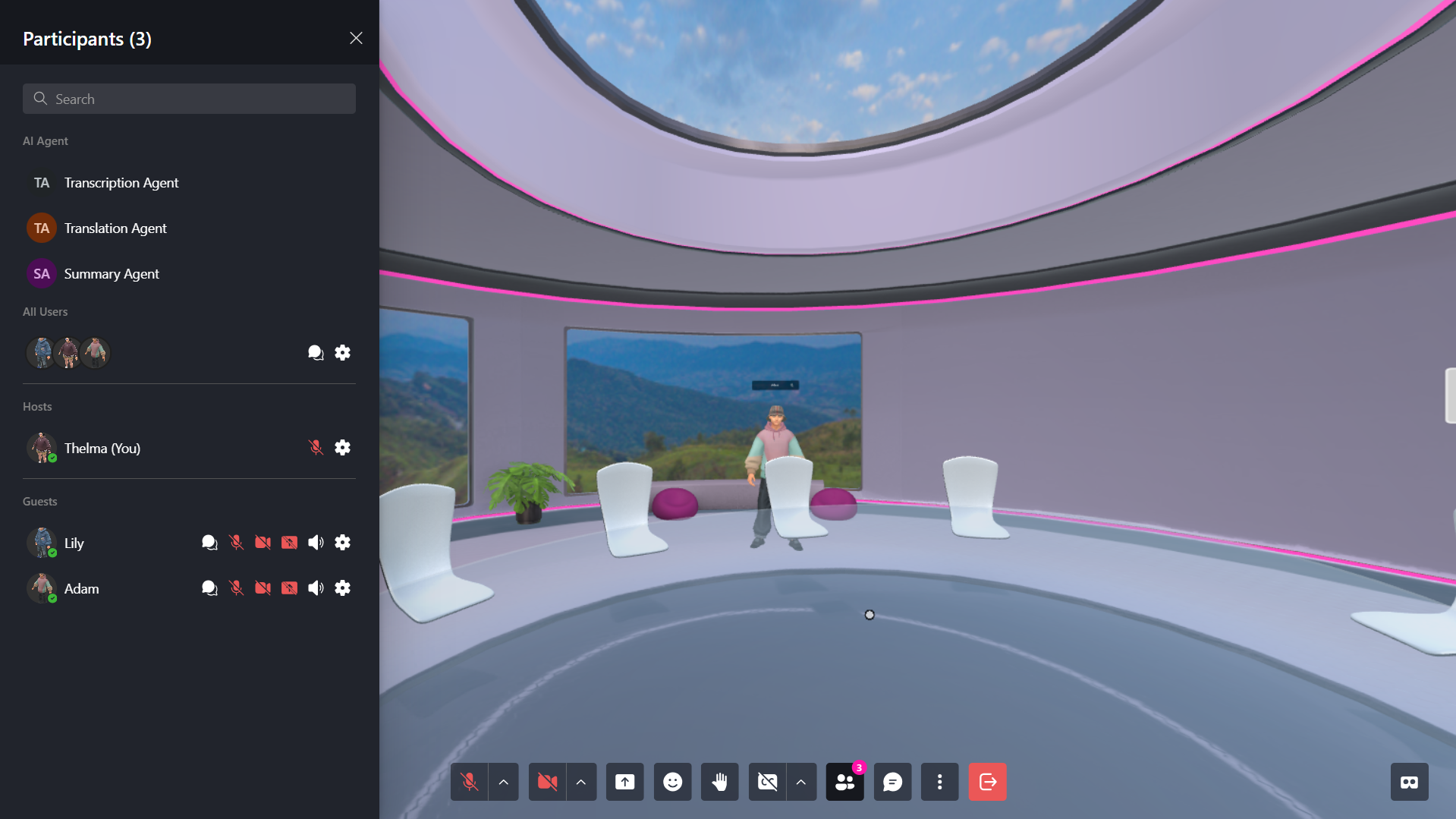
🔹 Pro Tip: Use the Participants Panel to monitor and adjust user settings in real-time.
Roles in a Verse:
| Role | Description |
|---|---|
| Host | The owner or creator of the Verse with full control. |
| Moderator | Can mute, kick, or moderate other users. |
| Guest | A regular user with default permissions. |
Managing Individual Permissions
Hosts can adjust participant permissions to control how users interact in the Verse.
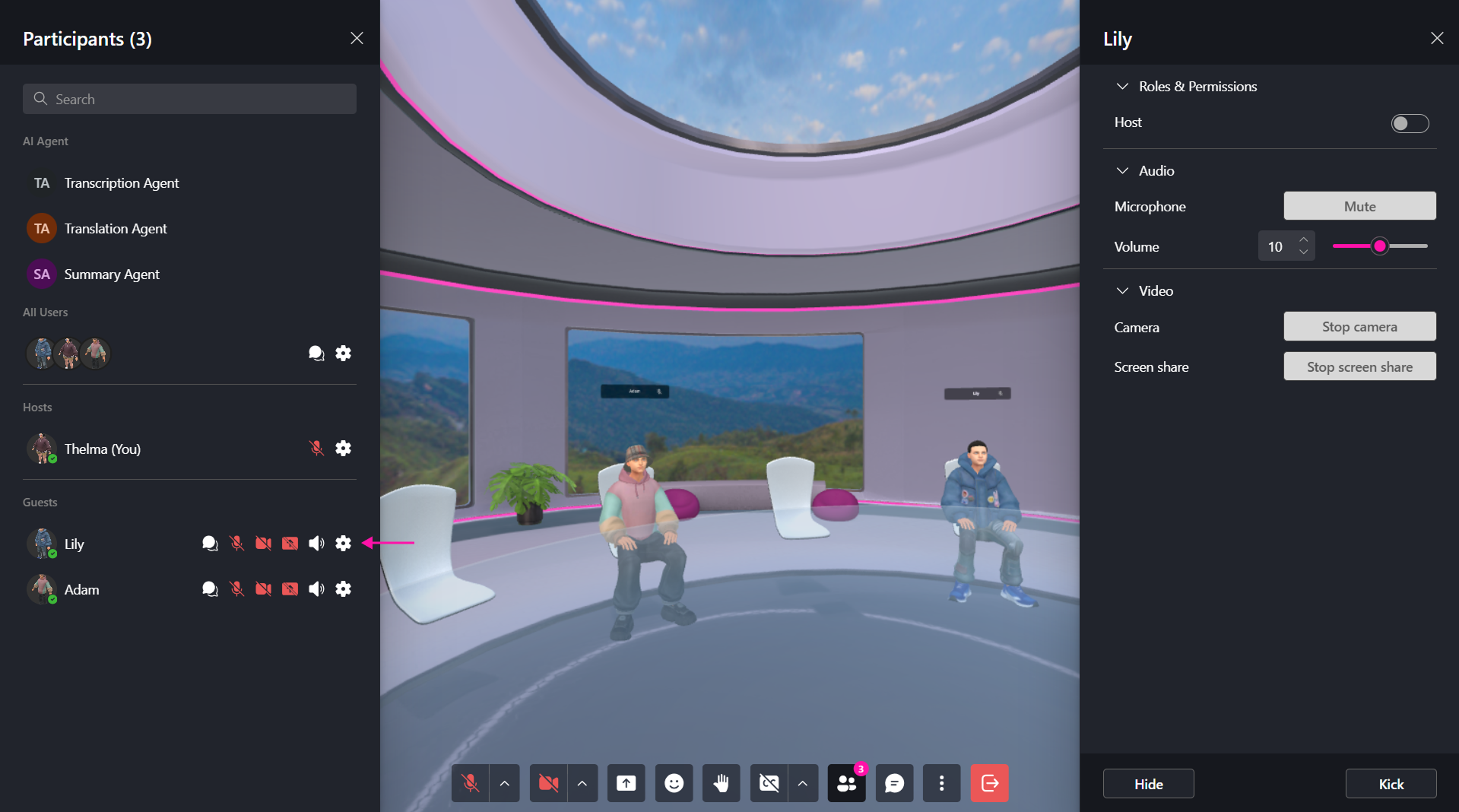
| Permission | Function |
|---|---|
| Mute User | Prevents a user from speaking in voice chat. |
| Stop Camera | Disables a user’s camera feed in the Verse. |
| Stop Screen Share | Stops a user from sharing their screen. |
| Hide Avatar | Hides a user’s avatar from view (personal setting). |
| Kick User | Removes a user from the Verse temporarily. |
Mute User
- Open the Participants panel from the toolbar.
- Find the user you want to mute.
- Click the Microphone icon to mute the user.
You can also manage audio settings through the user settings panel:
- Click the Settings icon next to the user.
- In the sidebar, locate the Audio section.
- Click Mute.
Stop Camera
- Open the Participants panel from the toolbar.
- Find the user whose camera you want to disable.
- Click the Camera icon to stop the user’s camera feed.
You can also manage camera settings through the user settings panel:
- Click the Settings icon next to the user.
- In the sidebar, locate the Video section.
- Click Stop camera.
Stop Screen Share
- Open the Participants panel from the toolbar.
- Find the user whose screen share you want to stop.
- Click the Screen Share icon to stop screen sharing.
You can also manage screen sharing through the user settings panel:
- Click the Settings icon next to the user.
- In the sidebar, locate the Video section.
- Click Stop screen share.
🔹 Pro Tip: Use the Participants Panel to monitor and adjust user settings in real-time.
Hide Avatar
- Open the Participants panel from the toolbar.
- Find the user you want to hide.
- Click the Settings icon next to the user.
- In the user settings sidebar, click Hide.
🔹 Note: Hiding a user is a personal setting and only affects your view. The user remains visible to other participants in the Verse.
Kick User
- Open the Participants panel from the toolbar.
- Find the user you want to remove.
- Click the Settings icon next to the user.
- In the user settings sidebar, click Kick.
🔹 Note: Kicked users are removed from the current Verse session. If the Verse remains accessible to them, they may be able to rejoin.
Promoting Moderators
Moderators help manage Verses by controlling users, settings, and permissions.
How to Promote a User to Moderator:
- Open the Participants Panel.
- Select a user.
- Click "Host" to grant moderator privileges.
🔹 Note: Users must be logged in to be promoted.
Moderator Tools for Managing a Verse
Moderators have special tools that allow them to enforce rules, remove disruptive users, and maintain order in public or private Verses.
| Permission | Function |
|---|---|
| Object Creation & Movement | Allow/restrict placing and moving objects. |
| Camera Creation | Enable/disable users from spawning cameras. |
| Pinning Content | Let users pin objects so they persist. |
| Drawing & Emojis | Enable/disable 3D drawing tools and emoji spawning. |
| Flying Mode | Allow/restrict users from flying. |
🔹 Pro Tip: To see detailed settings for managing permissions and moderation tools, visit the Verse Configuration Page.
Everyone Panel
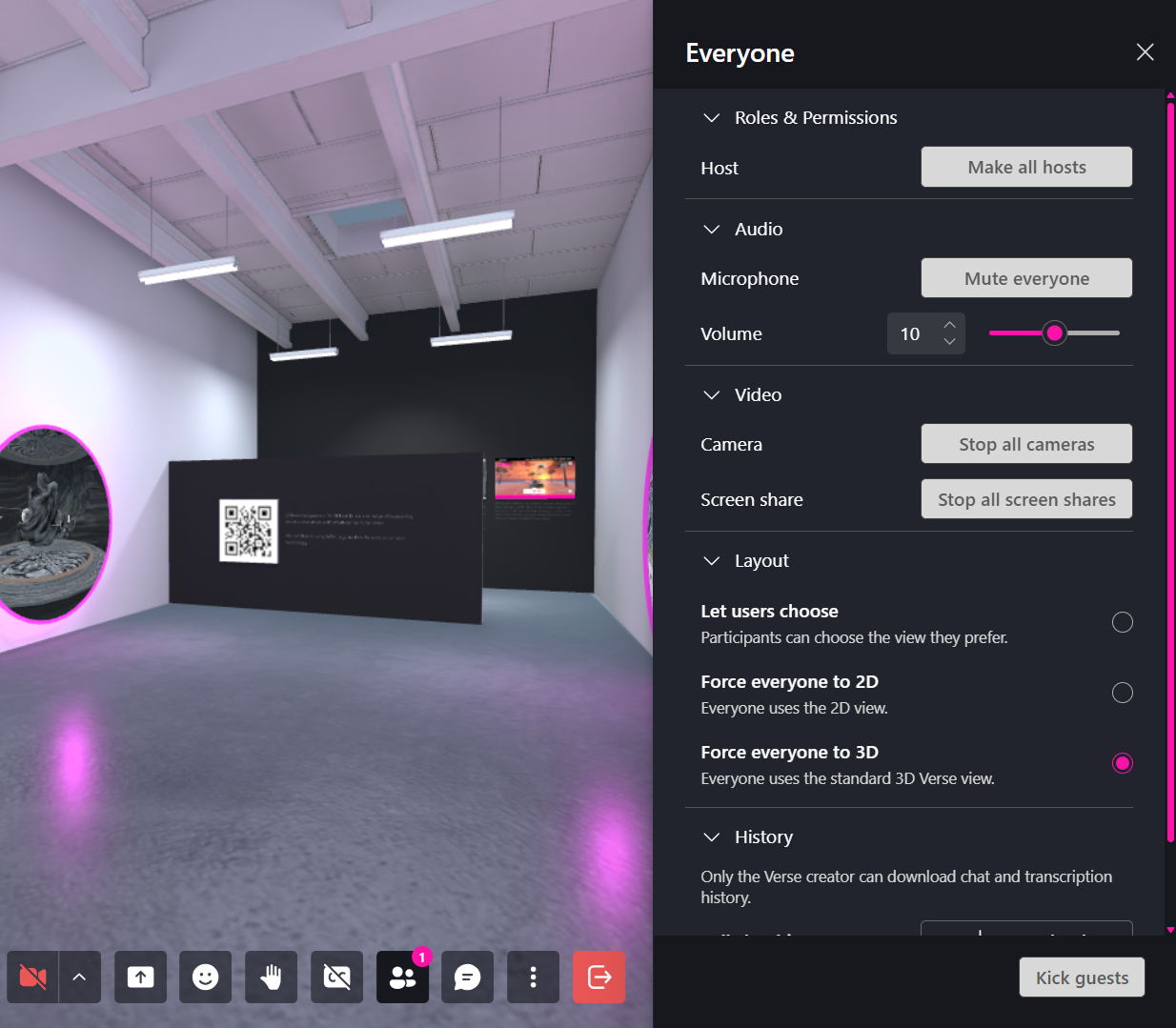
The Everyone Settings panel allows Verse creators and hosts to manage room-wide controls that affect all participants. These settings provide moderation tools for audio, video, layout preferences, and room history management.
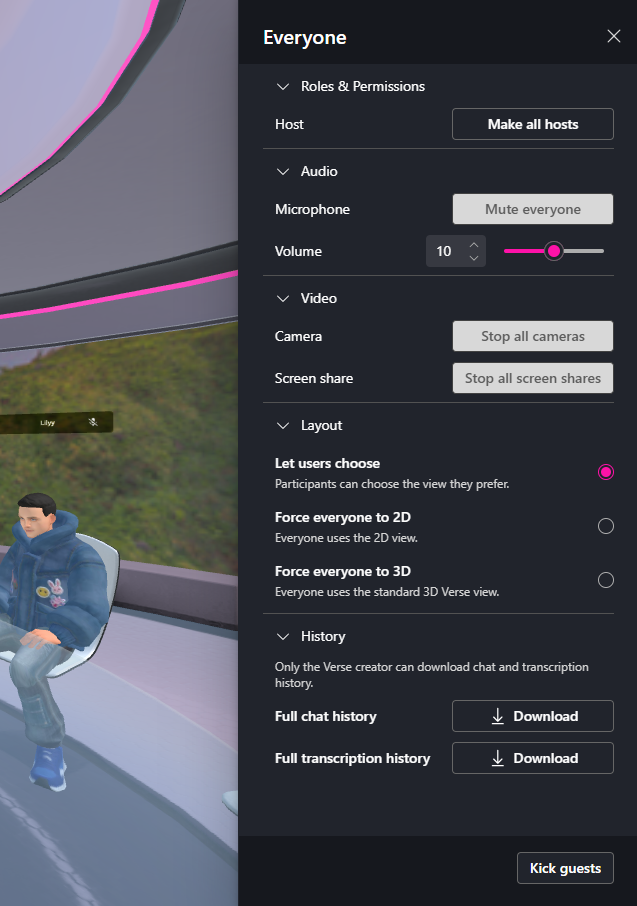
Accessing the Everyone Settings Panel
To access these settings:
- Open the Participants panel.
- Click the Settings icon next to Everyone.
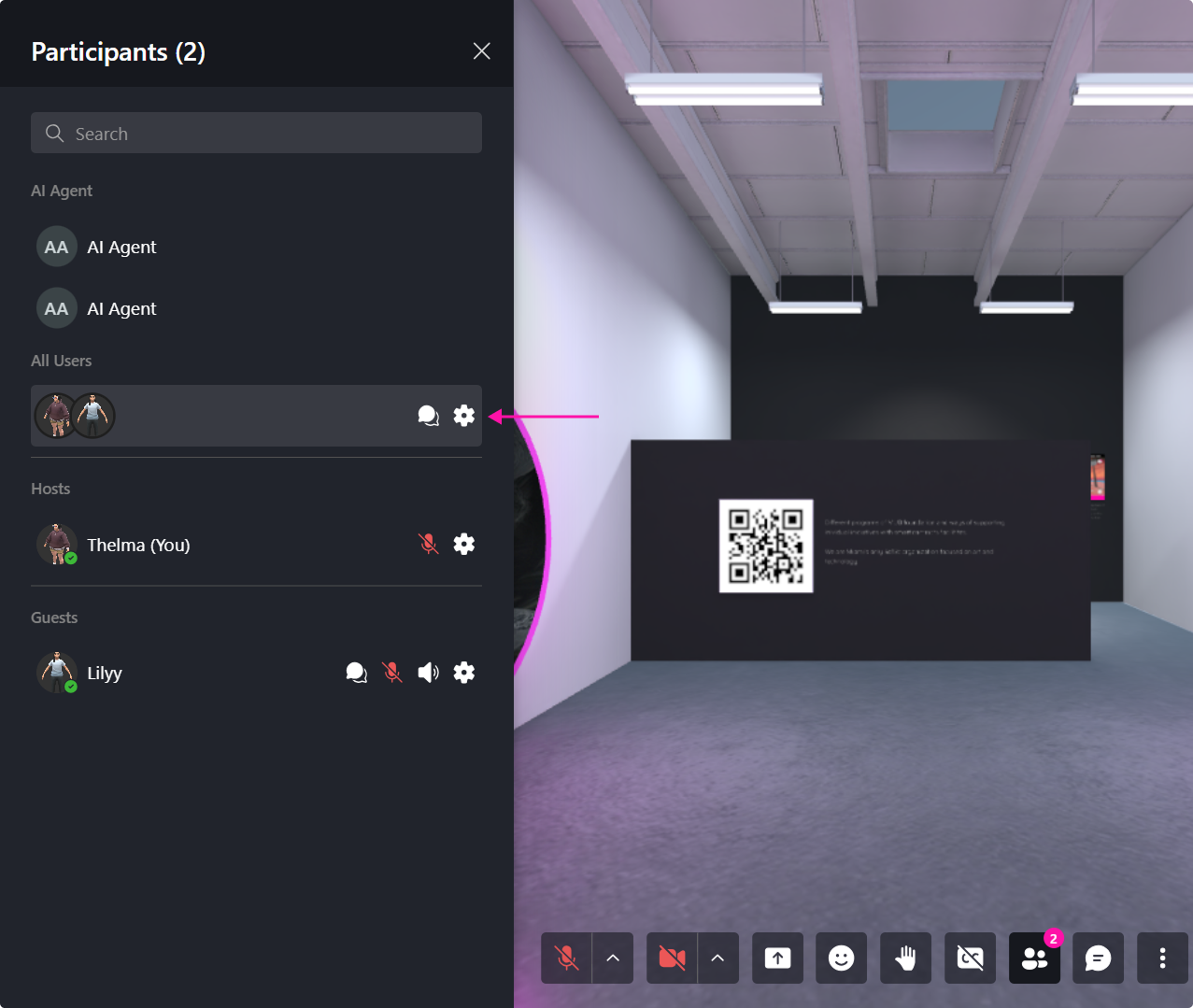
- The Everyone Settings panel will open.
Microphone
The Microphone section provides controls for participant audio.
Mute Everyone
The Mute Everyone button disables microphone audio for all participants in the room.
This is useful when:
- Starting presentations
- Reducing background noise
- Managing large meetings
- Focusing participant attention
Hosts may still manage individual participant microphone permissions as needed.
Volume
The Volume slider controls the overall voice volume level for participants in the room.
You can:
- Increase volume to make participants easier to hear.
- Reduce volume to minimize audio distractions.
- Adjust the level using the slider or numeric value selector.
Video
The Video section allows hosts to manage camera and screen-sharing activity across the room.
Stop All Cameras
The Stop All Cameras button disables active participant cameras.
This can be useful when:
- Optimizing performance
- Reducing visual distractions
- Switching focus to presentations or shared content
- Managing bandwidth usage
Stop All Screen Shares
The Stop All Screen Shares button immediately ends all active screen-sharing sessions.
Use this option when:
- A presentation has concluded
- An incorrect screen is being shared
- Screen-sharing conflicts occur
- Moderators need to regain control of the session
Layout
The Layout section controls how participants view and interact with the Metaverse environment.
🔹 Note: Only one layout mode can be active at a time.
Let Users Choose
Participants can freely switch between available viewing modes based on their preferences.
When enabled:
- Users can select their preferred view.
- Individual layout choices do not affect other participants.
- The room provides maximum flexibility.
Recommended for:
- Open collaboration spaces
- Casual meetings
- Training environments with mixed user preferences
Force Everyone to 2D
All participants are automatically placed into the 2D View.
When enabled:
- Users cannot switch to 3D mode.
- The room behaves like a traditional web-based experience.
- Hardware requirements are reduced.
Force Everyone to 3D
All participants are automatically placed into the 3D Verse View.
When enabled:
- Users experience the full immersive environment.
- Avatar movement and spatial interactions remain available.
- Participants cannot switch to 2D mode.
History
The History section allows the Verse creator to download room activity records.
🔹 Note: Only the Verse Creator can access and download room history files.
Full Chat History
Downloads a complete record of all public chat messages generated within the room.
The exported file includes:
- Message content
- User information
- Timestamps
- Chronological chat activity
This is useful for:
- Meeting records
- Auditing conversations
- Post-event reviews
- Documentation purposes
To download:
- Downloading Chat History
To download the chat history:
- Open the Participants panel.
- Click the Settings icon next to All Users.
- The Everyone Settings panel will open.
- Navigate to the History section.
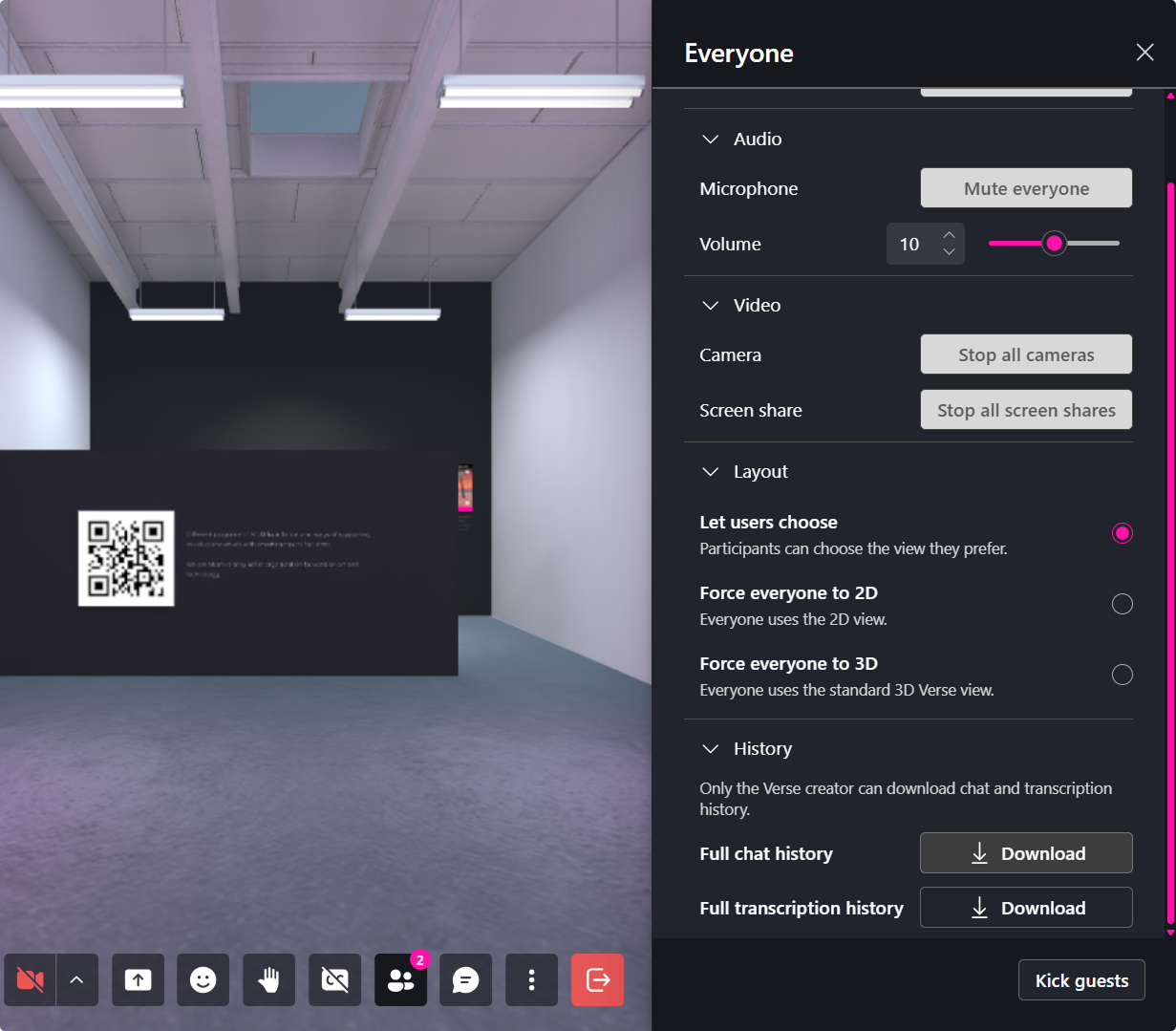
- Click Download next to Full Chat History.
For detailed instructions on managing chat history, refer to the dedicated section.
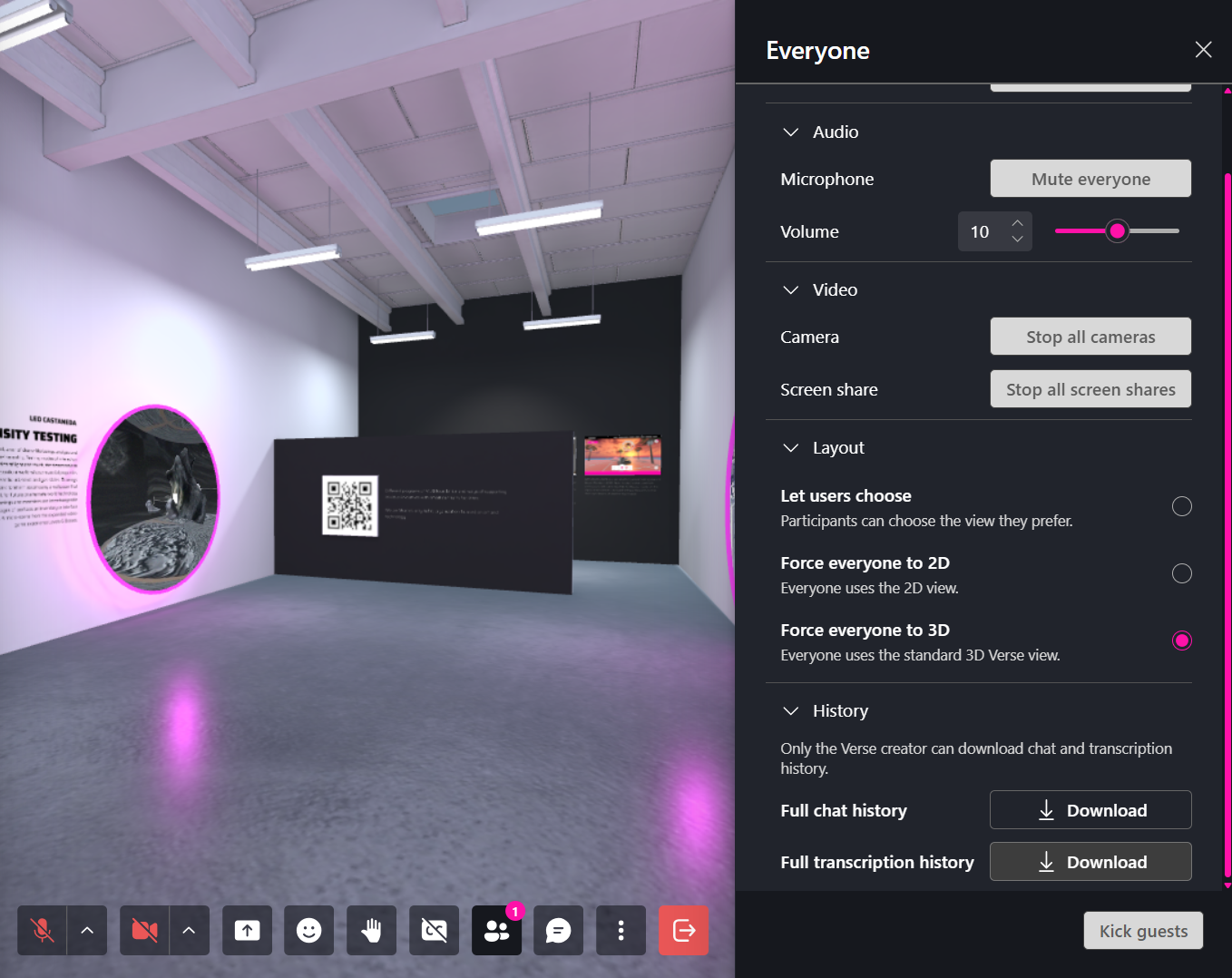
Full Transcription History
Downloads all available speech-to-text transcripts generated during voice conversations.
The exported file may include:
- Voice transcriptions
- Speaker identification (when available)
- Timestamps
- Chronological conversation records
This is useful for:
- Meeting documentation
- Accessibility support
- Discussion reviews
- AI-generated summaries and reports
To download:
- Navigate to History.
- Click Download next to Full Transcription History.
Kick Guests
The Kick Guests button removes all guest participants from the room.
This option can be used to:
- End public access sessions
- Remove temporary attendees
- Prepare a room for private meetings
- Reset room participation
🔹 Note: Hosts and authorized users remain in the room. Only guest participants are removed.