Interface
The Metaverse UI is designed for an intuitive experience across desktop, mobile, and VR.
Whether you're navigating a Verse, engaging in conversations, or interacting with objects, the UI elements help you fully immerse yourself in the digital world.
Main UI Toolbar
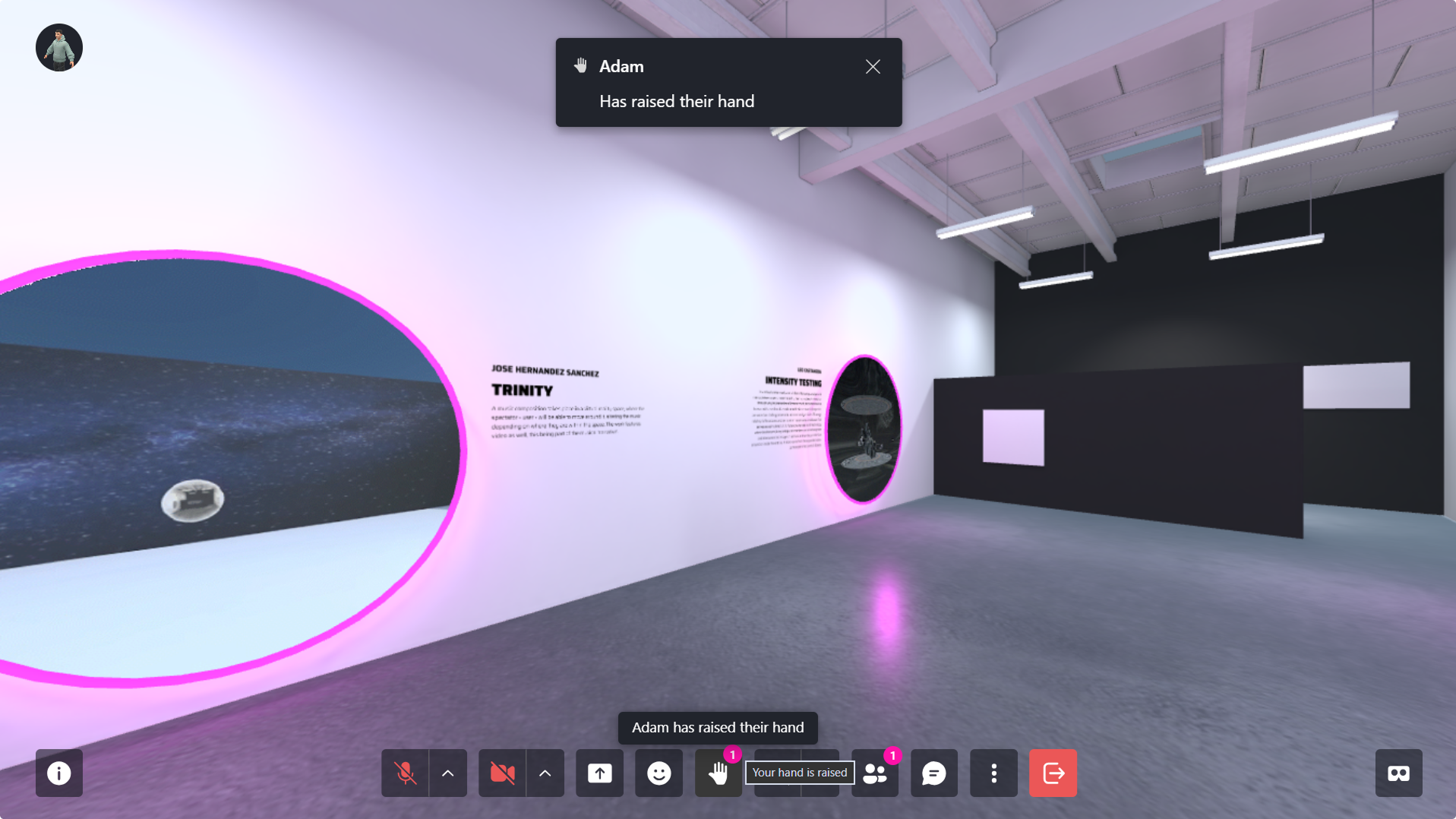
The main toolbar provides quick access to essential interactions within a Verse.
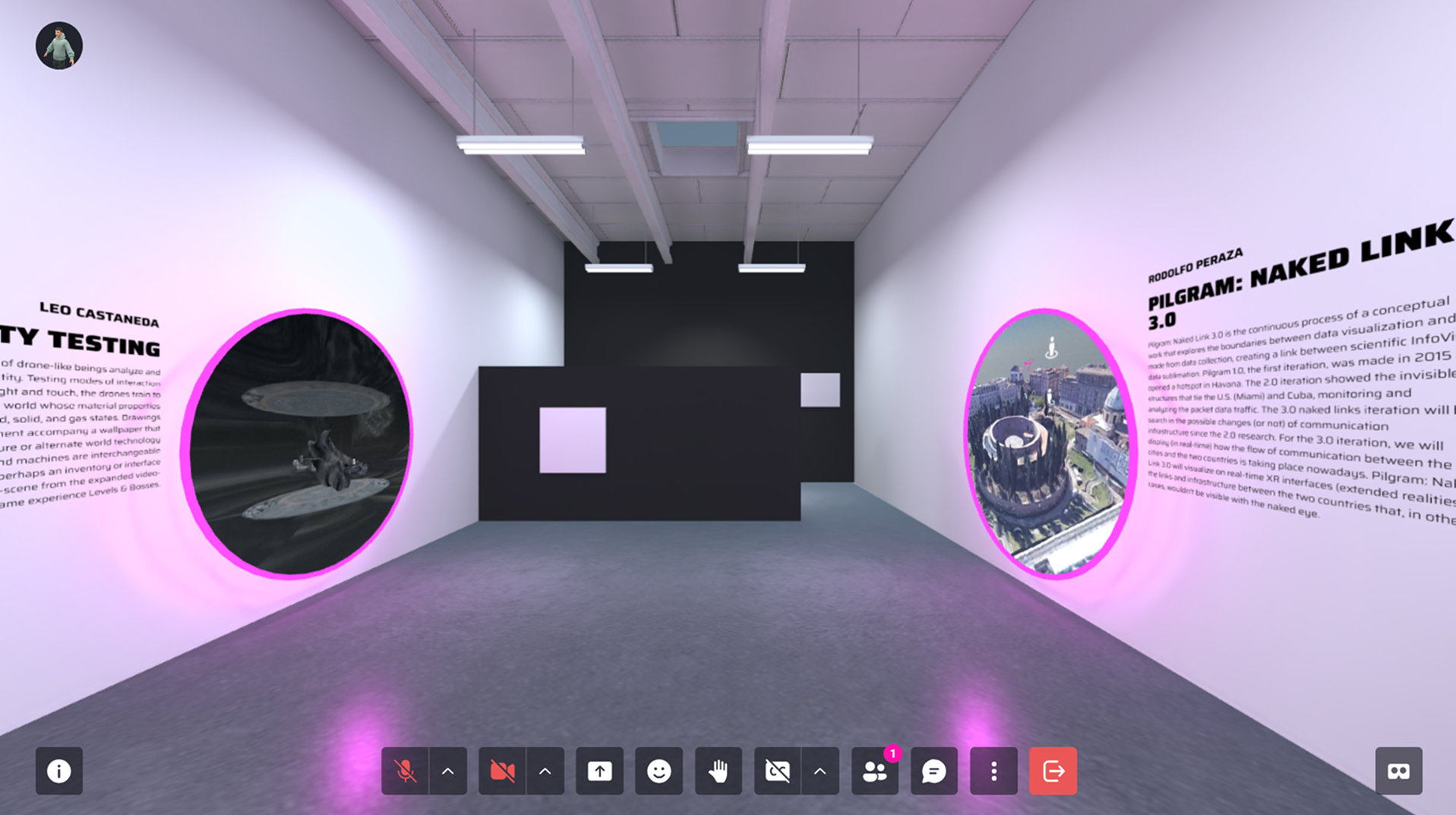
| UI Element | Function |
|---|---|
| Info | Opens a dialog with details about the Verse and sharing options. |
| Portals | Displays a 2D sidebar with available portals in the Verse. |
| Mute | Toggles your microphone on/off. |
| Camera | Enables/disables the camera (appears as a video in the room). |
| Share | Shares your desktop screen as a video within the room. |
| Emotes | Opens a menu to spawn emoji reactions in the Verse. |
| Raise Hand | Displays a hand icon above your avatar, notifying moderators. |
| CC | Enables/disables transcription captions |
| Participants | Shows who's in the Verse, their device type, and moderation options. |
| Chat | Enables text communication, object creation, and commands. |
| More | Expands the toolbar with additional interaction tools (see below). |
| Leave | Exits the current Verse and returns you to the lobby. |
| VR Button | Opens the VR code to enter virtual reality, or directly transition into immersive mode if you're using a VR headset. |
More Menu Options
The More menu contains additional tools for customizing your experience.
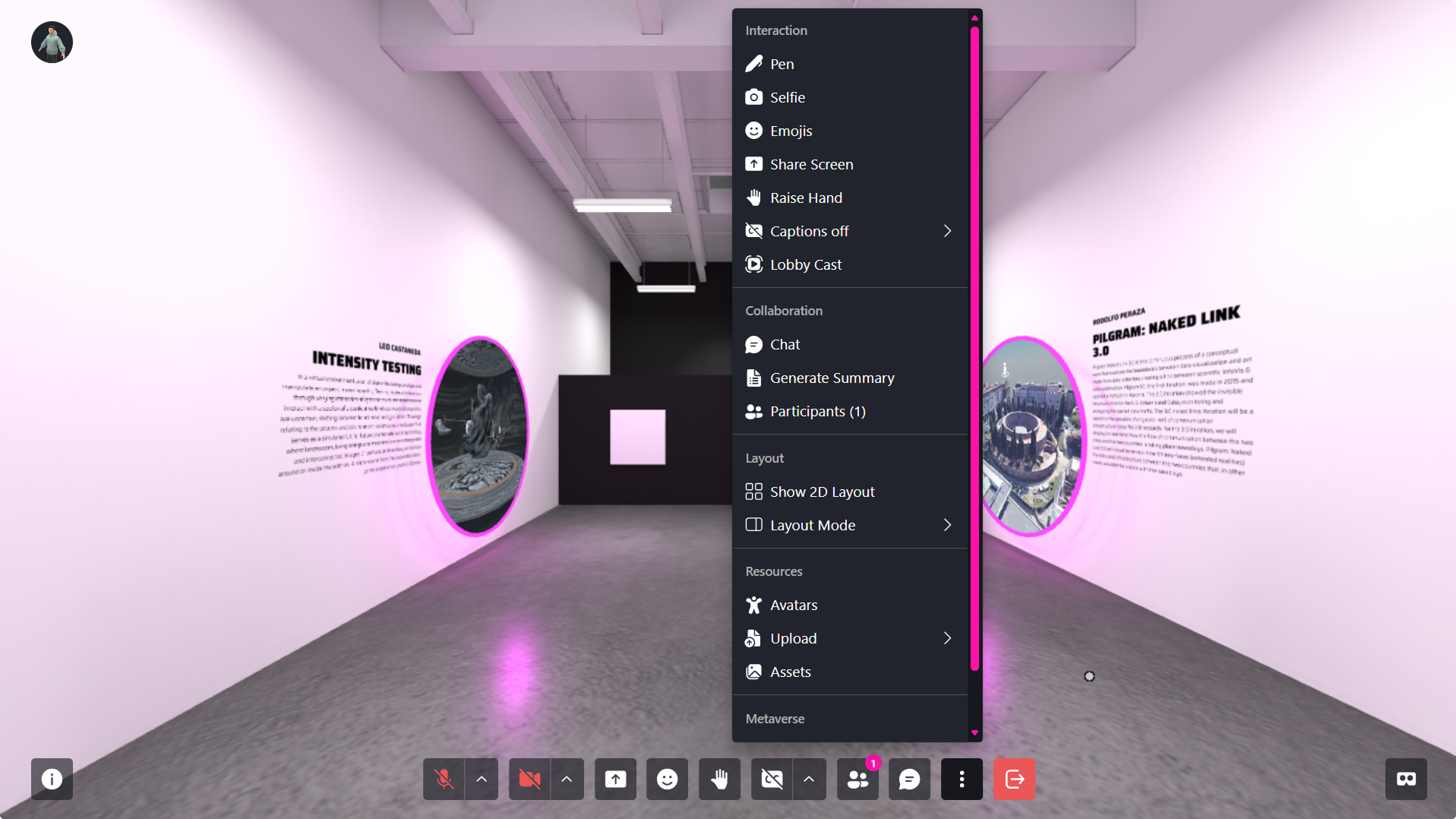
| Function | Description |
|---|---|
| Pen | Draw in 3D space, adjust pen size and color, undo strokes, and generate 3D models from drawings. |
| Selfie Camera | Capture photos or videos within the Verse. Captured content appears in the chat with a shareable link. |
| Emojis | Express yourself using emoji reactions within the Verse. |
| Share Screen | Share your device's screen with other participants in the Verse. |
| Raise Hand | Indicate that you would like to speak by using the Raise Hand icon. |
| Lobby Cast | Broadcast your avatar's point of view directly to the lobby experience. |
| Chat | Open the chat panel to send and receive text messages. |
| Participants | Display the list of active users currently in the Verse. |
| Generate Summary | Create AI-generated summaries of activity within a Metaverse room. |
| Show 2D Layout | Display the Verse's 2D floor plan to assist with navigation and spatial orientation. |
| Manage 2D Layout | Control how the 2D experience is available to Verse users. Available options include: |
| - Enable 2D Layout: Enable or disable the 2D layout system for the Verse. | |
| - Let Users Choose: Allow visitors to freely switch between 2D and 3D layouts. | |
| - Force 2D Layout: Require all users to experience the Verse in 2D mode only. | |
| - Force 3D Layout: Require all users to experience the Verse in 3D mode only. | |
| Avatar | Select and place an avatar in the Verse for others to use. |
| Upload | Add new files or media to the Verse, including Files, Digital Art, and Digital Twin Art. |
| Assets | Access uploaded and system assets for quick reuse within the Verse. |
| Settings | Access Verse or user settings, depending on your permissions. |
| Help | Access support resources, including Documentation, the Guided Tour, and the Report a Bug option. |
Generate Summary
The Generate Summary feature allows participants to create AI-generated summaries of activity within a Metaverse room. Summaries can be generated from chat messages, voice transcriptions, private conversations, and agent interactions, making it easy to review discussions, decisions, and key topics without reading through the entire session.
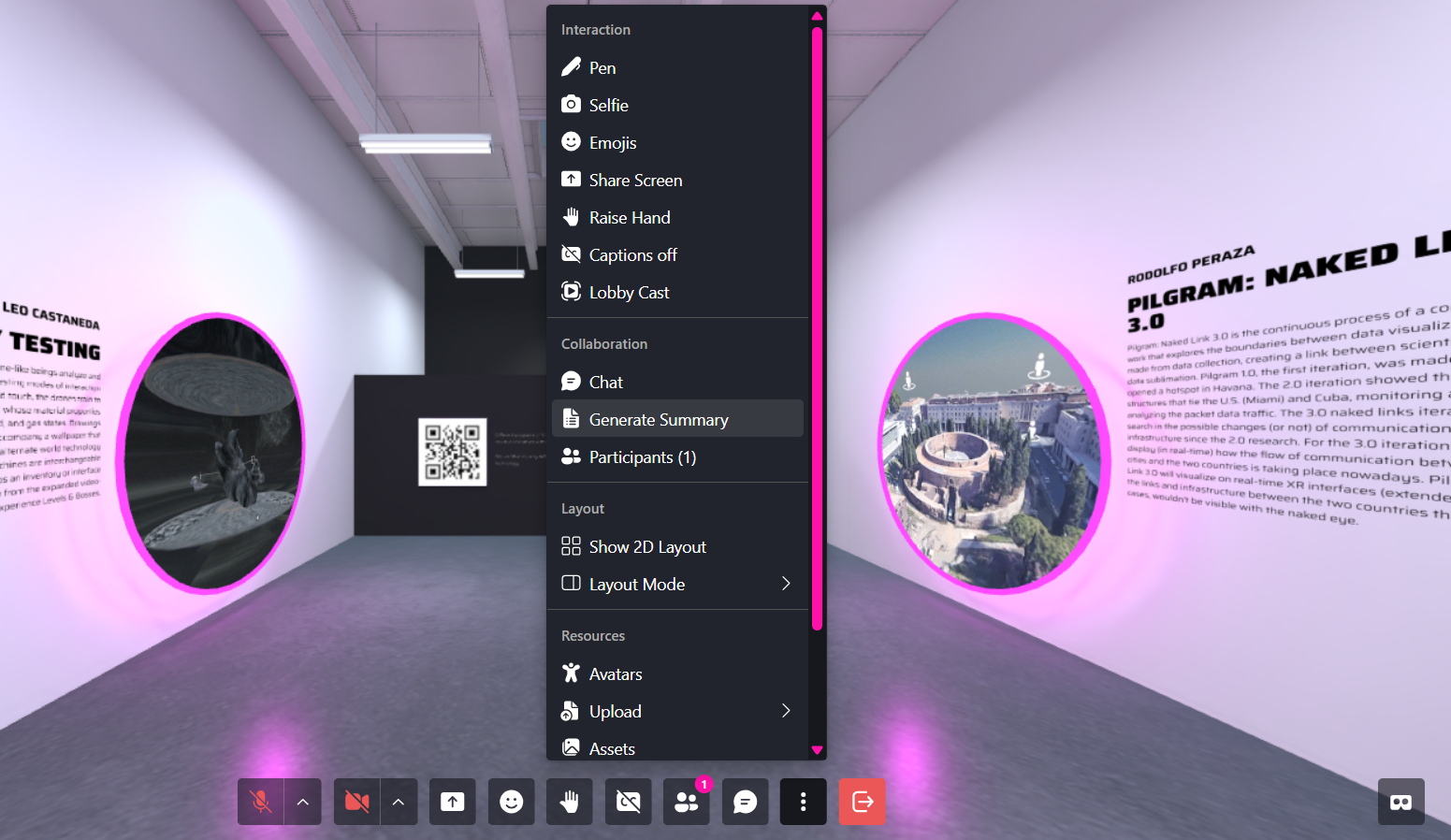
Accessing Generate Summary
- Join a Metaverse room.
- Open the More Options menu (⋮) from the bottom toolbar.
- Under Collaboration, select Generate Summary.
- Select your desired Time Range.
- Choose the File Format.
- Select one or more Data Sources.
- Click Generate.
- When processing is complete, a notification will appear indicating that the summary is ready.
- Click Download from the notification.
- Save the generated file to your device.
The downloaded file will contain the AI-generated summary in the selected format.
Configuring a Summary
Before generating a summary, you can customize several options.
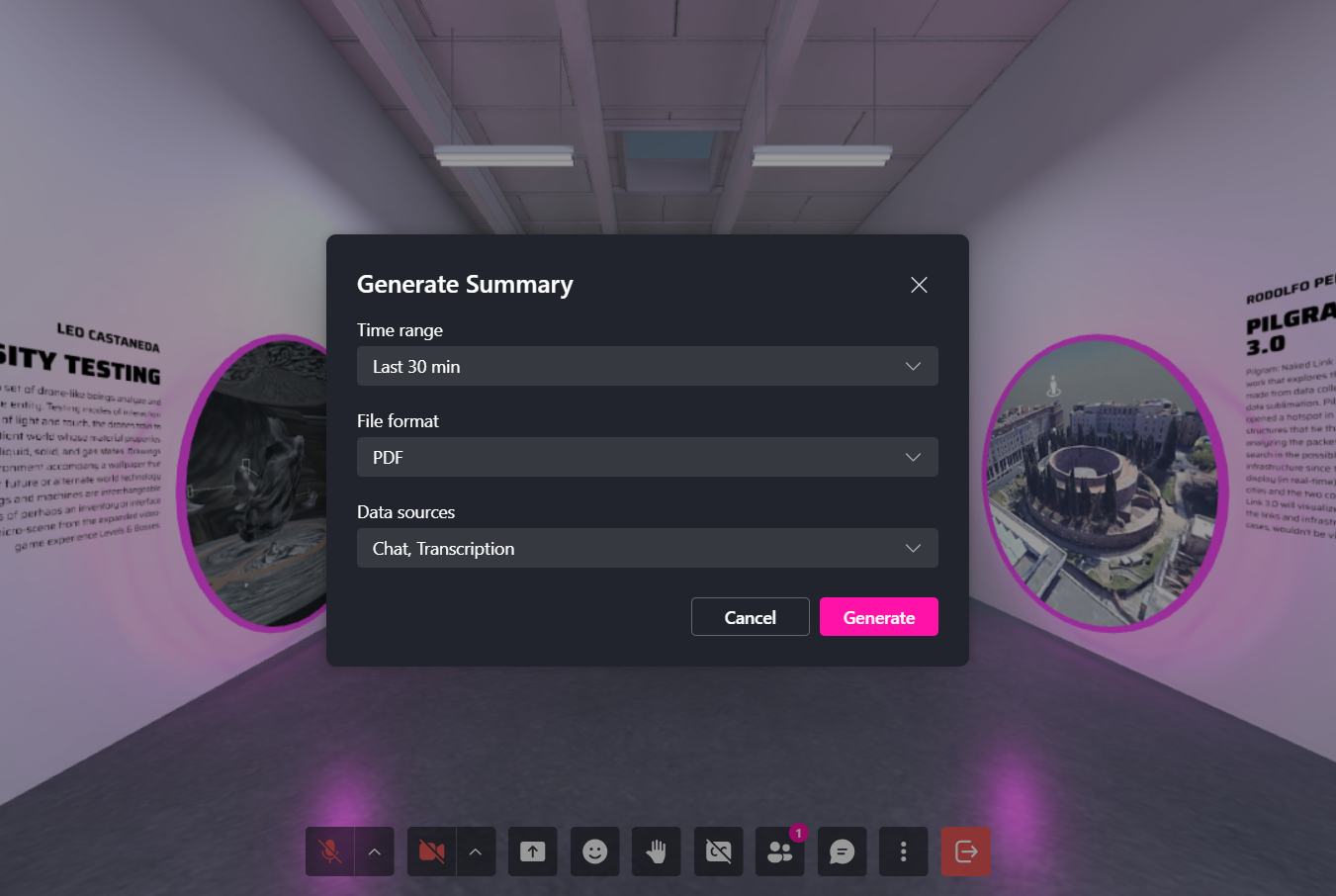
- Time Range
Choose the period of activity you want to summarize.
Available options include:
| Option | Description |
|---|---|
| Last 15 min | Summarizes activity from the previous 15 minutes. |
| Last 30 min | Summarizes activity from the previous 30 minutes. |
| Last 1 hour | Summarizes activity from the previous hour. |
| Last 3 hours | Summarizes activity from the previous 3 hours. |
| Last 24 hours | Summarizes activity from the previous 24 hours. |
| Custom | Select a custom date and time range. |
🔹 Note: Longer time ranges may take slightly longer to process depending on the amount of data.
- File Format
Select the format for the generated summary.
| Format | Description |
|---|---|
| Generates a downloadable PDF document suitable for sharing, printing, or archiving. | |
| Markdown | Creates a Markdown file that can be edited or used in documentation systems. |
| Text | Generates a plain text file for simple viewing or import into other tools. |
- Data Sources
Choose which room data should be analyzed when generating the summary.
| Source | Description |
|---|---|
| Chat | Public chat messages exchanged in the room. |
| Private Chat | Direct messages exchanged between participants. |
| Agent Chat | Conversations involving AI Agents in the room. |
| Transcription | Speech-to-text transcripts generated from voice conversations. |
You can select one or multiple data sources depending on the information you want included in the summary.
Examples:
- Selecting Chat and Transcription summarizes both written messages and spoken conversations.
- Selecting Agent Chat focuses on interactions with AI agents.
- Selecting all sources creates a comprehensive room summary.
Chat Features & Commands
Verses support public & private messaging and commands for extra functionality. In certain Verses equipped with AI Agents, you can also use the chat to interact with them, engaging in voice or text-based conversations.
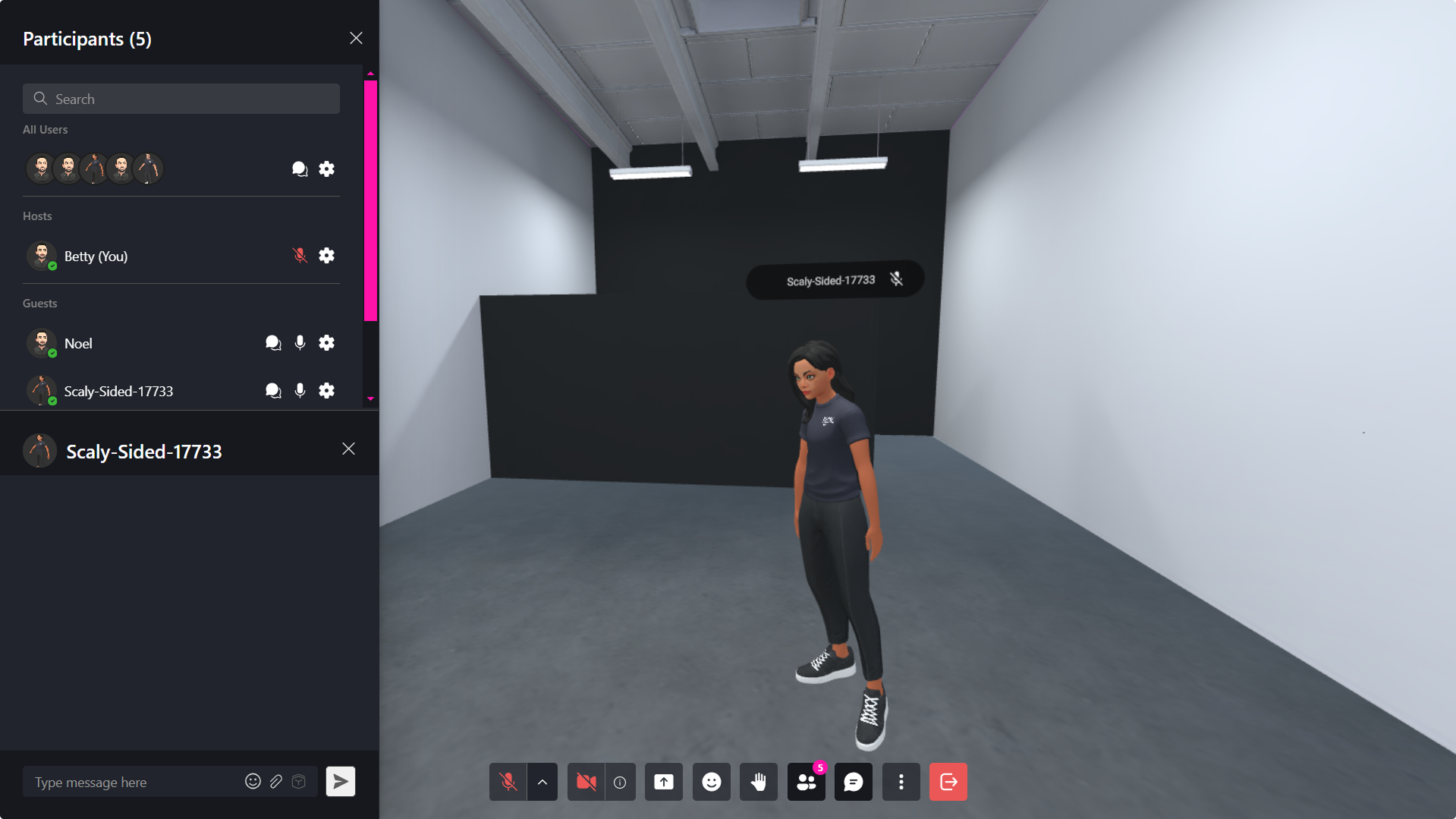
Chat Commands:
| Command | Effect |
|---|---|
/leave | Disconnects from the room. |
/grow | Increases your avatar size. |
/shrink | Decreases your avatar size. |
/duck | Spawns a duck object. |
/fly | Toggles fly mode. |
/scene <url> | Changes the scene (Moderators only). |
/rename <new name> | Renames the room (Moderators only). |
/audiomode | Toggles spatial audio effects (Experimental). |
🔹 Pro Tip: Use
/flyfor better mobility when navigating large Verses.
Markdown Support
The Metaverse Chat allows users to communicate effectively using Markdown formatting, enhancing readability and expressiveness within conversations.
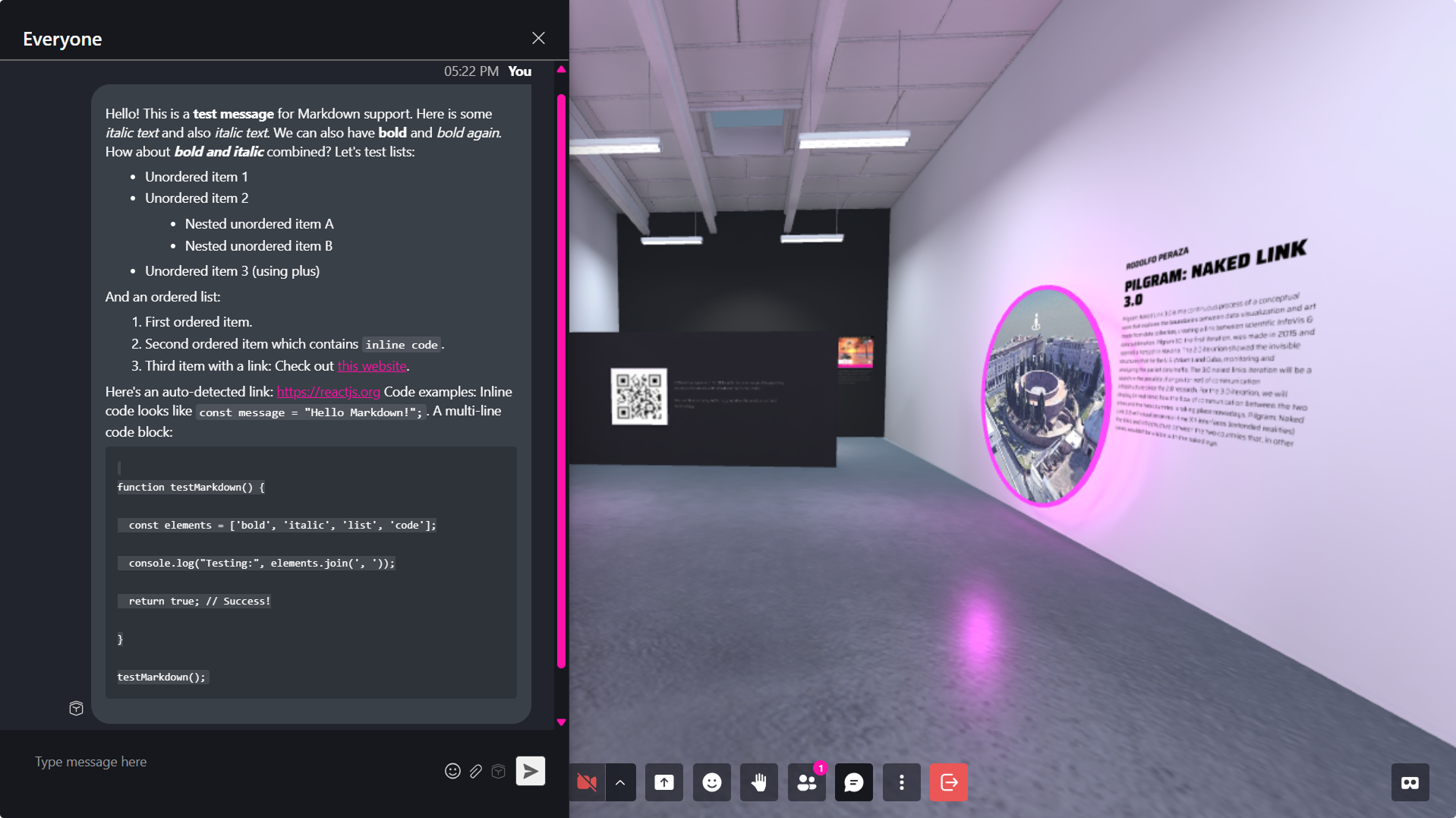
You can style their messages dynamically using:
| Feature | Syntax | Example |
|---|---|---|
| Bold | **text** or __text__ | **Bold text** |
| Italic | *text* or _text_ | _Italic text_ |
| Strikethrough | ~~text~~ | ~~Strikethrough~~ |
| Bold and italic | ***text*** | ***Bold and Italic*** |
| Headings | # Heading 1 ## Heading 2 ### Heading 3 | ## Section Title |
| Lists | - Item (unordered) 1. Item (ordered) | - First item 1. First item |
| Links | [Link Text](URL) | [Visit Site](https://example.com) |
| Code Blocks | `inline code` ```code block``` | `command` ```print("Hello")``` |
| Line Breaks | Text with two spaces at end Text\ | Line one Line two\ |
| Task Lists | - [ ] Task - [x] Completed | - [ ] Buy groceries - [x] Finish project |
| Emoji Shortcodes | :smile: | :smile: |
AI Agents in the Metaverse
In the Metaverse, you'll find Verses with AI Agents trained on specific topics. You can interact with an Agent by:
- Getting close to it in the Verse.
- Starting a chat through the Participants Sidebar.
This chat allows you to engage with the AI via voice or text, creating dynamic and interactive experiences.
Chat Translation
Some chat experiences support built-in translations.
You can enable translation to receive live translations of new messages.
Translation will only apply to messages sent after the feature is activated—previous messages will not be translated. You can also disable translation at any time.
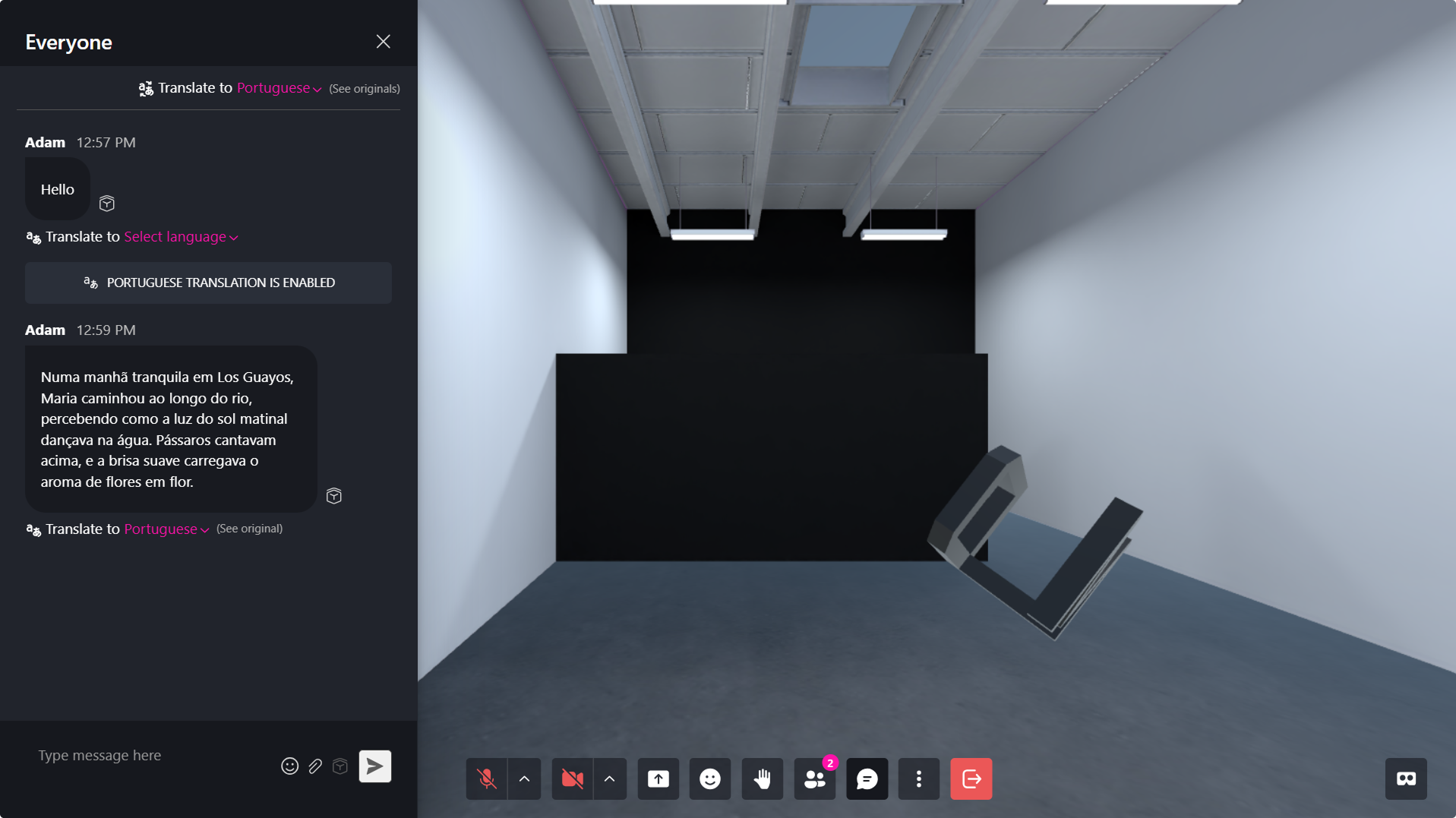
If needed, you can translate individual messages without enabling translation for the entire chat.
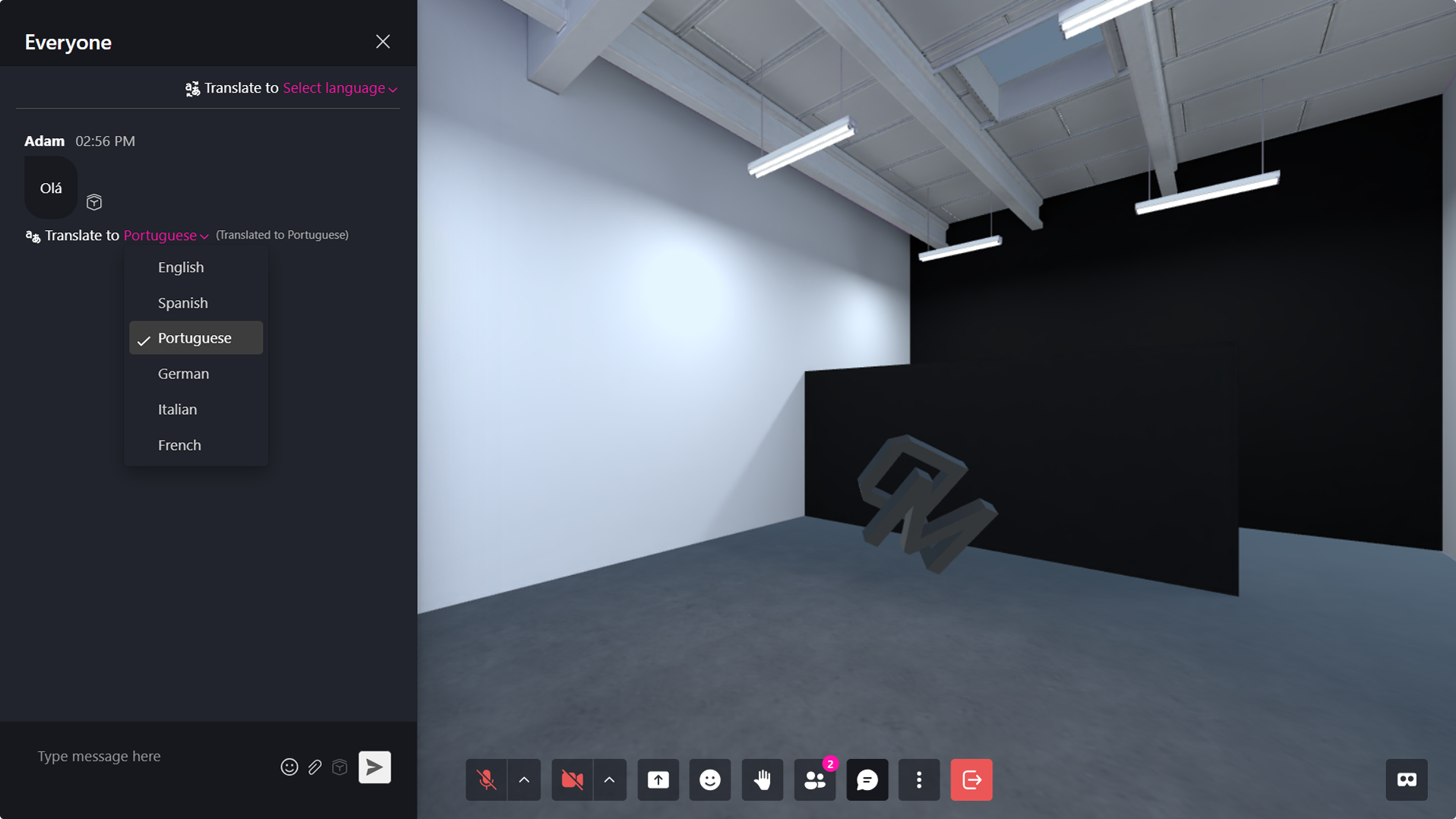
You can also implement chat translations in your own Metaverse experiences using AI Agents. To do this, you only need an OpenAI API Key.
Chat History
The Verse creator can download complete records of room activity for review, compliance, reporting, or archival purposes.
🔹 Note: Only the Verse Creator and hosts can access and download chat and transcription history.
Full Chat History
The Full Chat History option downloads a complete record of all public chat messages exchanged within the room.
The exported file contains:
- Message content
- Sender information
- Message timestamps
- Metadata
- Agent chat events (if applicable)
This is useful for:
- Meeting records
- Auditing conversations
- Compliance requirements
- Post-event reviews
- Documentation and reporting
For detailed instructions on managing chat history, refer to the dedicated section.
Menus & Object Controls
Objects, avatars, and media feature contextual menus for advanced controls. To access these menus, simply long-press by clicking or hovering your cursor over the object. This functionality is available across desktop, mobile, and VR devices.
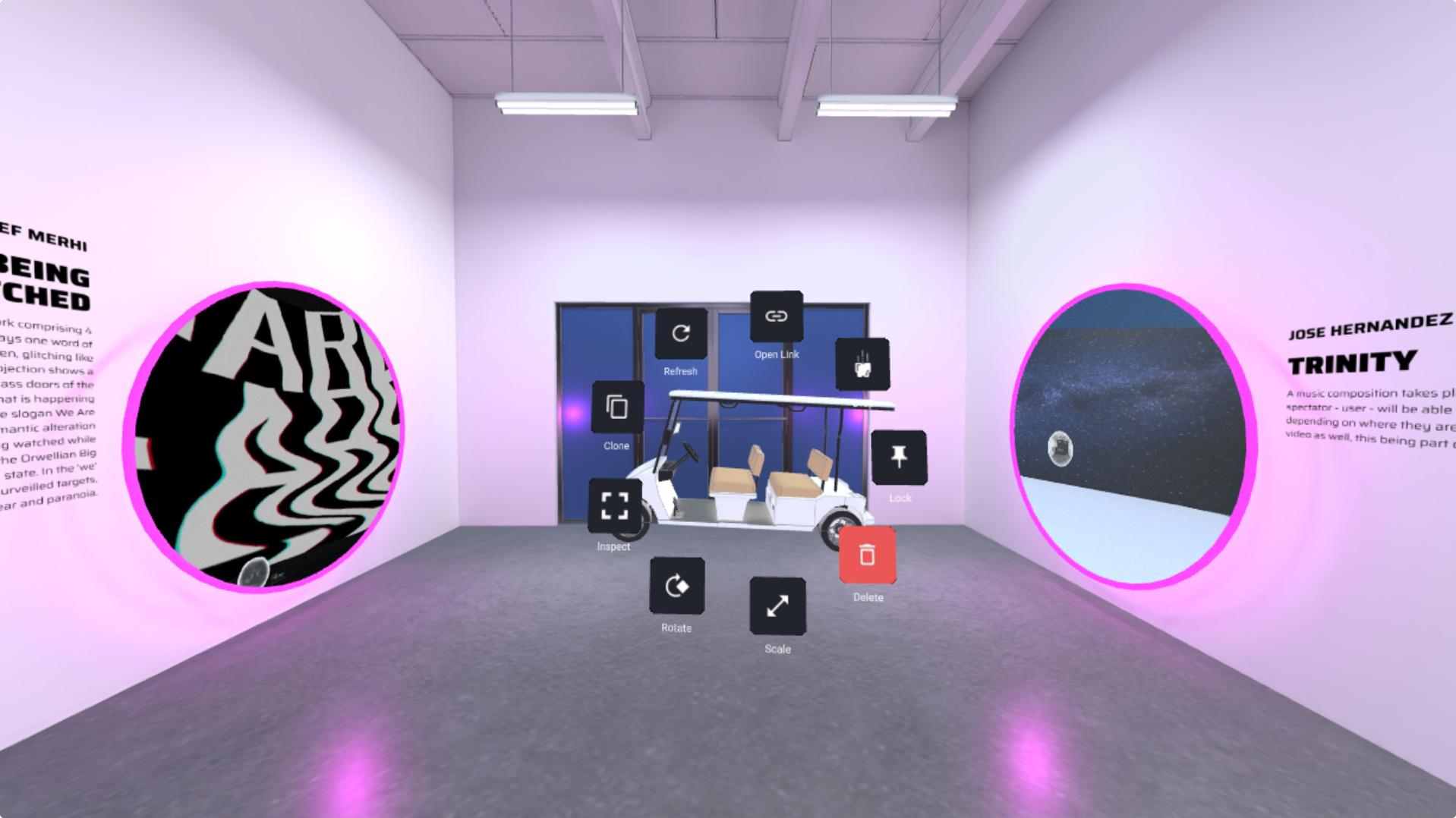
Object Menu
| Option | Function |
|---|---|
| Pin | Keeps the object in the Verse when you leave. |
| Target | Opens a focused view of the object (for media). |
| Resize | Adjusts the size of the object. |
| Open Link | Opens the object's URL in a browser tab. |
| Trash | Removes the object from the scene. |
| Gravity | Makes the object fall to the floor (for 3D objects). |
| Clone | Duplicates the object. |
| Rotate | Rotates the object. |
| Magnify | Displays a close-up of the object (for media). |
| Convert to Drawing | Converts the object back to a drawing (if it originated as one). |
Avatar Menu
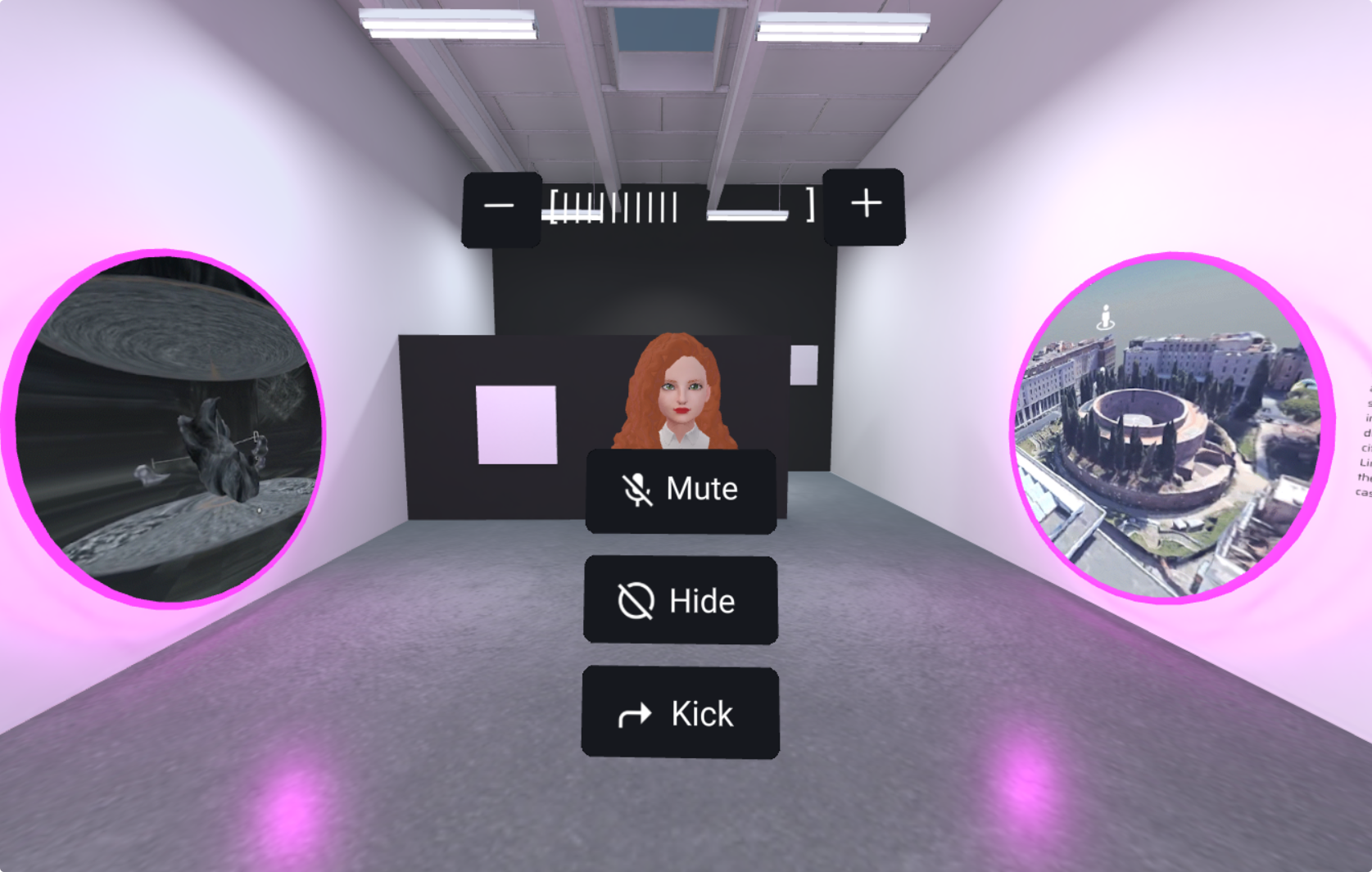
| Option | Function |
|---|---|
| Volume | Adjusts the volume of the user's audio. |
| Hide | Hides the user’s avatar and audio from you (only for your session). |
| Mute | Mutes the user’s microphone (Moderators only). |
| Kick | Temporarily removes a user from the room (Moderators only). |
Camera Menu
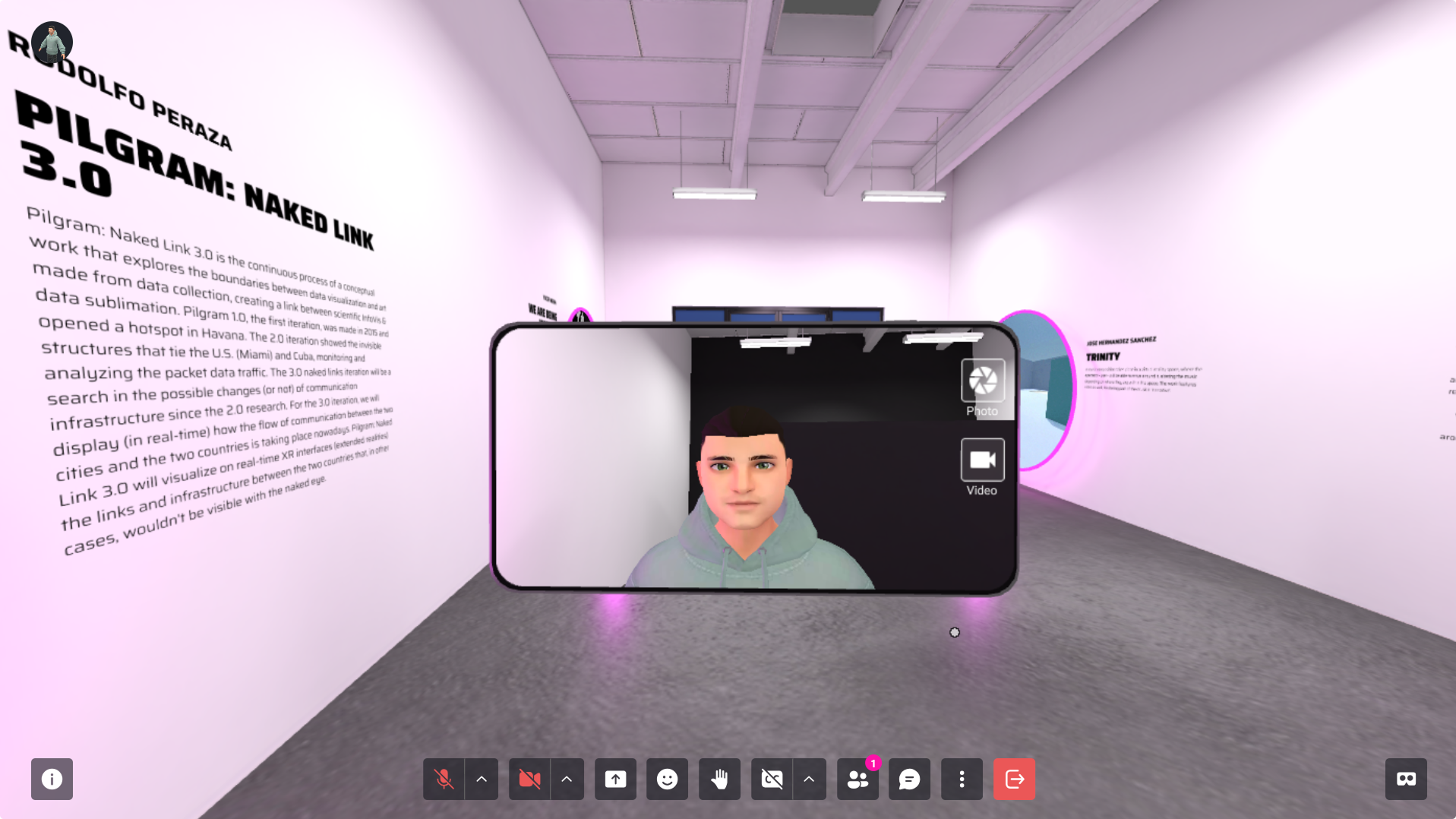
| Option | Function |
|---|---|
| Photo | Takes a still image and adds it to the Verse. |
| Video | Records a video and adds it to the Verse. (Temporary browser storage). |
Camera Options When Object UI is Open
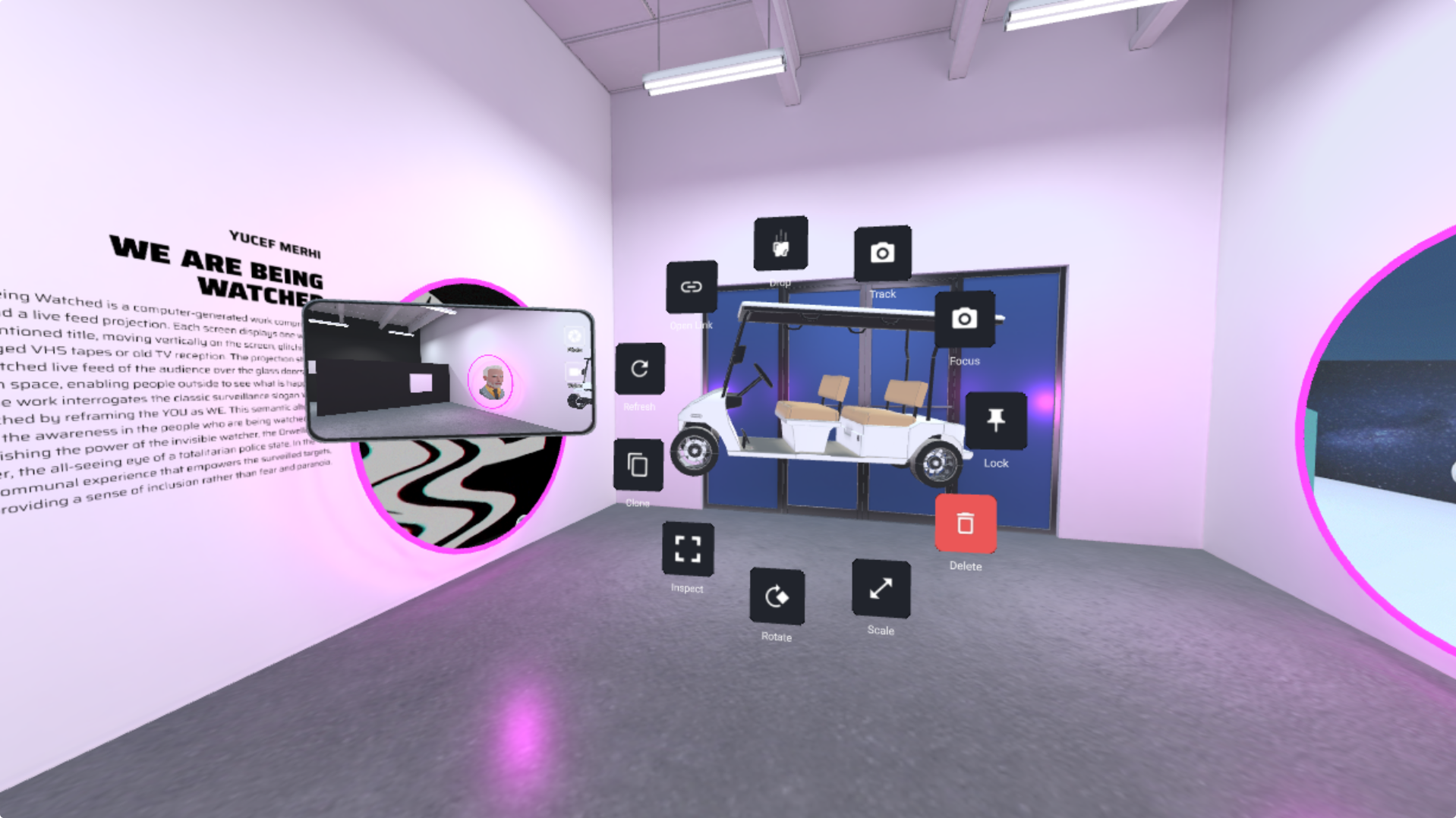
| Feature | Description |
|---|---|
| Object Focus | Reorients the camera to face the object or user. |
| Object Track | Makes the camera rotate to follow the object or user. |
🔹 Pro Tip: For long recordings, use external screen recording tools like OBS, as browser storage is limited.
Drawing Menu
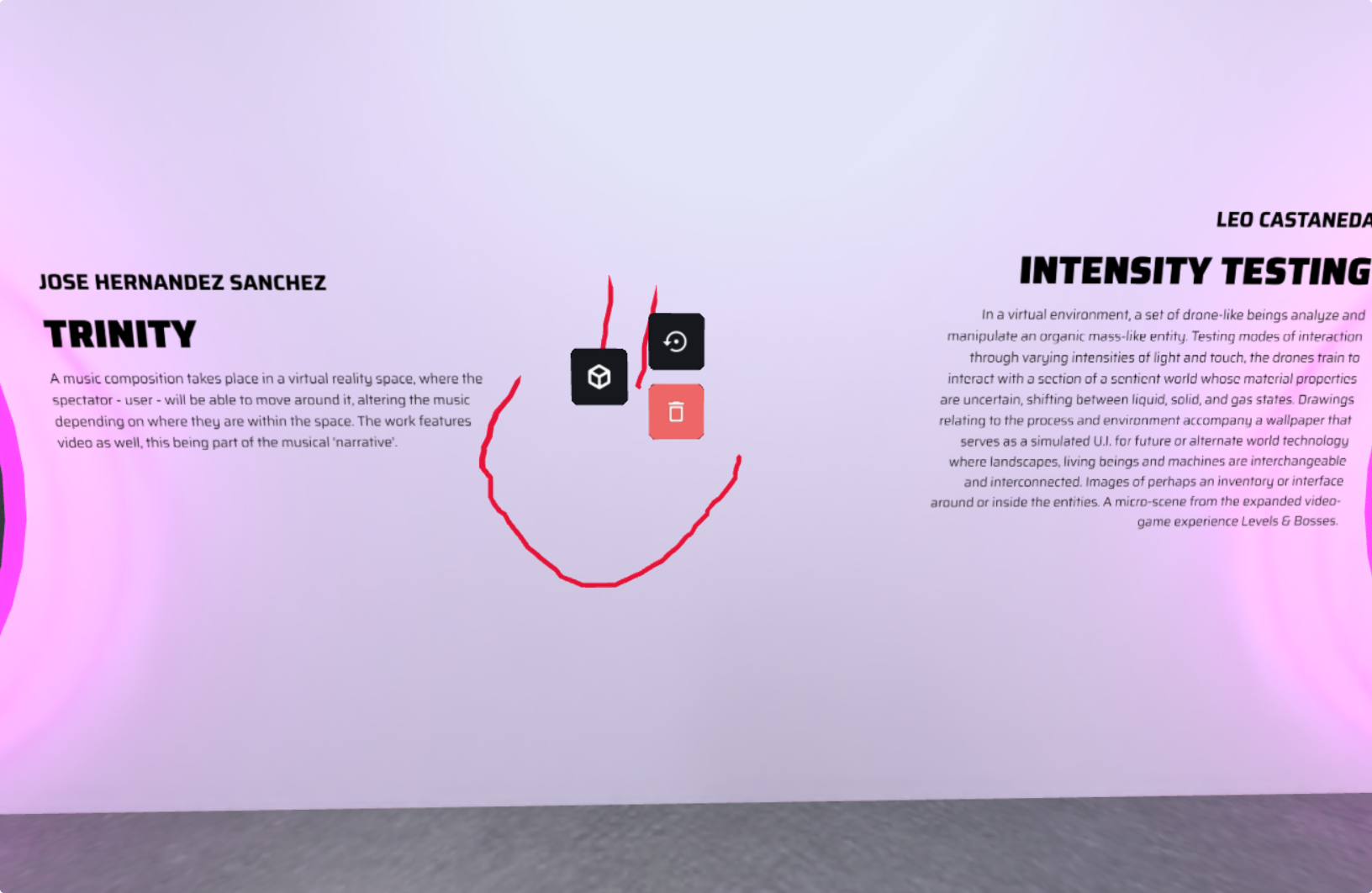
| Option | Function |
|---|---|
| Cube | Converts the drawing into a 3D object. |
| Undo | Removes the last stroke. |
| Trash | Deletes the drawing from the scene. |
Info Modal & Video Controls
Info Menu
The Info button opens a dialog with Verse details and sharing options.
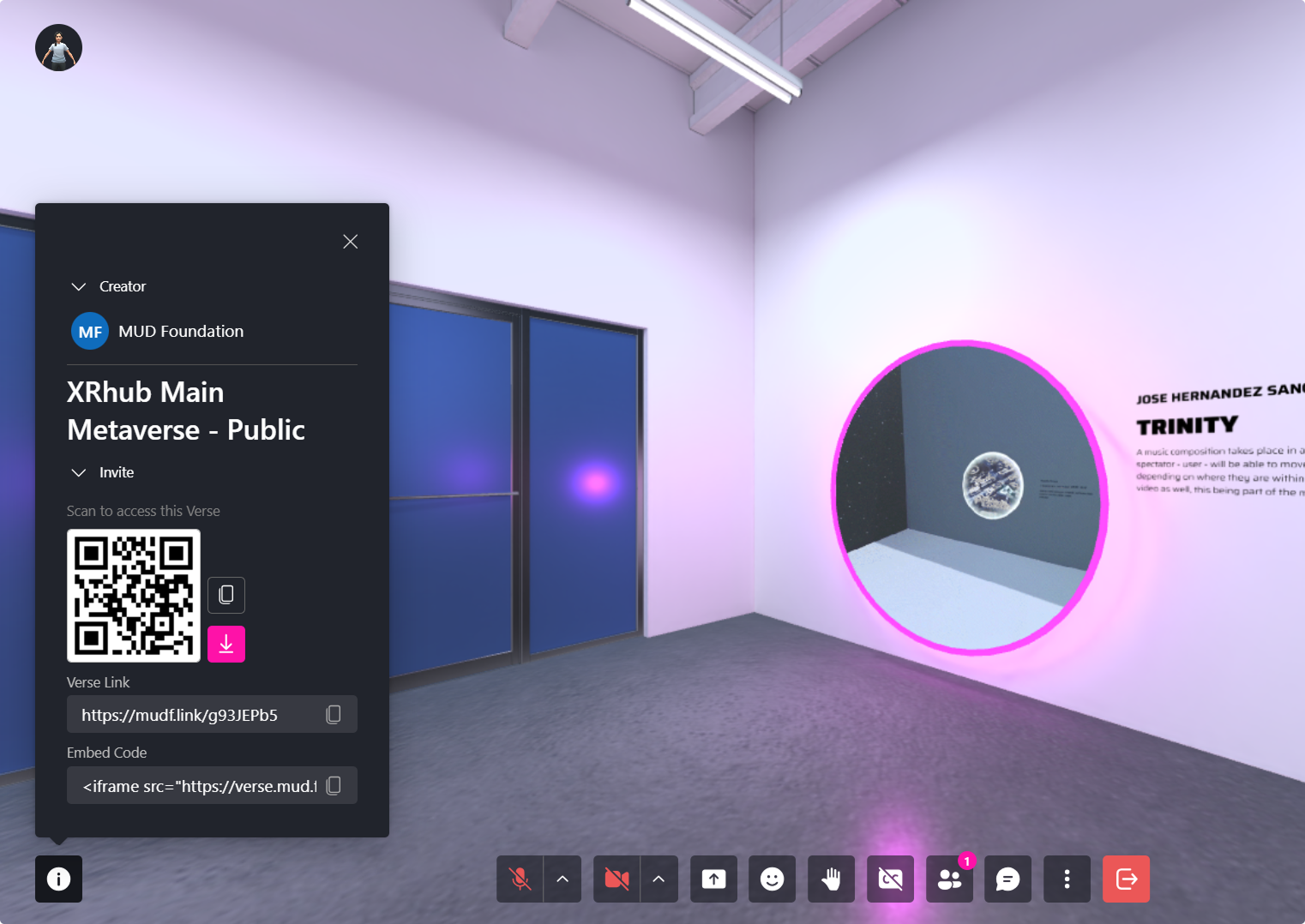
| Option | Function |
|---|---|
| QR Code | Download or share a QR code for mobile access. |
| Verse Link | Copy and share the URL for others to join. |
| Embed Code | Get an iframe embed code to place the Verse on a webpage. |
Video Controls
When hovering over a video, audios and PDFs, media controls appear.
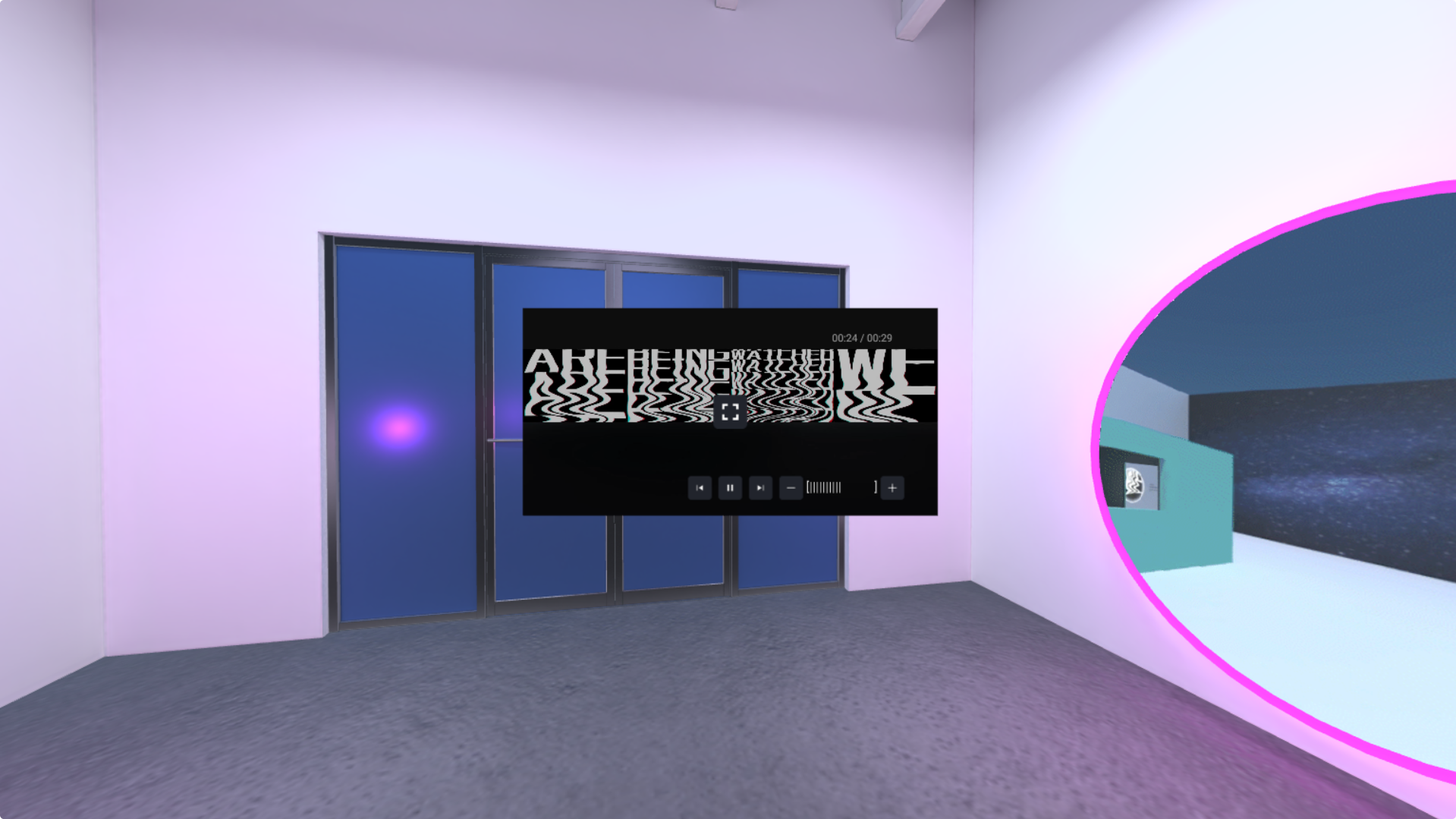
| Option | Function |
|---|---|
| Full-screen | Expands the video to full-screen mode |
| Volume | Adjusts your audio playback (does not affect others). |
| Play/Pause | Starts or pauses the video. |
| Time Controls | Skip forward/backward in the video. |
Emotes & Raising Hand
Emoji Spawners
- Click the Emote option in the toolbar to spawn emoji reactions.
- These emojis are grabbable objects that emit particles when shaken.
- They disappear automatically after a few seconds.
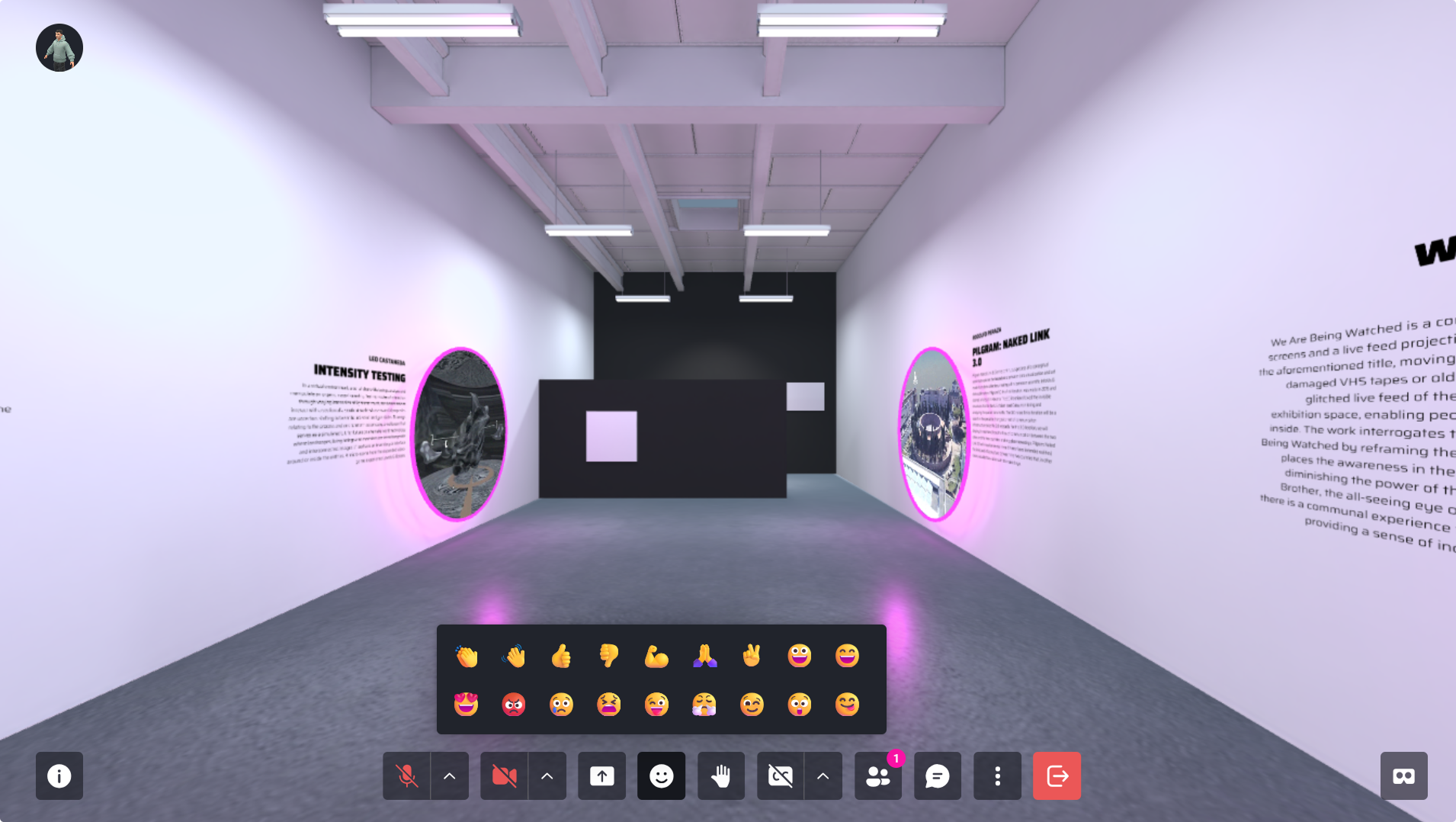
🔹 Pro Tip: Use emoji spawners for expressive non-verbal communication.
Raise Hand Feature
- Click the Raise Hand button to notify moderators.
- A hand icon appears above your avatar, signaling your request to speak.
🔹 Pro Tip: This feature is great for meetings, Q&As, and events.