2D Layout Mode
The 2D Layout feature allows users to experience a Verse using a simplified 2D interface instead of the immersive 3D environment. This mode is ideal for accessibility, lightweight navigation, presentations, or users on lower-powered devices.
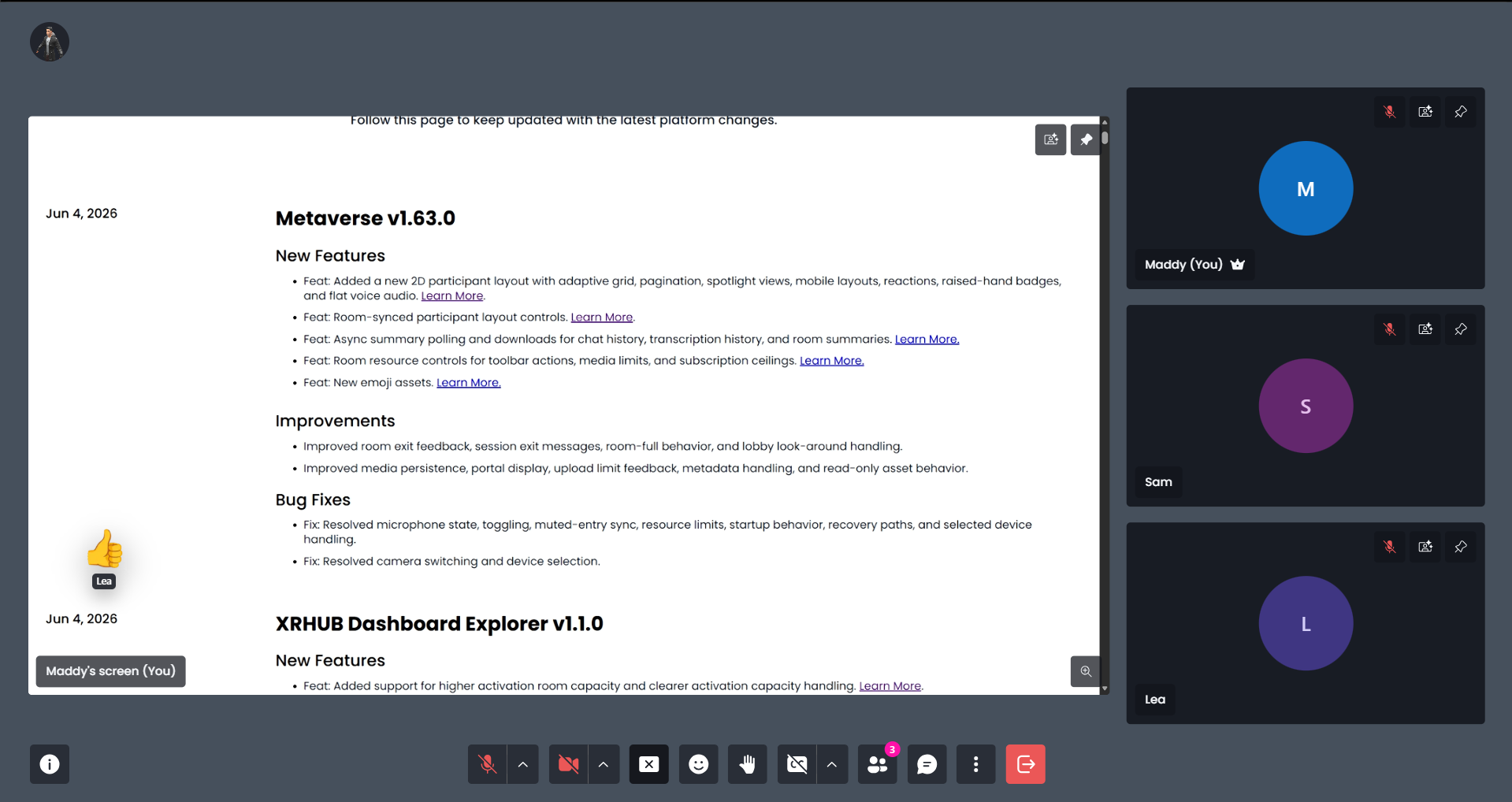
By default, Verses allow users to choose between 2D and 3D layouts. However, Verse creators can configure or force a specific layout experience directly inside the XR Creator Studio.
Switching Between 2D & 3D Layouts
When Let Users Choose is enabled, visitors will see an additional layout toggle option in the interaction menu.
In 3D Mode
Users will see:
- Show 2D Layout
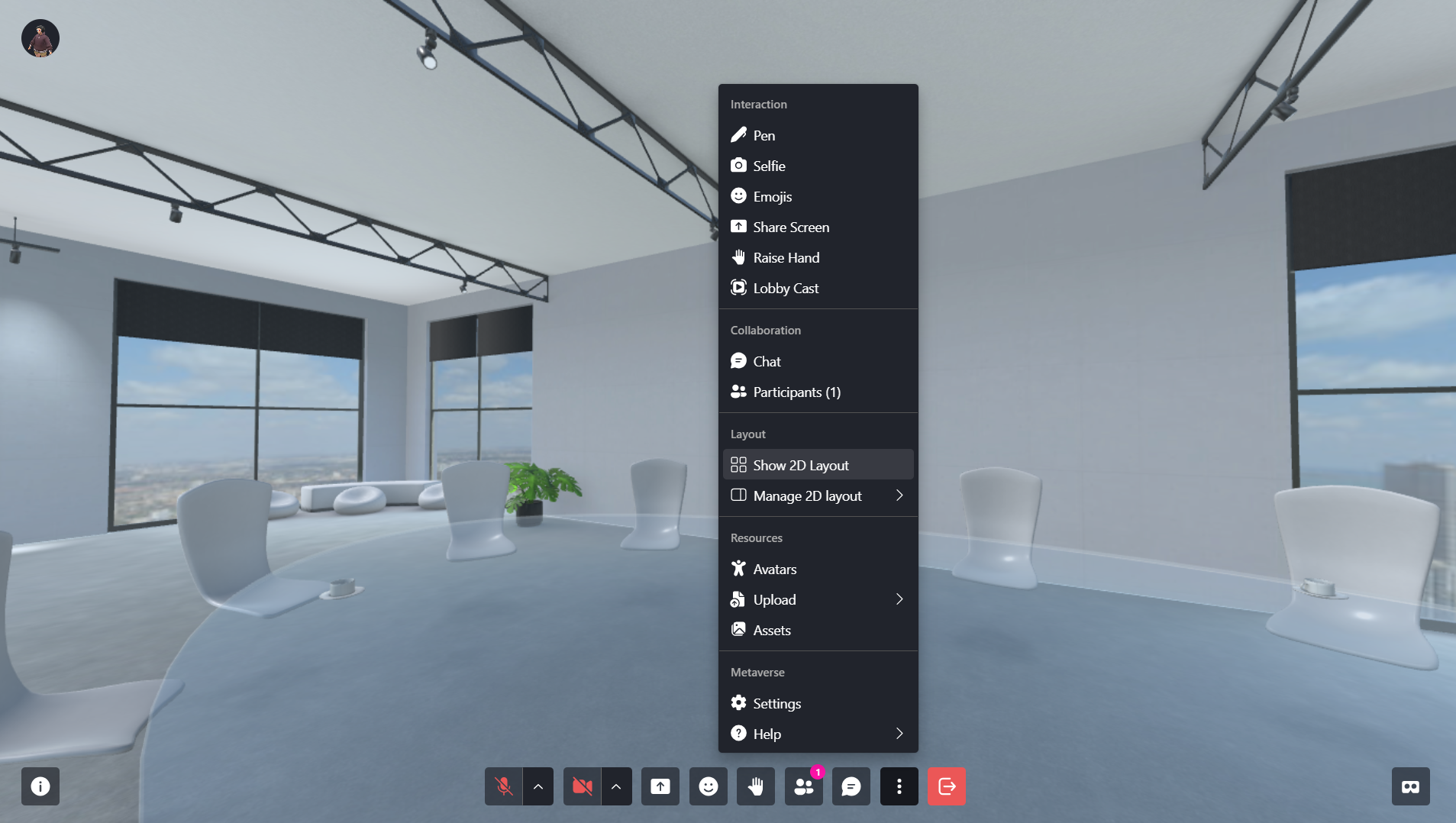
Selecting this option switches the Verse into the 2D interface.
In 2D Mode
Users will see:
- Show 3D Layout
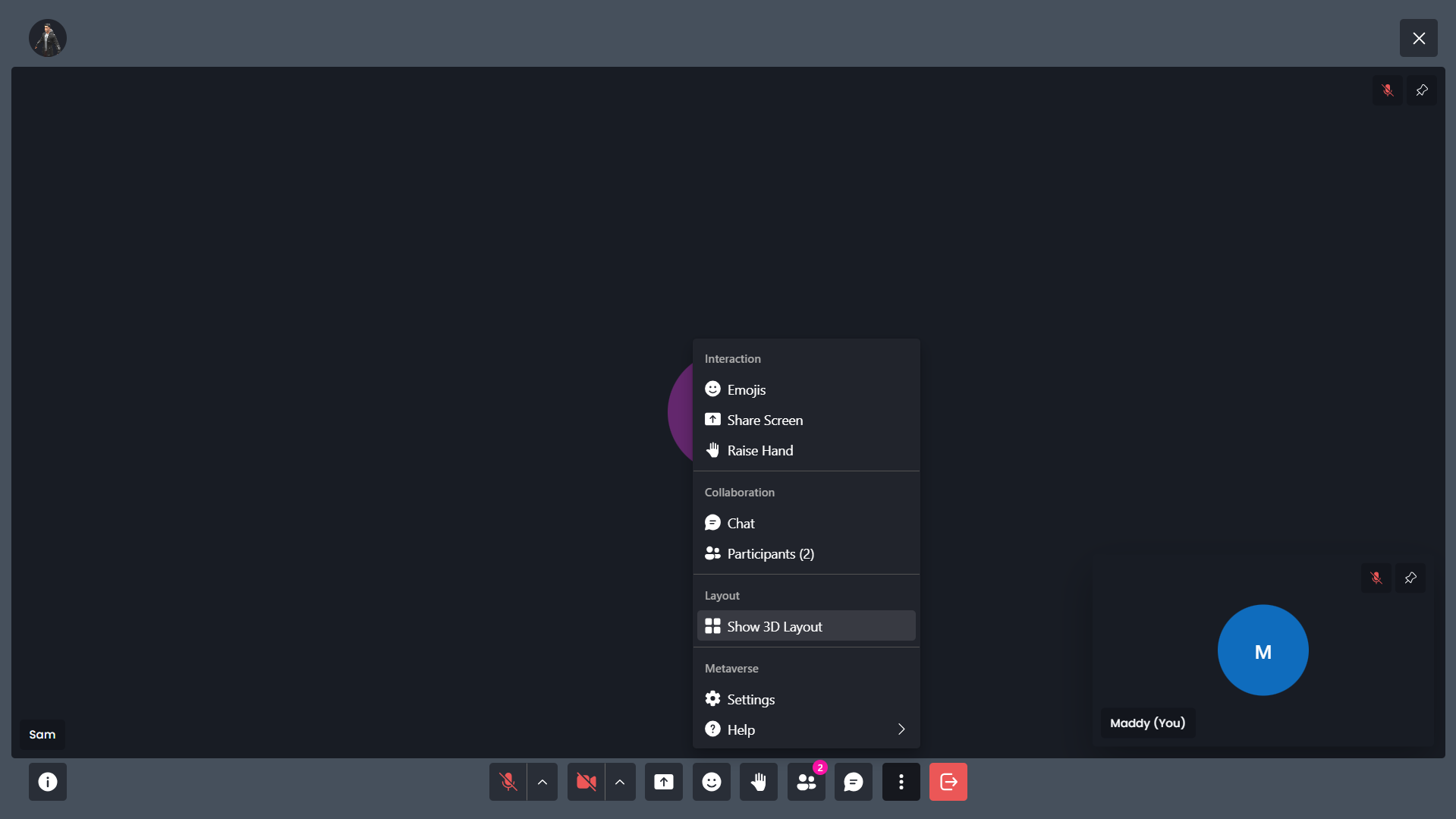
Selecting this option returns the user to the immersive 3D environment.
What Changes in 2D Mode?
When users enter 2D Layout mode:
- The immersive 3D gallery view is replaced with a simplified interface.
- Users can still:
- Access chat
- View participants
- Share screens
- Use collaboration tools
- Access Verse settings and help
- Avatar movement and spatial navigation are minimized for easier browsing.
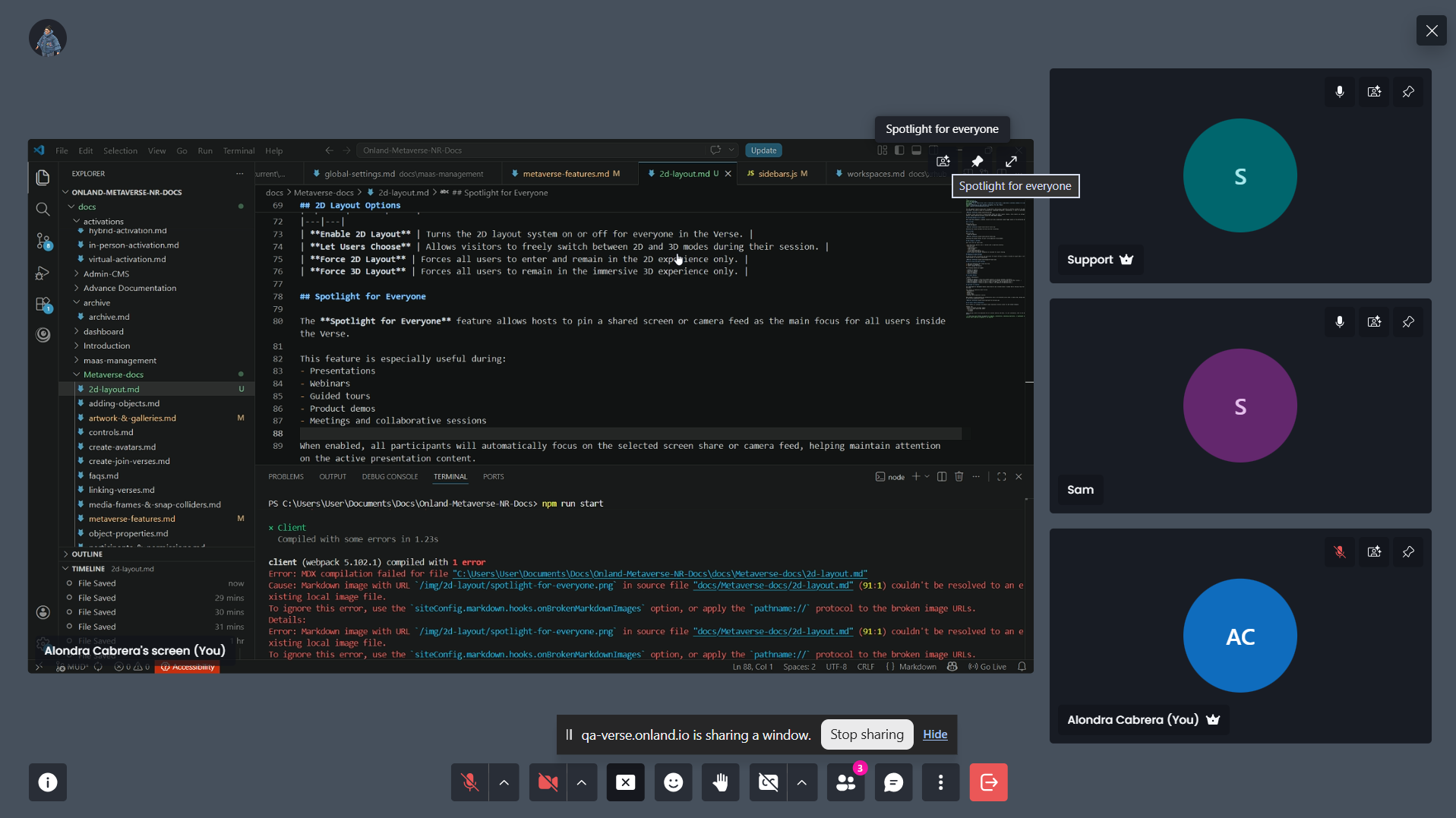
Spotlight for Everyone
The Spotlight for Everyone feature allows hosts to pin a shared screen or camera feed as the main focus for all users inside the Verse.
This feature is especially useful during:
- Presentations
- Webinars
- Guided tours
- Product demos
- Meetings and collaborative sessions
When enabled, all participants will automatically focus on the selected screen share or camera feed, helping maintain attention on the active presentation content.
Managing 2D Layout Settings
If you are the host of the Verse, you can access the layout settings to enable or disable 2D Layout mode, or allow users to choose between the 2D and 3D experiences.
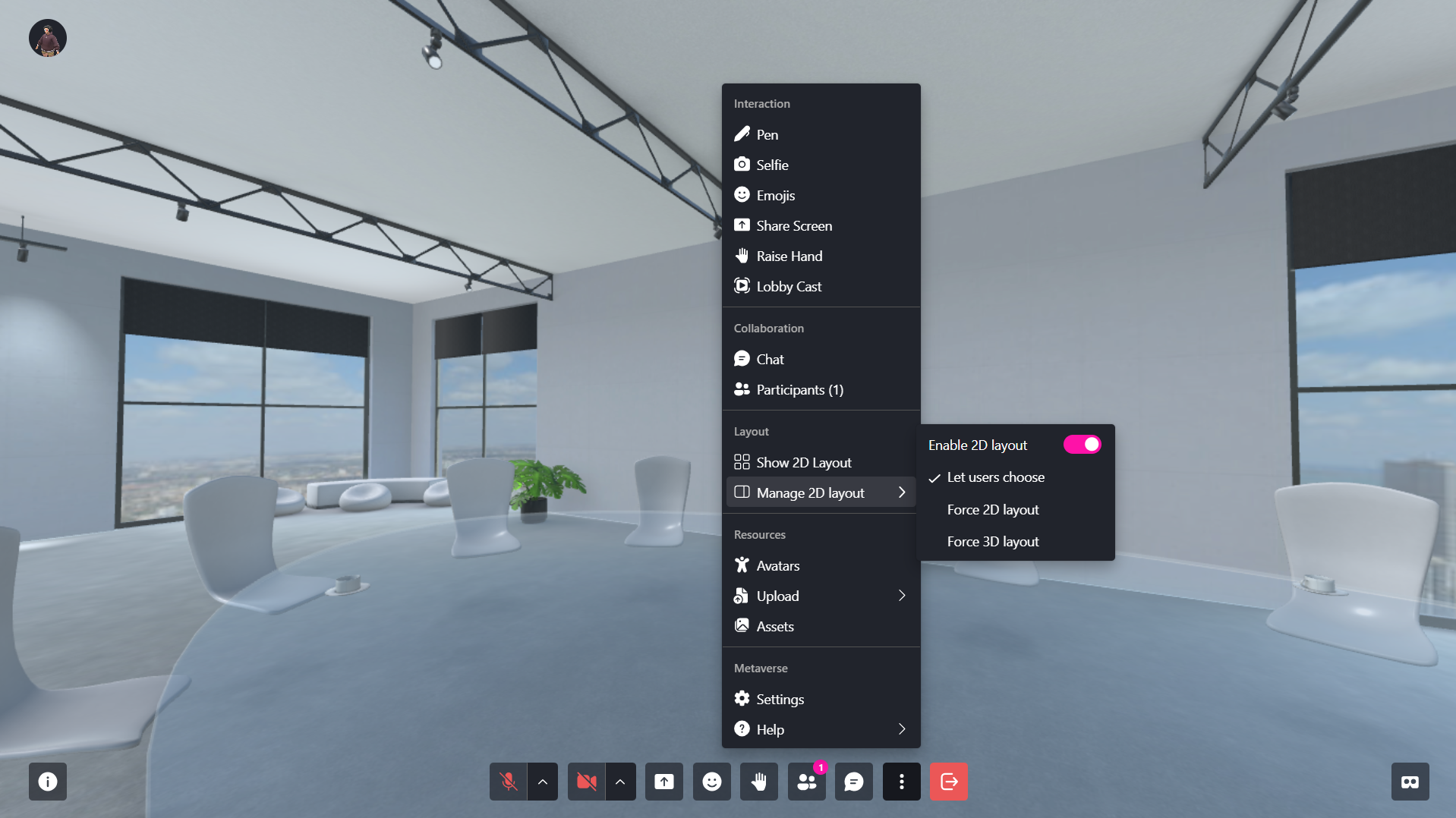
How to Access 2D Layout Settings
- Open the interaction menu inside the Verse.
- Navigate to Layout.
- Select Manage 2D Layout.
The following options will appear:
- Enable 2D Layout
- Let Users Choose
- Force 2D Layout
- Force 3D Layout
2D Layout Options
| Option | Description |
|---|---|
| Enable 2D Layout | Turns the 2D layout system on or off for everyone in the Verse. |
| Let Users Choose | Allows visitors to freely switch between 2D and 3D modes during their session. |
| Force 2D Layout | Forces all users to enter and remain in the 2D experience only. |
| Force 3D Layout | Forces all users to remain in the immersive 3D experience only. |
XR Creator Studio Configuration
Verse creators can configure the default layout experience directly inside the XR Creator Studio.
Creators can:
- Enable or disable 2D Layout support
- Force the entire Verse into either:
- 2D Layout
- 3D Layout
These settings control the experience for all visitors entering the Verse. For more information, refer to the dedicated section here.
🔹 Pro Tip: Use Force 2D Layout for webinars, presentations, onboarding experiences, or lightweight collaboration sessions where immersive navigation is not required.