Version Control Overview
XR Creator Studio includes a built-in Version Control system designed to help creators work safely, track progress over time, and collaborate efficiently without overwriting work or managing complex branches.
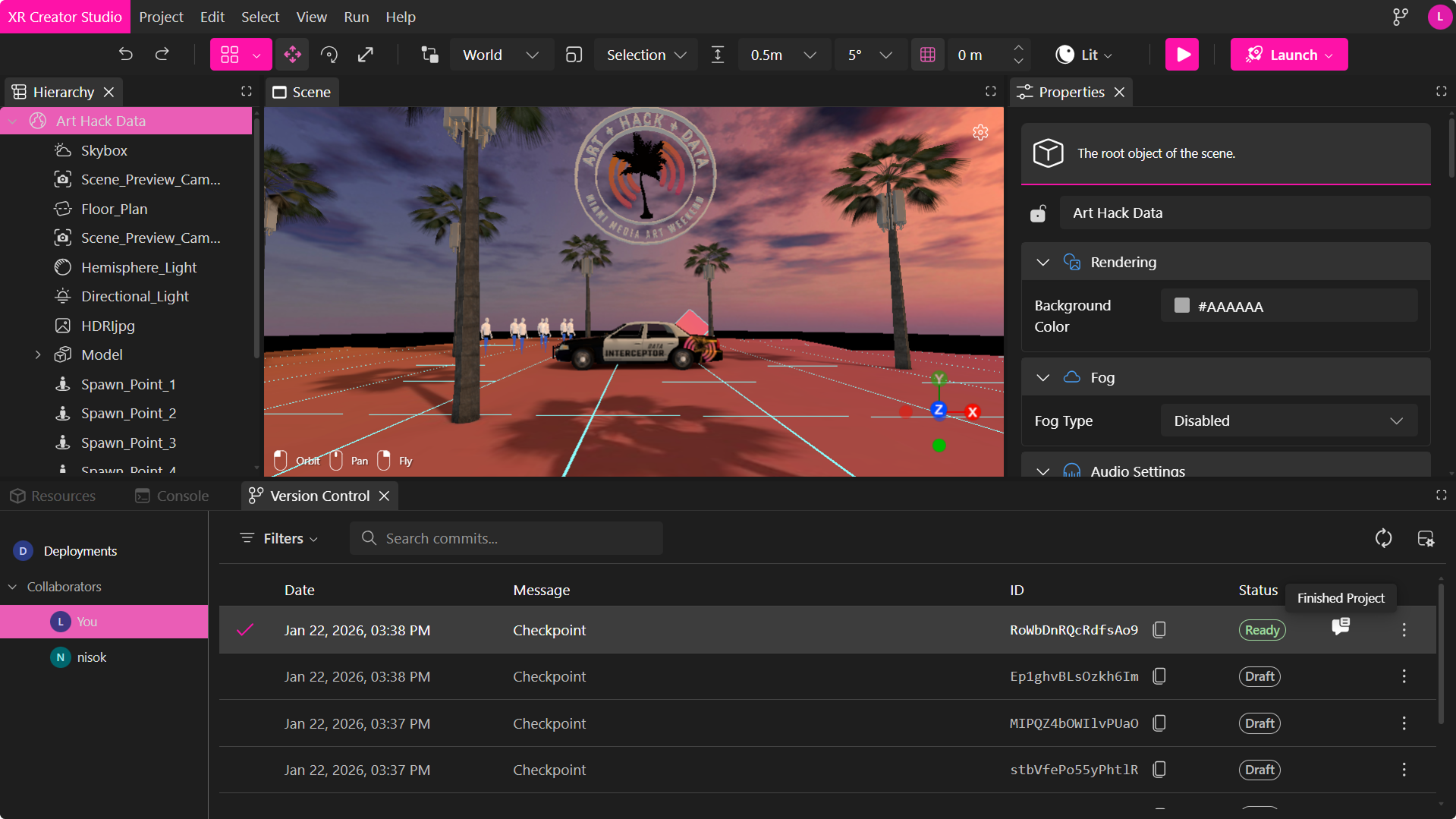
Version Control is enabled by default for all projects. Each project maintains its own version history and user-specific branches, allowing both individual iteration and multi-user collaboration to remain fast, reliable, and conflict-free.
How Version Control Works
The Version control panel works with a commit history & version tracking management. Each time you save, a new commit (or checkpoint) is created, capturing the exact state of the project at that moment.
The history provides a clear, chronological timeline of changes, allowing fast navigation while preserving full traceability.
Draft-Based Saving
Drafts are the foundation of everyday work. Every save creates a draft on your personal branch, these drafts are stored as a compressed JSON that can be exported.
You can create drafts by:
- Pressing Ctrl + S
- Using the Save option in the Project menu
Every time you publish, a draft of your latest changes is also created automatically.
You can return to any previous draft at any time by checking it out.
User branch and Deployment branch
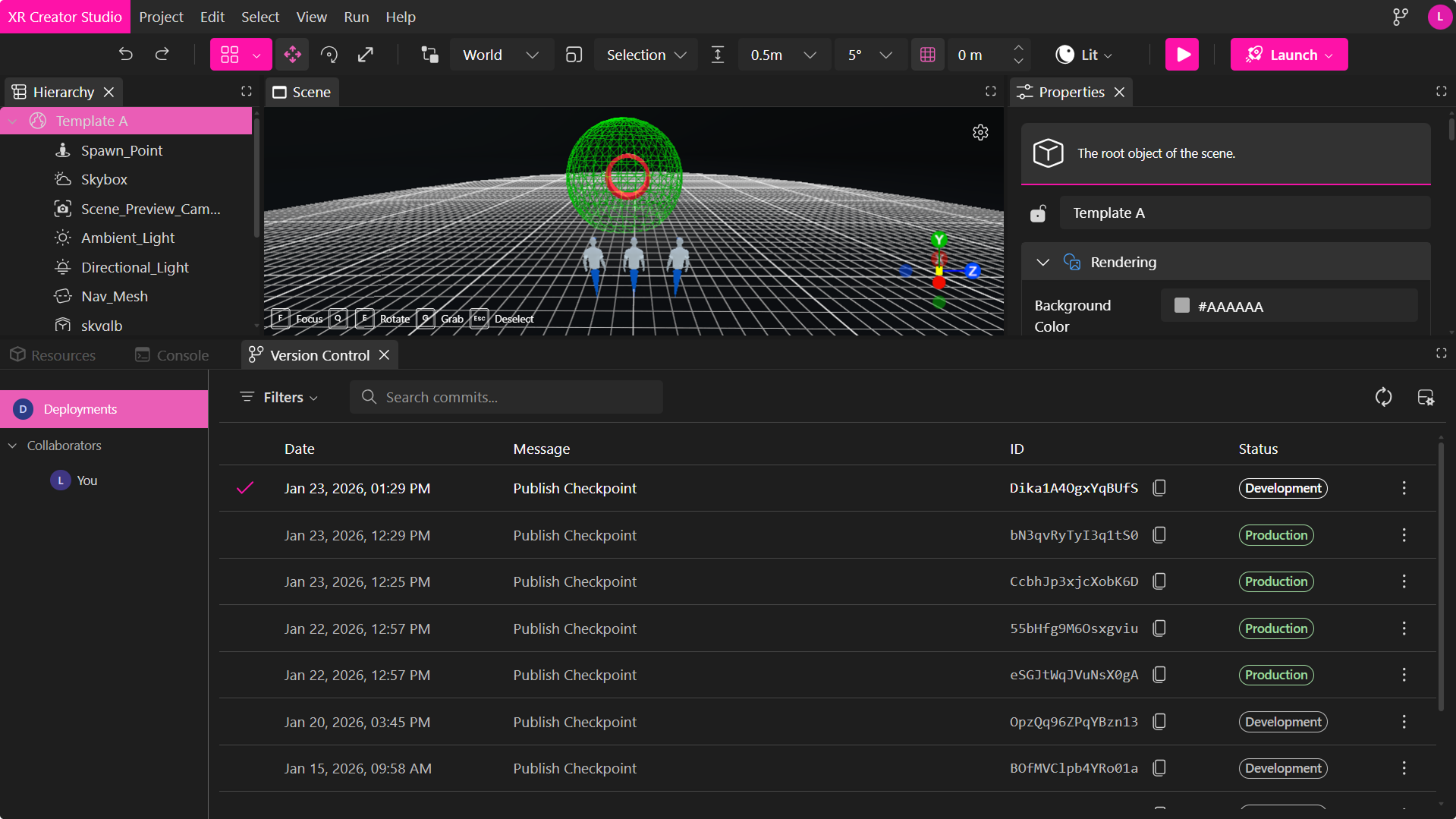
The system separates development of your work from publishing by using two complementary branches:
-
User Branch
Tracks all day-to-day work, including drafts, auto-saves, reviews, and collaboration events. This branch is optimized for rapid iteration and experimentation and is never exposed externally. -
Deployment Branch
Records only published versions of the project. Each entry represents a finalized build deployed to either a development (testing) or production (live) environment, providing a clear and immutable release history.
Publishing acts as the bridge between these branches. When a project is published, the current user branch state is captured, final build artifacts are generated, and a deployment record is created—without affecting ongoing work or deleting previous drafts.
This architecture ensures:
- Creators can experiment freely without risk
- Teams can work in parallel without conflicts
- Published experiences remain stable and traceable
- Development and production workflows stay clearly separated
Version Control Panel Overview
The Version Control panel includes tools to stay organized and prevent accidental data loss while working.
Each row in the Version Control panel represents a checkpoint. A checkpoint is a saved snapshot of a project at a specific moment in time.
- A checkpoint captures:
- The current state of the project
- The changes made since the last save
Every time you save, a new checkpoint is created. You can switch between checkpoints to inspect past states without affecting current work.
Status Labels for Checkpoints
Draft
- A work-in-progress version
- Can change freely
- Used for iteration and experimentation
Ready
- A finalized draft marked as stable
- Signals that the checkpoint is ready for review
- Does not change project behavior or structure
Actions Menu for Checkpoints (⋮)
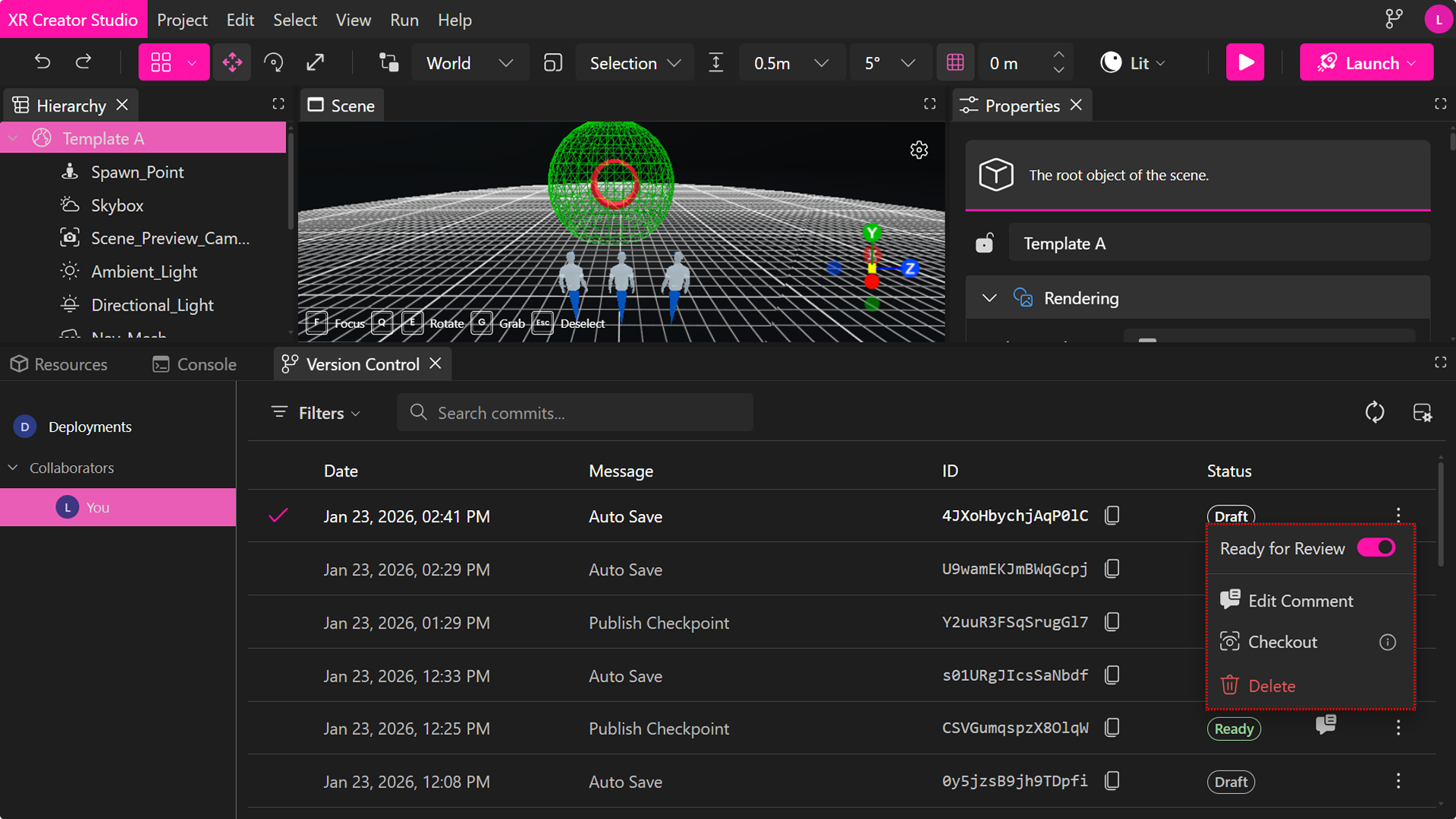
Ready for Review
Marks the selected checkpoint as Ready.
- Signals stability to collaborators
- Useful before requesting feedback
- Does not modify the current editor state
Comment
Adds or updates notes attached to a checkpoint.
- Describe what changed
- Explain intent or decisions
- Highlight areas needing review
Comments improve clarity, especially in collaborative projects.
Checkout
Restores your editor to match the selected checkpoint.
- Instantly updates the project state
- Does not delete newer checkpoints
- Fully reversible
Common uses
- Reverting to a known good state
- Exploring alternative ideas
- Debugging regressions
Merge
Merges the selected checkpoint into your current user branch.
Merge is primarily used in collaborative workflows, allowing you to safely incorporate changes from other contributors without overwriting your own work.
- Applies the selected checkpoint’s changes onto your current branch
- Preserves your existing work and history, modifying only the shared objects that require merging
- Creates an automatic merge record for traceability
Common uses
- Incorporating a teammate’s approved work
- Bringing reviewed changes into your own branch
- Continuing development from a shared checkpoint
Merging from the Deployments Branch
Merge is also available for entries in the Deployments branch.
This allows you to:
- Merge a Development or Production deployment back into your user branch
- Continue iterating from a deployed version
- Recover or extend work based on a previously published build
This is especially useful when:
- A deployed version becomes the new baseline for development
- You need to apply hotfixes or improvements on top of a Production release
- A deployment was published from another collaborator’s work
Merging a deployment does not affect the live environment. It only updates your personal working branch.
XR Creator Studio handles merge integrity automatically—no manual conflict resolution or branch management required.
Delete
Permanently removes a checkpoint.
- Only affects the selected entry
- Cannot be undone
Checkpoint Types
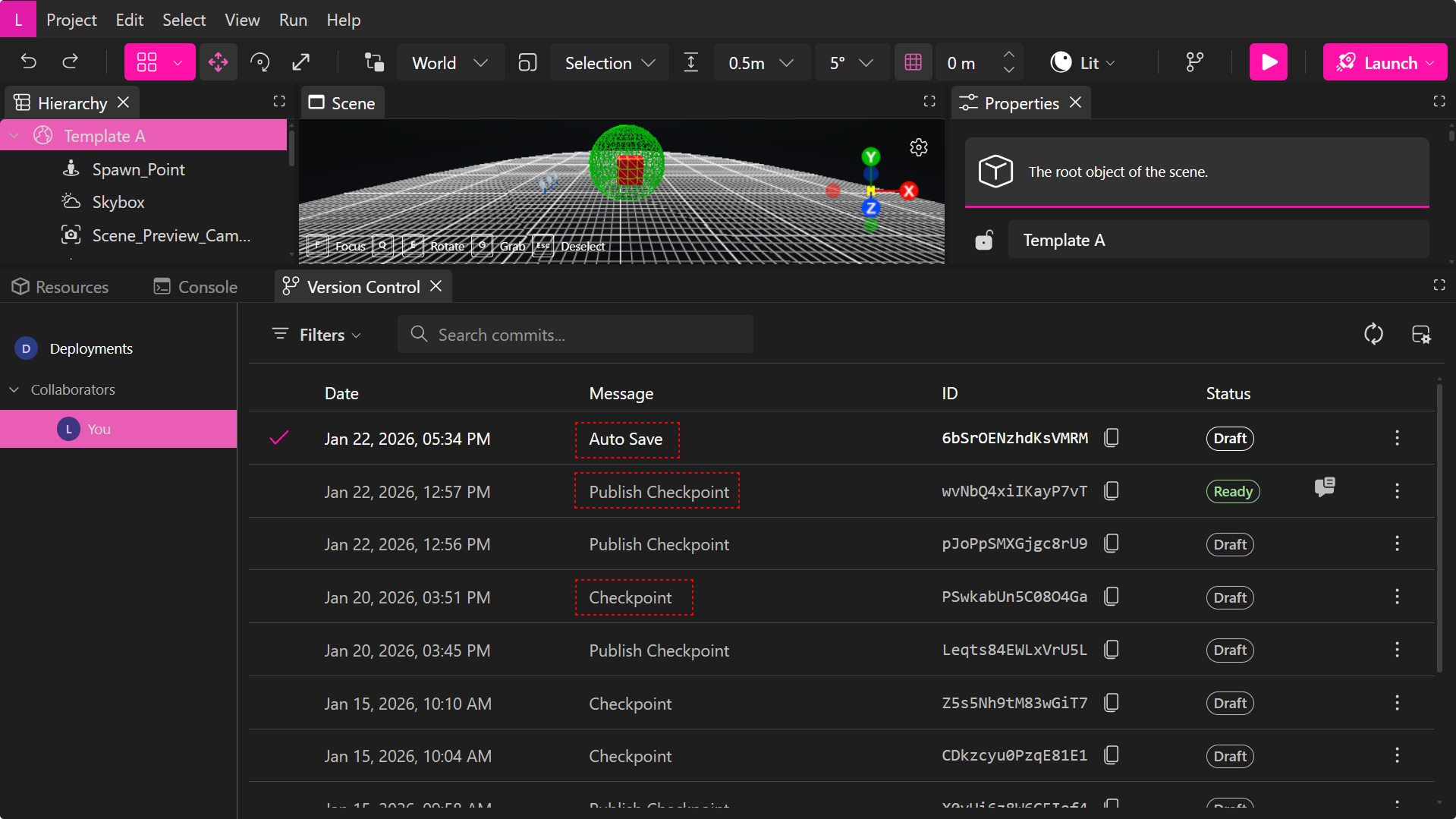
Auto Save
- Created automatically if the autosave option is active
- Prevents accidental data loss
Checkpoint
- Manually created by saving the project
- Marks meaningful progress
Publish Checkpoint
- Created during publishing
- Represents a milestone version
- Used for deployment and sharing
Panel Tools
The Version Control panel includes additional tools to stay organized and prevent accidental data loss while working.
Filters
The Filters dropdown allows you to refine which checkpoints are visible in the panel.
Available filters:
- Draft — Shows work-in-progress checkpoints that are not yet marked as ready
- Ready — Shows checkpoints marked as ready for review or merging
This specially helps to quickly focus on items that require attention or approval.
Search Commits
The Search commits field allows you to search checkpoints by message or ID.
This is useful for:
- Locating specific changes
- Finding a known commit ID
- Reviewing historical updates quickly
Auto Save
The Auto Save toggle automatically saves your changes at regular intervals (e.g., every 10 minutes).
When enabled:
- Your progress is periodically saved as a checkpoint
- Reduces the risk of losing work
- Ensures your branch history remains up to date
Auto Save applies only to your current user branch.
Refresh Version Control
The Refresh button updates the Version Control panel to reflect the latest available changes.
Use Refresh to:
- Load new commits from other collaborators’ branches
- Sync changes from the Development or Production deployment branches
- Ensure you are viewing the most recent project history
This is especially important in team environments where multiple users may be saving, merging, or deploying simultaneously.
Refreshing does not modify your branch — it only updates the visible commit history and branch data in the panel. If you’d like, I can also:
Publishing and Deployment
Drafts are optimized for iteration. Publishing is when the project is built and deployed to an external environment.
When a project is published:
- Final build artifacts are generated
- A deployment record is created
- The published version becomes externally accessible
- All drafts and checkpoints remain available in history
Publishing does not replace or remove drafts—it captures a snapshot and deploys it to a selected environment.
Deployment Environments
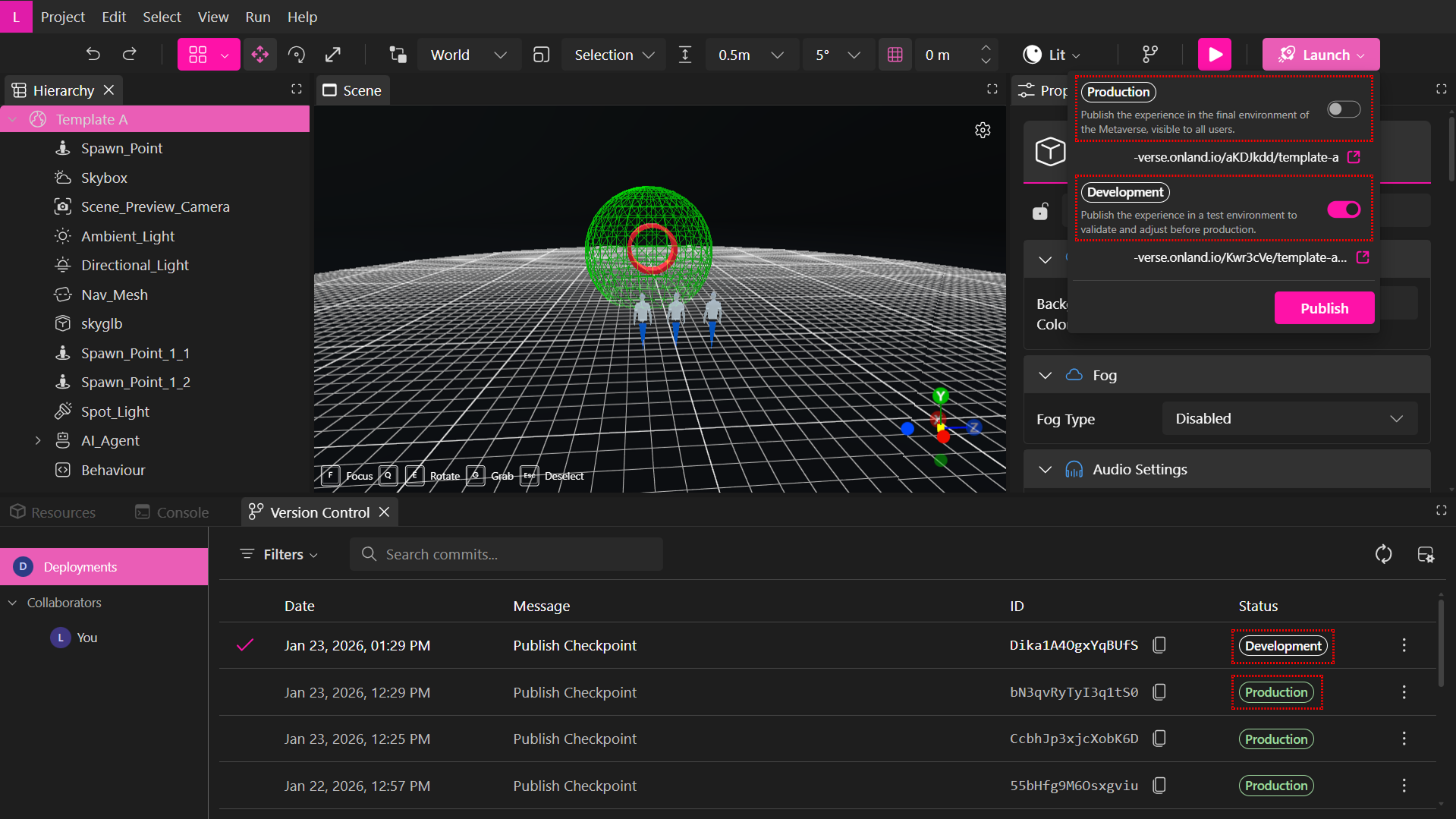
Development
- Used for testing, validation, and internal reviews
- Generates a playable build in a test environment
- Safe for experimentation and frequent publishing
- Can be republished multiple times without affecting live users
- Each collaborator has their own isolated Development environment
Development deployments are not saved or shown in the Verses tab. They exist only for individual testing.
Production
- Represents the final, public version of the project
- Used for live users and external sharing
- Only the owner or admins can deploy to Production
- Replaces the previously active Production deployment
- Only Production deployments appear in the Verses tab
Version Control for Individual Projects
For solo creators, Version Control acts as a built-in safety net. Every change is automatically tracked in your user branch.
- You can deploy to Development
- You can deploy to Production
This ensures full control over testing and release workflows.