Custom Subdomains
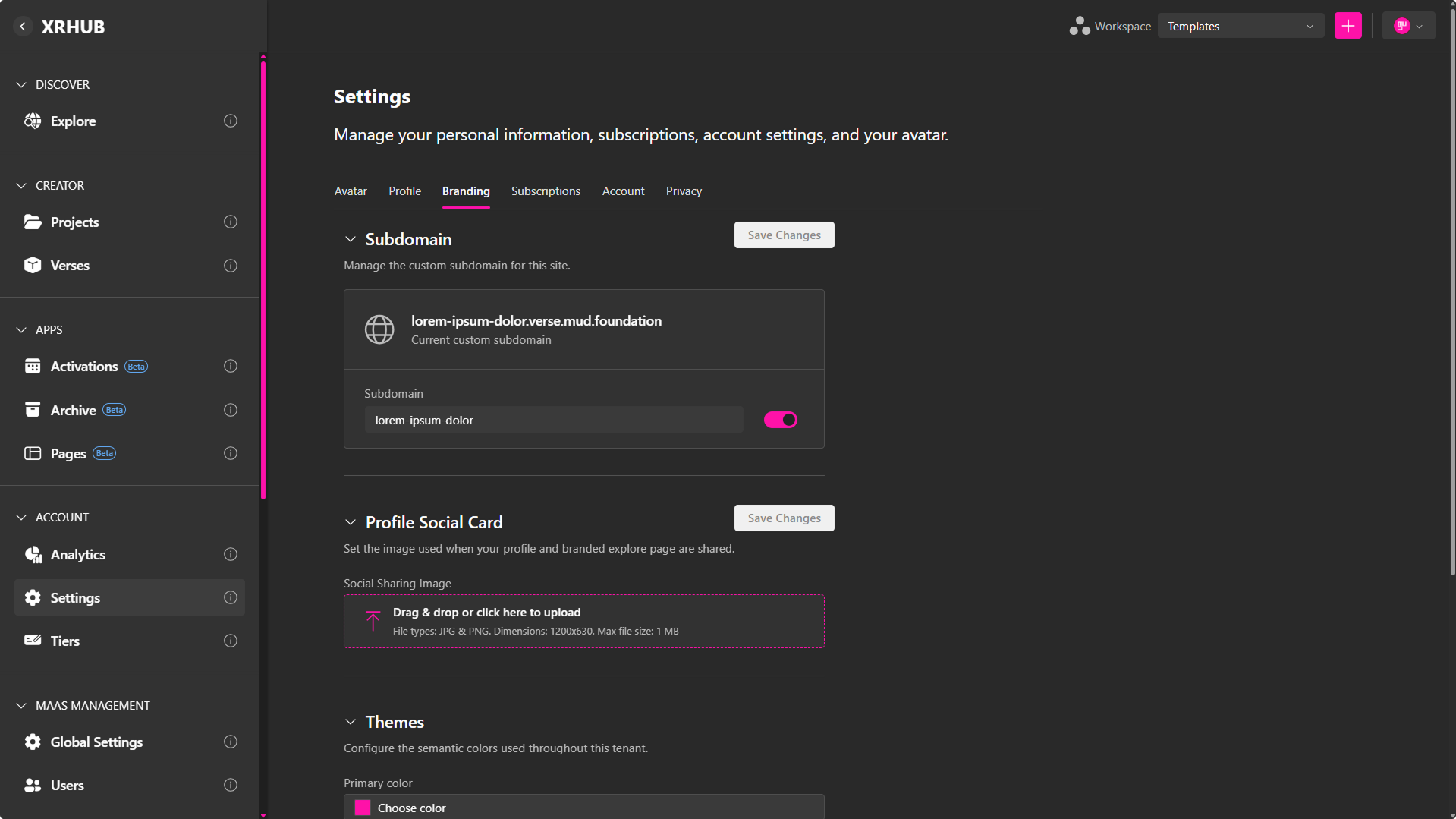
The Subdomain feature allows you to create a personalized space on the platform with its own unique URL. Once enabled, your profile becomes accessible through your custom subdomain, providing a branded entry point for your content and experiences.
What is a Subdomain?
A subdomain is a unique web address assigned to your profile, such as:
https://your-subdomain.verse.mud.foundation
Visitors who access your subdomain are taken directly to your personalized environment, where they can explore your public profile and the content you publish.
What Can You Do with a Subdomain?
Enabling a custom subdomain allows you to create and manage your own branded workspace. From your subdomain, you can:
- Create and manage Projects, publish Verses, create Activations and share all your content through a unique URL.
- Customize the appearance of your public presence using Branding settings.
- Provide visitors with a personalized Explore page showcasing your published content.
- A branded workspace where you and other users can build, manage, and publish Projects and Verses.
All published content associated with your account is accessible through your custom subdomain, making it easy to share your experiences with others.
Create or Update Your Subdomain
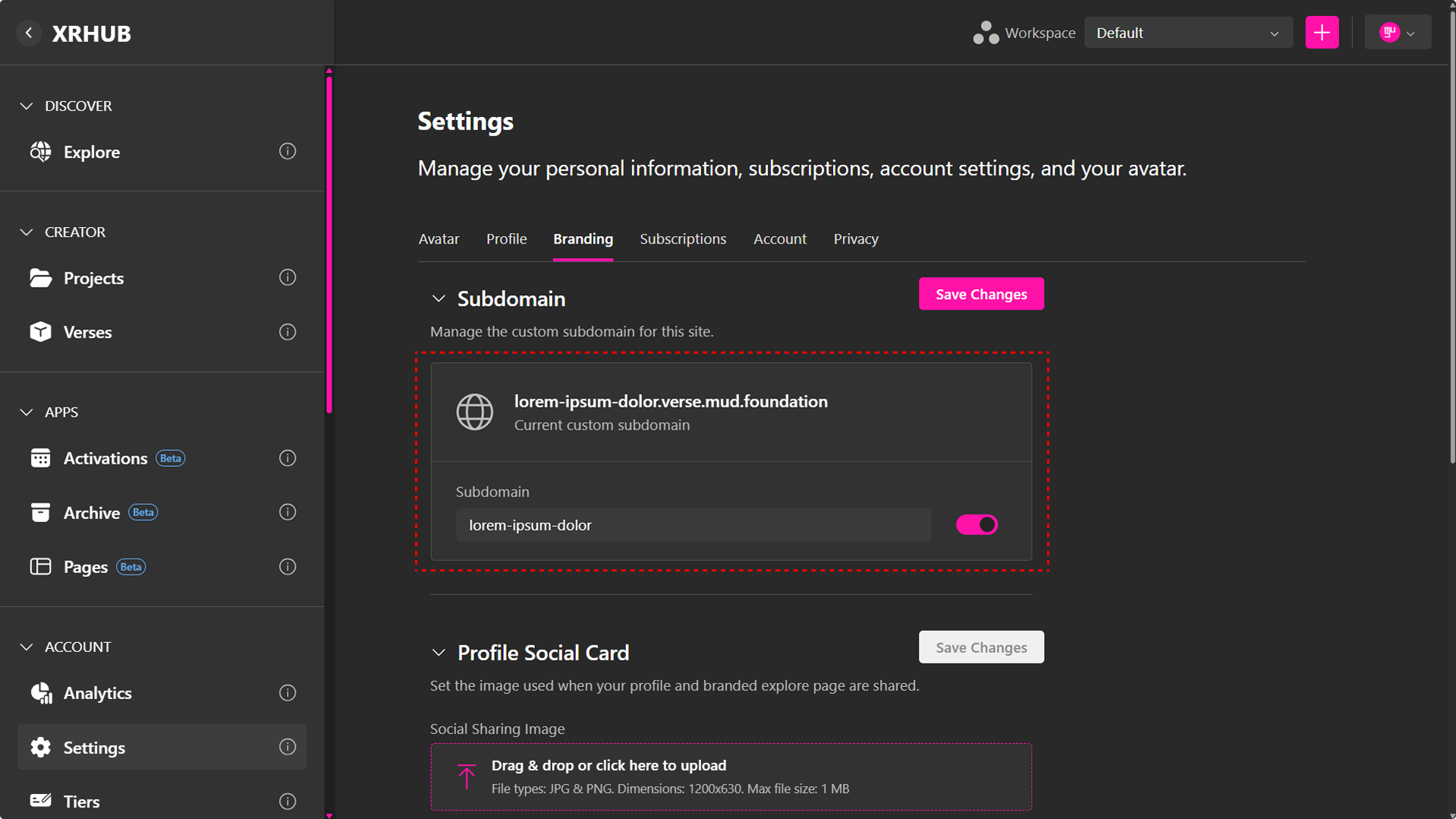
To configure your custom subdomain:
- Open Settings → Branding.
- Expand the Subdomain section.
- Enter your desired subdomain name.
- Enable the subdomain using the toggle.
- Click Save Changes.
If the selected subdomain is available, it will be assigned to your profile.
Enable or Disable Your Subdomain
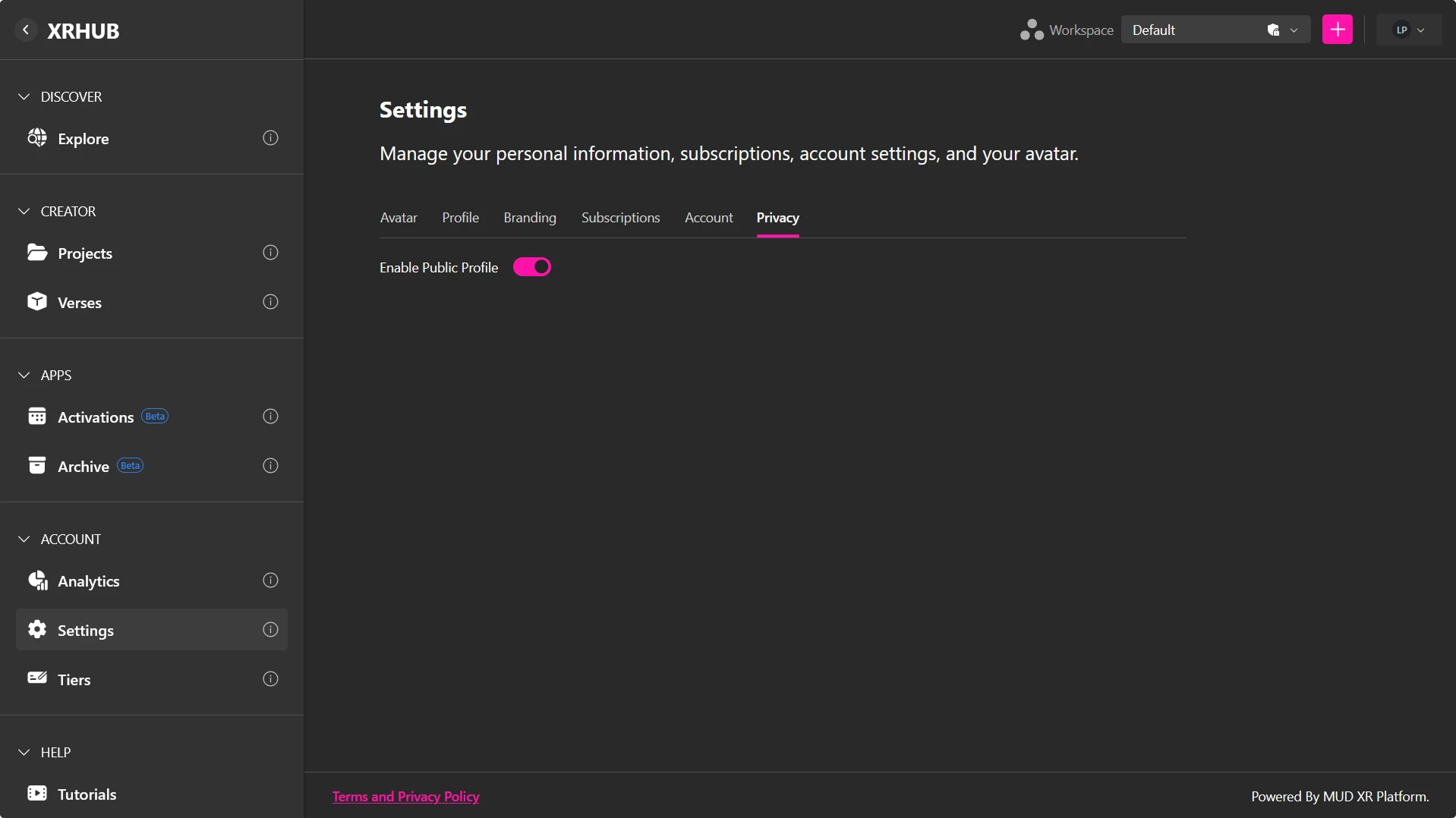
Use the toggle switch to control whether your custom subdomain is publicly accessible.
- Enabled: Your personalized URL is active and visitors can access your public profile and published content.
- Disabled: Your subdomain is inactive and cannot be accessed by visitors.
Branding Your Experience
Once your custom subdomain is enabled, you can personalize its appearance and control how it is presented to visitors using the Branding and Privacy settings.
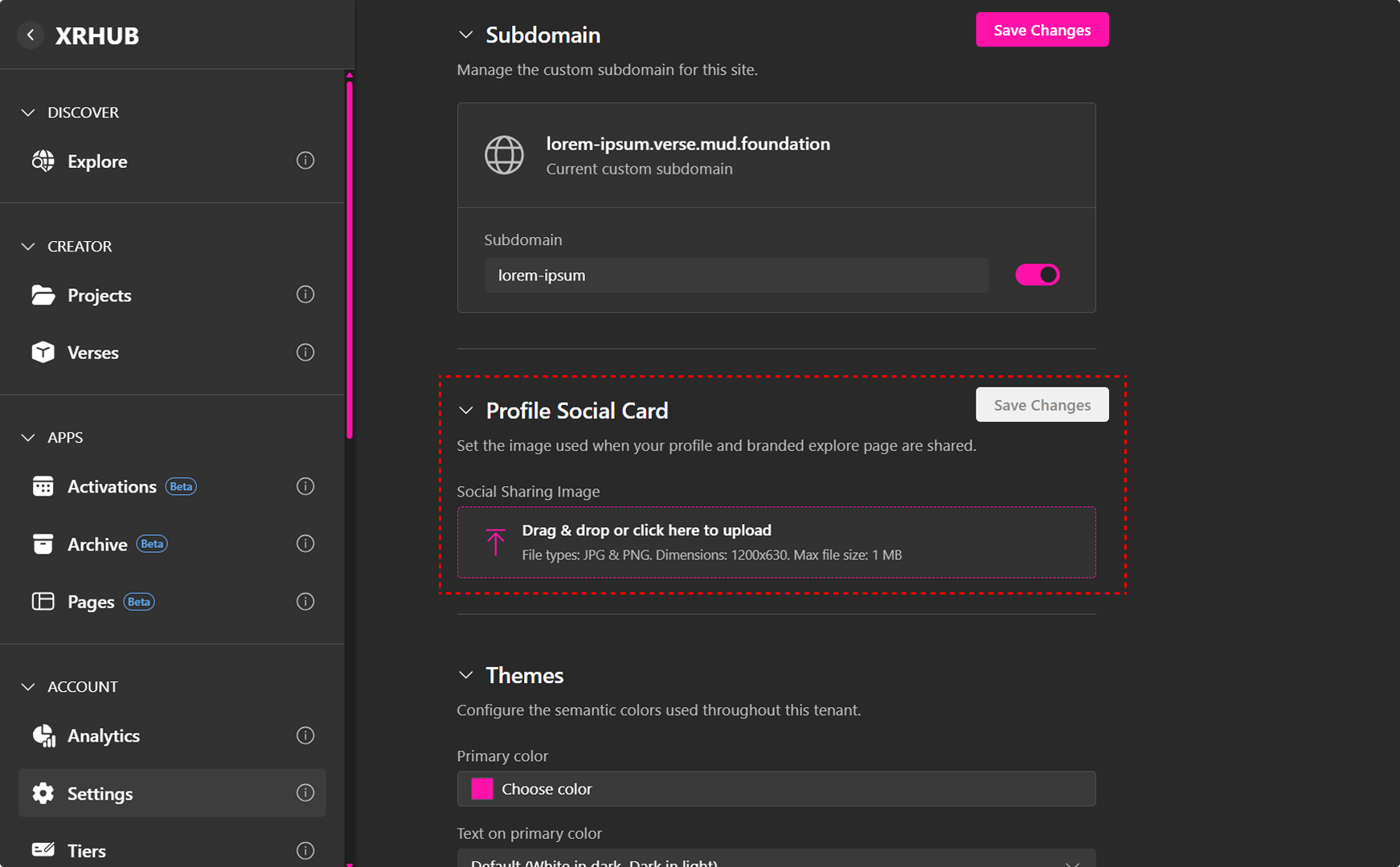
Profile Social Card
Customize the image displayed when your profile or subdomain is shared on social media and messaging platforms.
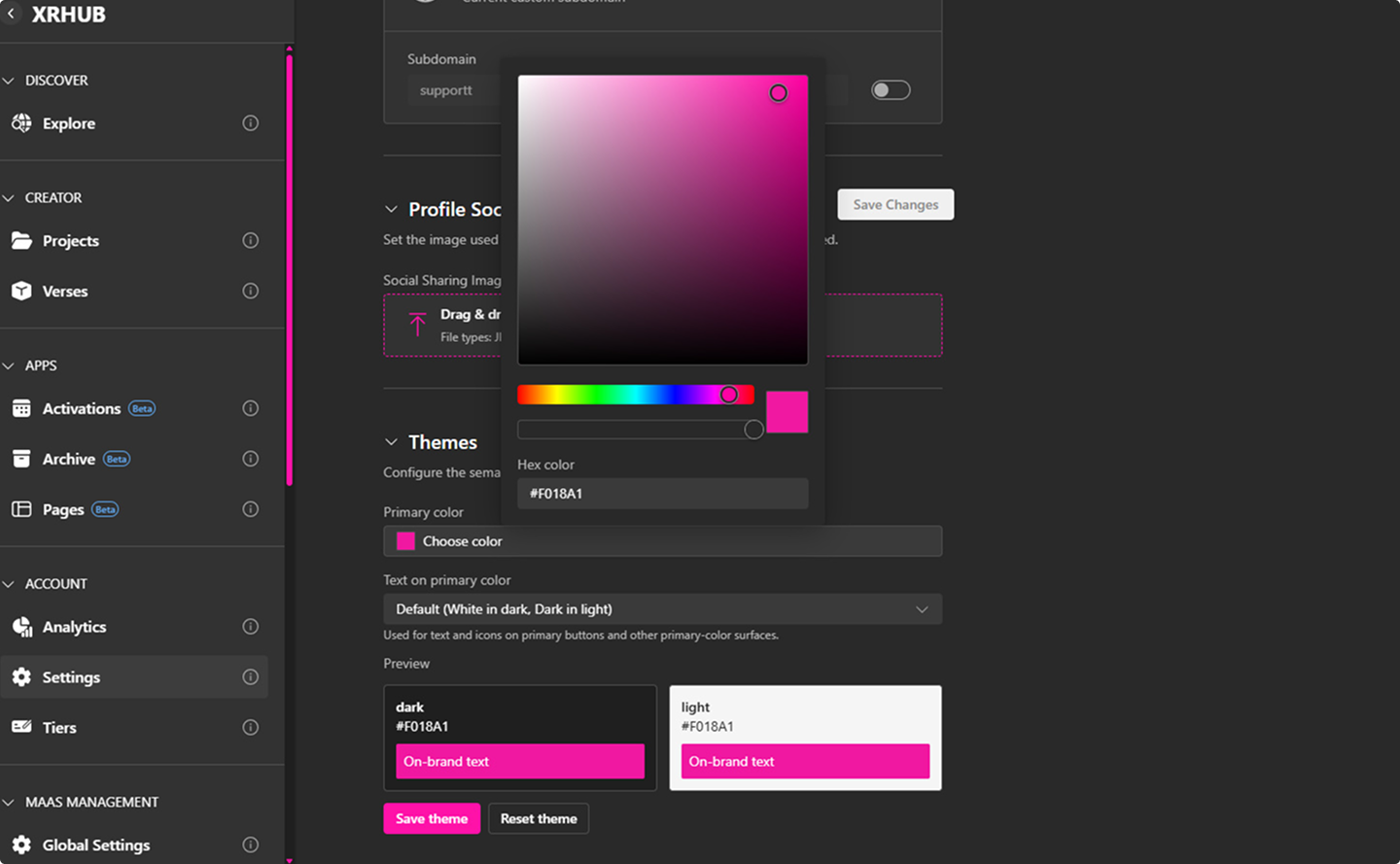
Themes
The Themes section controls the semantic colors used throughout your tenant and branded subdomain.
You can configure:
- Primary color — Sets the primary brand color used throughout supported interface elements.
- Text on primary color — Controls the color used for text and icons displayed on primary buttons and other primary-color surfaces.
Public Profile
Your custom subdomain is only accessible when your Public Profile is enabled.
To make your subdomain available to visitors:
- Open Settings → Privacy.
- Enable Public Profile.
- Save your changes.
For more information, see the Privacy Settings documentation.
🔹 Note: Your Public Profile must be enabled for your custom subdomain to be publicly accessible. If your profile is private, visitors will not be able to access your subdomain.
Visitor Experience
Users who visit your custom subdomain can:
- Browse your public profile.
- Explore your published Projects, Verses, and Activations.
- Experience your branded Explore page.
- Access the content you have made publicly available.
- Create their own Projects and Verses within your branded experience.
Your custom subdomain serves as a unique gateway to your XR experiences, allowing you to share your content through a personalized, branded URL. When combined with Workspaces, you can invite other users to collaborate within your subdomain, where they can create Projects, Verses, and Activations that are centrally managed and stored within your branded workspace.