Transcription Agent
A Transcription Agent enables real-time chat transcription captions within the Metaverse, allowing users who speak different languages to communicate during live interactions.
Follow the steps below to create and integrate your Transcription Agent.
Step 1: Create an OpenAI Account
- Visit the OpenAI Signup Page.
- Register a new account or log in if you already have one.
Step 2: Generate an OpenAI API Key
- Go to the OpenAI Dashboard.
- Navigate to the API Keys section.
- Click Create new secret key.
- Provide:
- A name tag for your key
- The appropriate project
- The required security permissions
- Copy and securely store your API key.
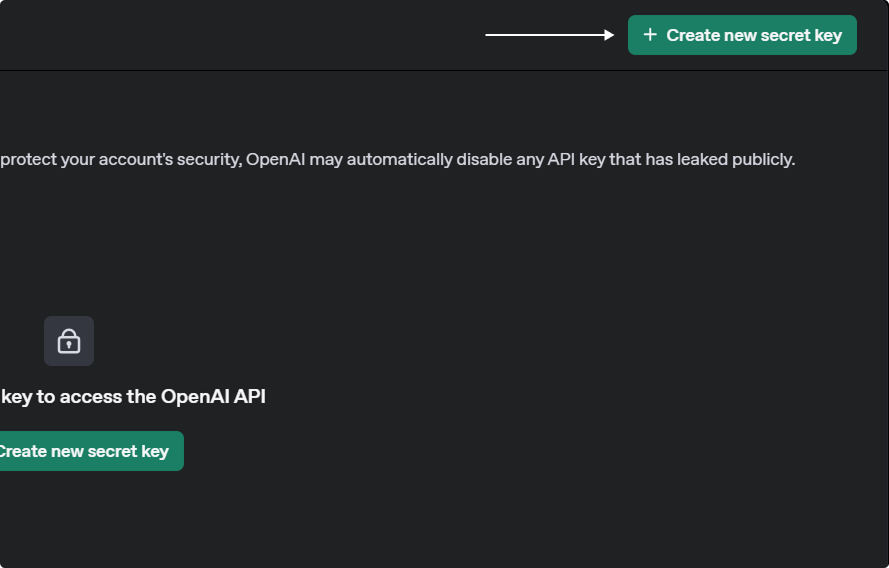
⚠️ Important: Your secret API key will only be shown once. Make sure to save it in a secure location.
Step 3: Integrate Your Transcription Agent in XR Creator Studio
1. Add an AI Agent Element
- Open your project in the XR Editor.
- In the Elements Menu, select AI Agent.
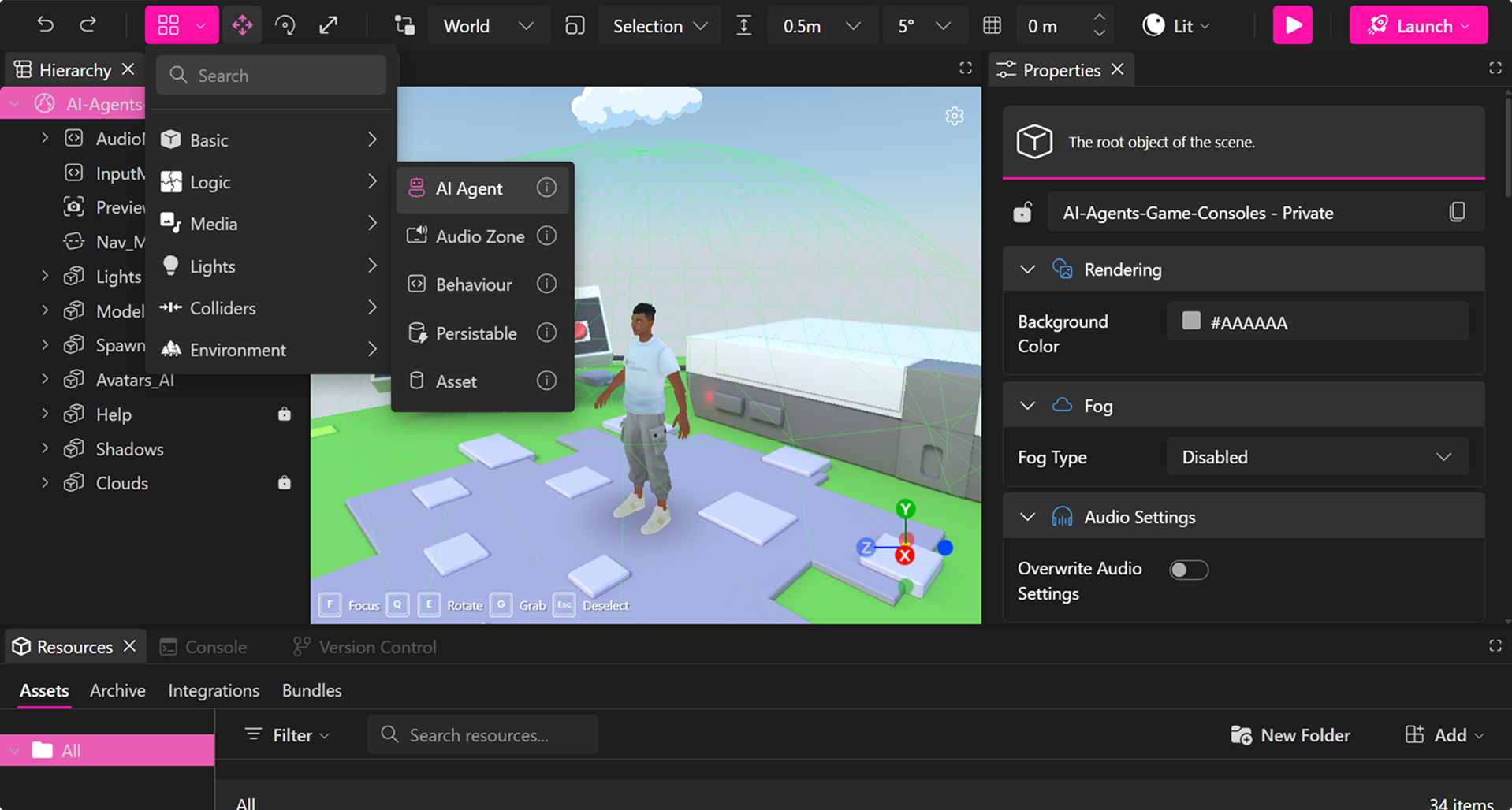
- Add the AI Agent element to your scene.
2. Configure AI Agent Properties
Open the Properties Panel of your Agent:
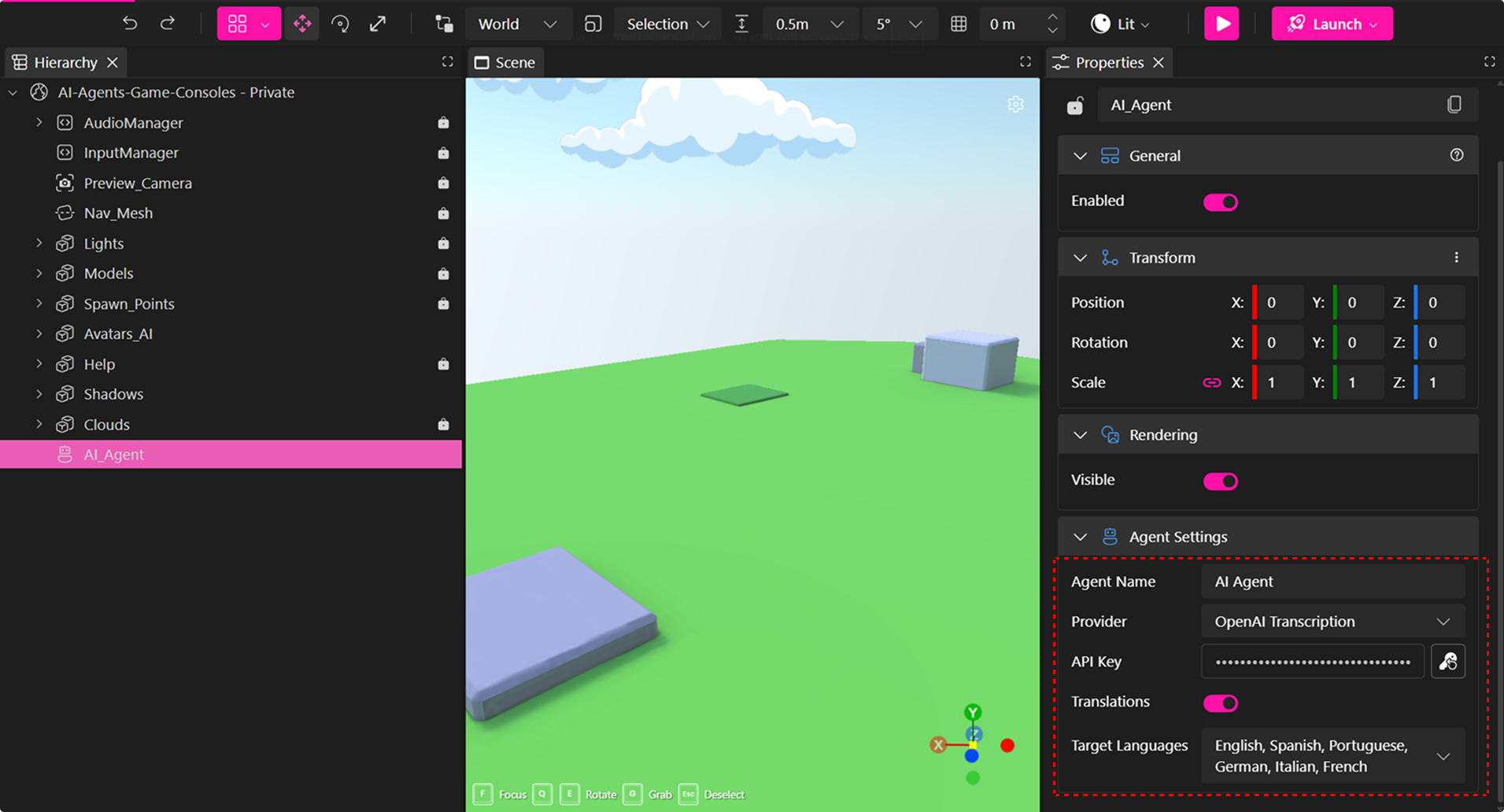
To configure your agent, fill the following inputs:
-
Agent Name: The name that will appear in the chat interface.
-
API Key: Paste your secret secret API key securely.
-
Enable Translation Captions: Enable to select one or multiple languages the agent will translate live captions into.
- Target Languages: Select one or multiple languages the agent will translate messages into.
The agent will automatically detect the original message language and provide transcriptions in the selected target languages.
- Target Languages: Select one or multiple languages the agent will translate messages into.
Final Step: Publish Your Project
- Save your changes.
- Publish your project.
A CC button will be added to your toolbar, which enables Transcription Agent will now be fully functional and ready to transcribe chat messages in real time within the Metaverse.