OpenAI Summary Agent
An OpenAI Summary Agent generates summaries from selected in-world data sources, such as Chat, Private Chat, Agent Chat, and Transcription.
Step 1: Create an OpenAI Account
Visit the OpenAI Signup Page and register an account.
Step 2: Generate an OpenAI API Key
- Go to the OpenAI Dashboard.
- Navigate to the API Keys section.
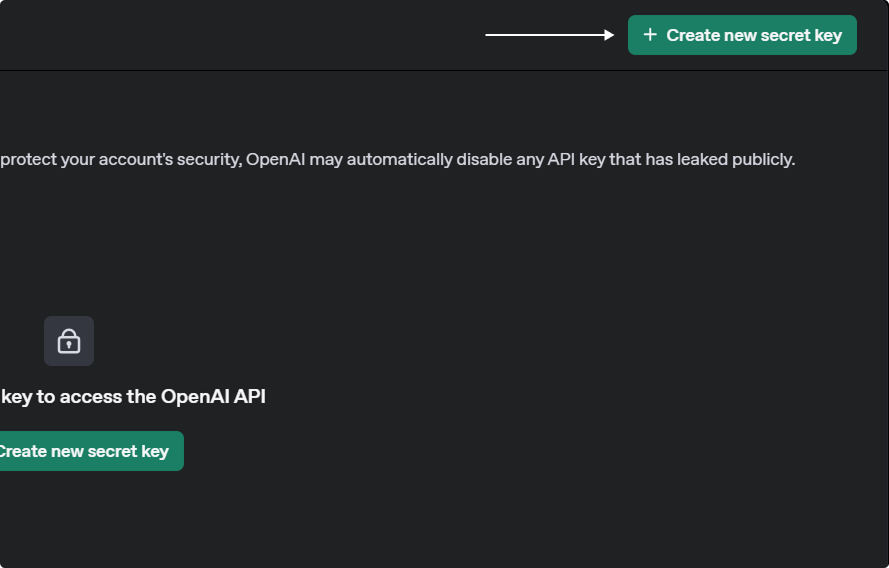
- Click Create new secret key.
- Provide a name tag, select a project, and set security permissions.
- Copy and store your API key safely, as it will not be shown again.
Once you’ve set up an OpenAI assistant, you can integrate it into your XR project.
Step 3: Integrate Your OpenAI Agent with XR Creator Studio
1. Add an AI Agent Element in XR Creator
- Open your project in the XR Editor.
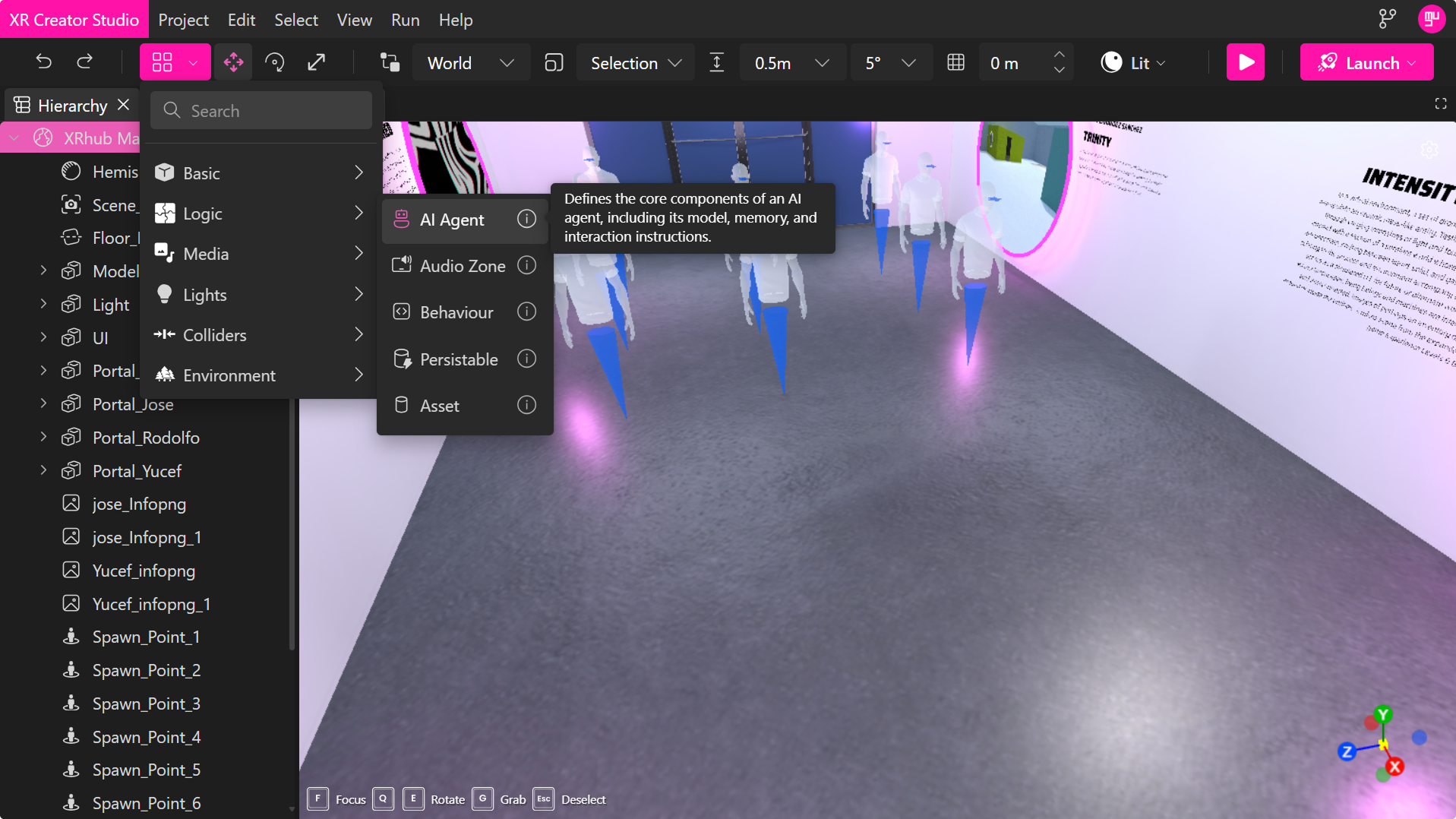
- In the Elements Menu, select AI Agent.
2. Configure AI Agent Properties
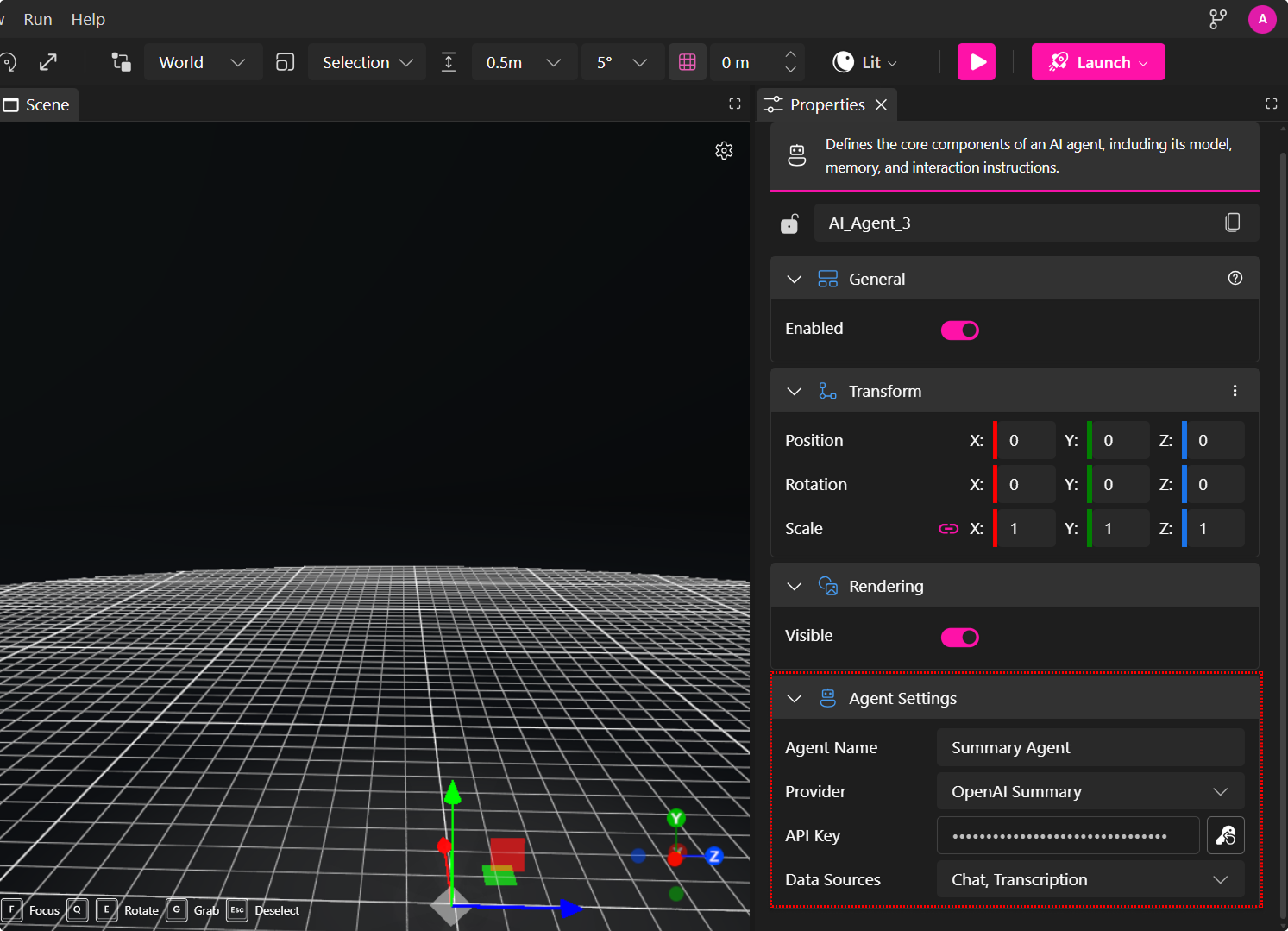
In the Properties Panel, set the parameters required to connect your assistant.
| Property | Description |
|---|---|
| Agent Name | The name that will appear in the chat interface. |
| Provider | Select OpenAI Summary. |
| API Key | Enter your secret API key securely. |
| Data Sources | Select the sources the agent should use to generate summaries. Available options include Chat, Private Chat, Agent Chat, and Transcription. |
Data Source Requirements
Some data sources depend on additional agents being present in the scene.
| Data Source | Requirement |
|---|---|
| Chat | Chat option should be enabled. |
| Private Chat | Chat option should be enabled. |
| Agent Chat | Requires at least one AI Agent to be present in the scene. The Summary Agent can only summarize conversations generated by active agents. |
| Transcription | Requires a Transcription Agent to be present in the scene. Without a Transcription Agent, voice conversations will not be converted into text and cannot be included in summaries. |
🔹 Note: If a required agent is not present, the Summary Agent will still function, but no data will be collected from that source.
Once the properties are configured, publish your project to make the Summary Agent available in your Verse.
Generate Summary
The Generate Summary feature allows participants to create AI-generated summaries of activity within a Metaverse room. Summaries can be generated from chat messages, voice transcriptions, private conversations, and agent interactions, making it easy to review discussions, decisions, and key topics without reading through the entire session.
Accessing Generate Summary
- Join a Metaverse room.
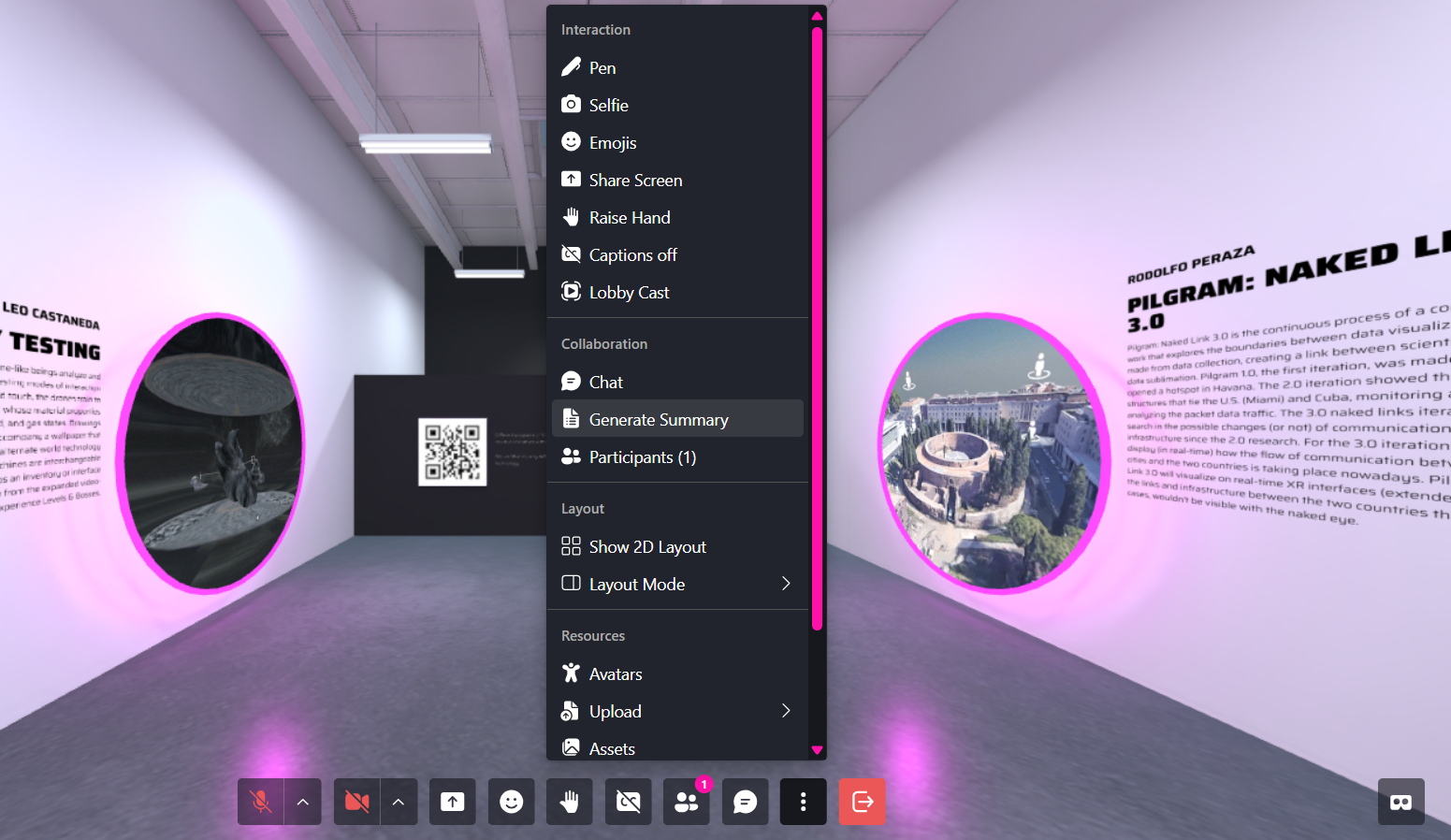
- Open the More Options menu (⋮) from the bottom toolbar.
- Under Collaboration, select Generate Summary.
- Select your desired Time Range.
- Choose the File Format.
- Select one or more Data Sources.
- Click Generate.
- When processing is complete, a notification will appear indicating that the summary is ready.
- Click Download from the notification.
- Save the generated file to your device.
The downloaded file will contain the AI-generated summary in the selected format.
Configuring a Summary
Before generating a summary, you can customize several options.
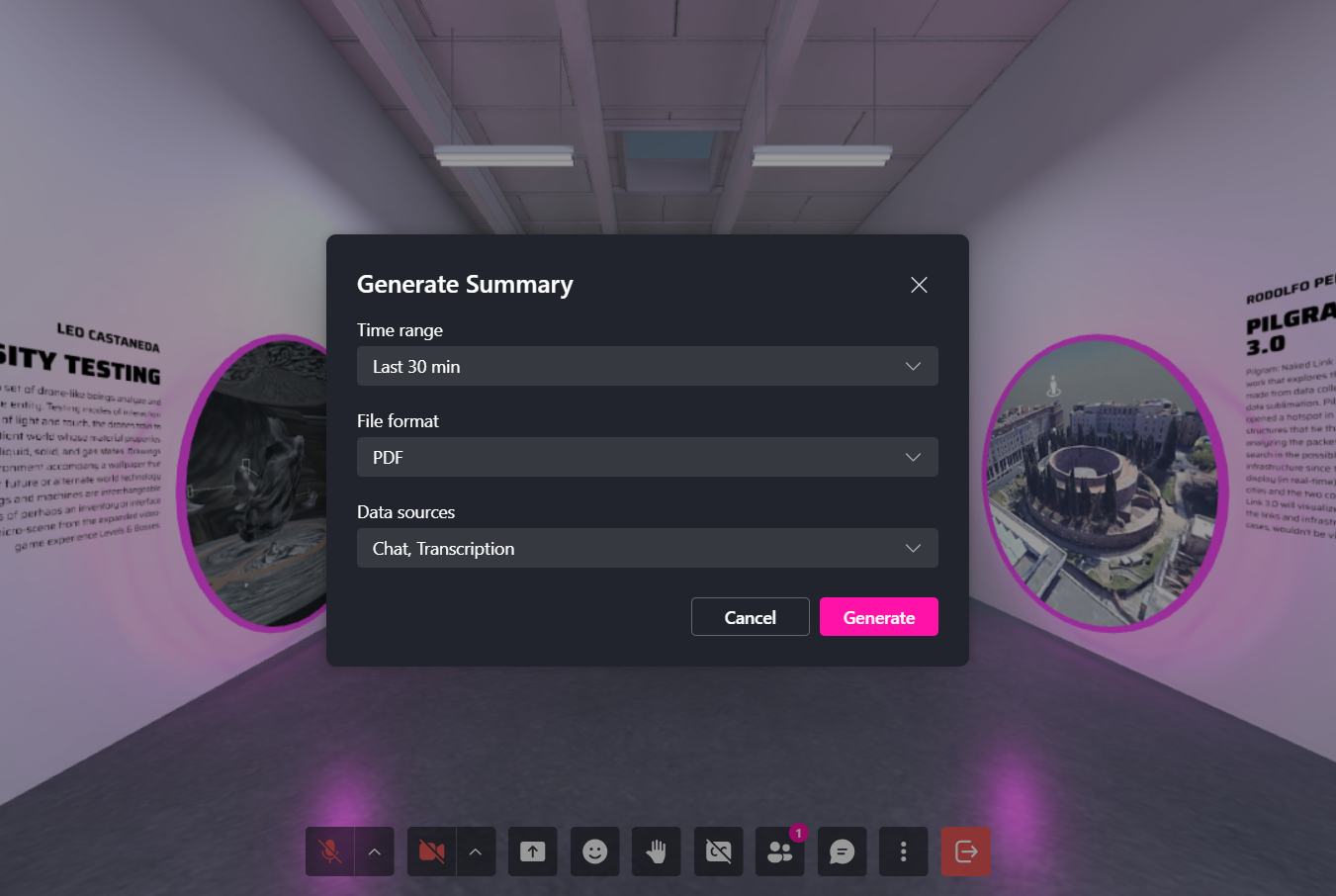
- Time Range
Choose the period of activity you want to summarize.
Available options include:
| Option | Description |
|---|---|
| Last 15 min | Summarizes activity from the previous 15 minutes. |
| Last 30 min | Summarizes activity from the previous 30 minutes. |
| Last 1 hour | Summarizes activity from the previous hour. |
| Last 3 hours | Summarizes activity from the previous 3 hours. |
| Last 24 hours | Summarizes activity from the previous 24 hours. |
| Custom | Select a custom date and time range. |
🔹 Note: Longer time ranges may take slightly longer to process depending on the amount of data.
- File Format
Select the format for the generated summary.
| Format | Description |
|---|---|
| Generates a downloadable PDF document suitable for sharing, printing, or archiving. | |
| Markdown | Creates a Markdown file that can be edited or used in documentation systems. |
| Text | Generates a plain text file for simple viewing or import into other tools. |
- Data Sources
Choose which room data should be analyzed when generating the summary.
| Source | Description |
|---|---|
| Chat | Public chat messages exchanged in the room. |
| Private Chat | Direct messages exchanged between participants. |
| Agent Chat | Conversations involving AI Agents in the room. |
| Transcription | Speech-to-text transcripts generated from voice conversations. |
You can select one or multiple data sources depending on the information you want included in the summary.
Examples:
- Selecting Chat and Transcription summarizes both written messages and spoken conversations.
- Selecting Agent Chat focuses on interactions with AI agents.
- Selecting all sources creates a comprehensive room summary.