Sellables
The Sellables page allows you to create, edit, and manage all purchasable offerings for your platform. Sellables are organized into two types: Tiers and Tickets.
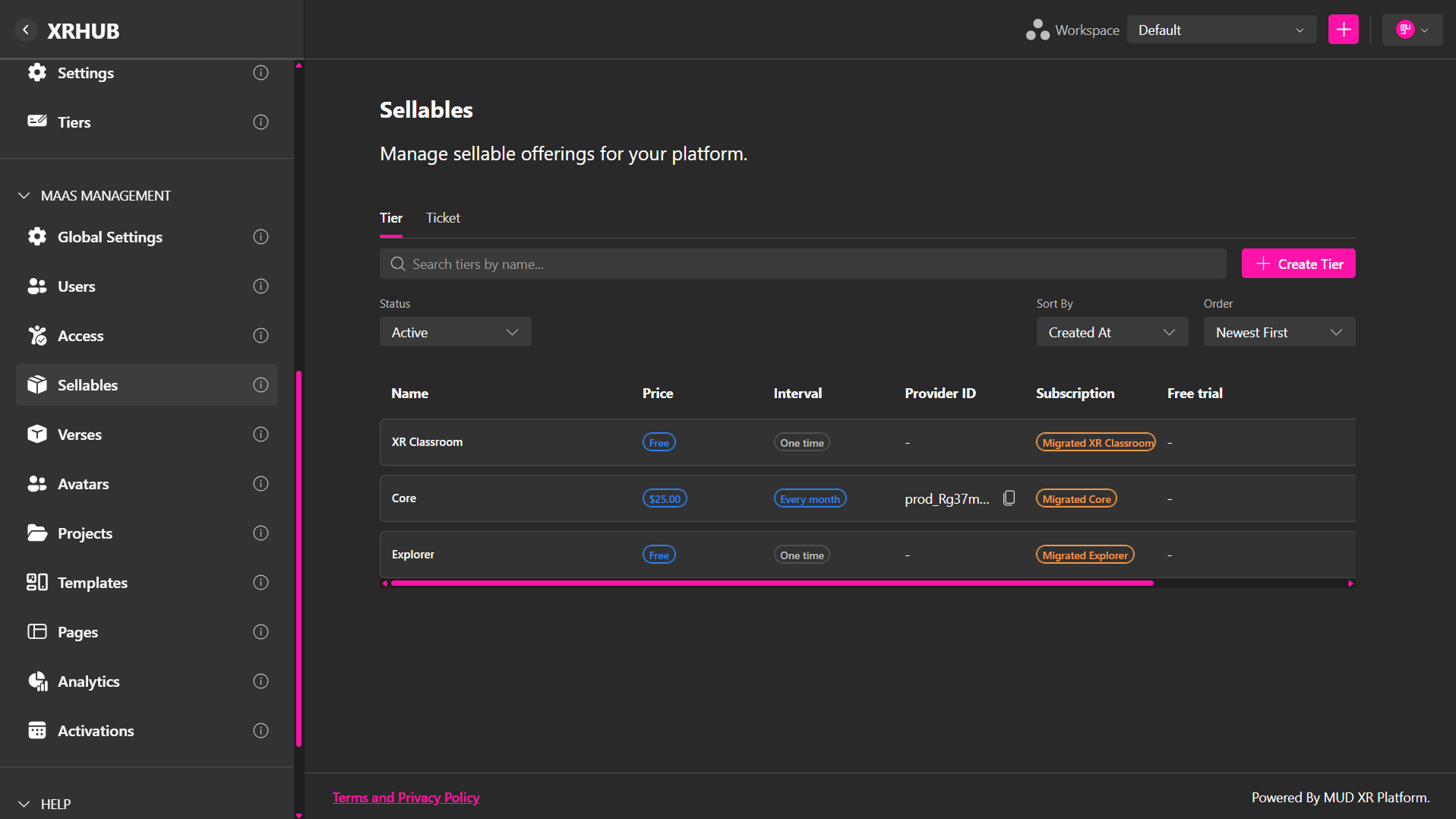
- Tiers – Purchasable offerings that can be configured as recurring subscriptions or one-time purchases and can be connected to a Subscription Template.
- Tickets – One-time purchasable offerings.
From the Sellables page, you can configure pricing, billing intervals, promotions, free trials, subscription templates, and other settings that determine how an offering is sold and what access customers receive.
Tiers
The Tier tab displays all available Tiers and allows you to search, filter, sort, create, and manage them.
Create a Tier
Click Create Tier to open the Tier creation dialog.
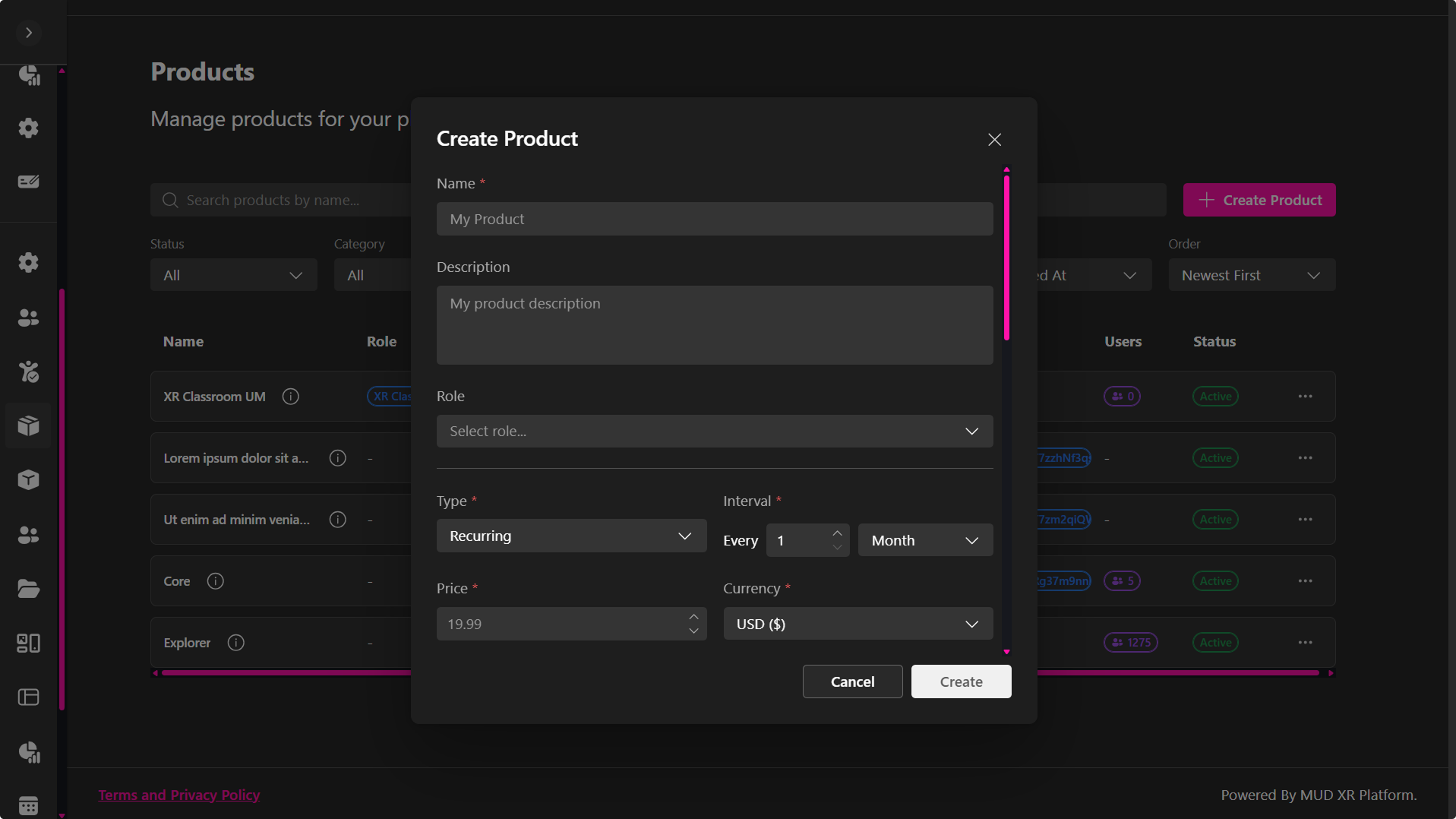
1. Basic Information
Provide the basic information for the Tier:
- Name – The display name of the Tier.
- Description (Optional) – A short description of the Tier.
2. Pricing
Configure how the product is billed:
- Type – Choose whether the Tier is a One-time purchase or a Recurring subscription.
- Grant lifecycle – For One-time Tiers, choose how long the access granted by the purchase remains active:
- Fixed duration – Access is granted for a specific period of time.
- Perpetual – Access does not expire.
- Grant lifecycle – For One-time Tiers, choose how long the access granted by the purchase remains active:
- Interval – Defines the duration of access for a Fixed duration one-time Tier. For example, For 1 Month grants access for one month after purchase. For recurring Tiers, the interval defines how frequently the customer is billed.
- Price – Enter the purchase price.
- Currency – Select the currency used for billing.
3. Promotions
Use Promotions to add percentage-based discounts to the Tier.
Click Add promotion and configure:
- Code – Enter the promotion code customers will use.
- Display name (Optional) – Add a customer-facing name for the promotion.
- Discount (%) – Set the percentage discount.
- Starts at (Optional) – Specify when the promotion becomes available.
- Ends at (Optional) – Specify when the promotion expires.
You can add multiple promotions to a Tier or select Remove to delete a promotion before creating or updating the Tier.
Note: Percentage discounts are one-use and restricted to the Tier when it is published.
4. Free Trial
Enable Offer a free trial when you want customers to try a recurring Tier before being charged.
5. Subscription Template
Select a Subscription Template to define the resources and access included with the Tier.
Subscription Templates are created and managed under Access Management → Subscription Templates. They allow the same configuration of limits and resources to be reused across Tiers.
6. Tags
Use Tags to categorize Tiers and control where they are used throughout the platform.
Enter a tag and press Enter or add a comma to create it.
7. Subscription Tier Visibility
Enable Show in subscription tiers to include the Tier among the subscription options displayed to users on the XRHub Subscriptions page, making it visible and available for users to purchase.
Managing Tiers
Each Tier row includes a ⋯ menu with:
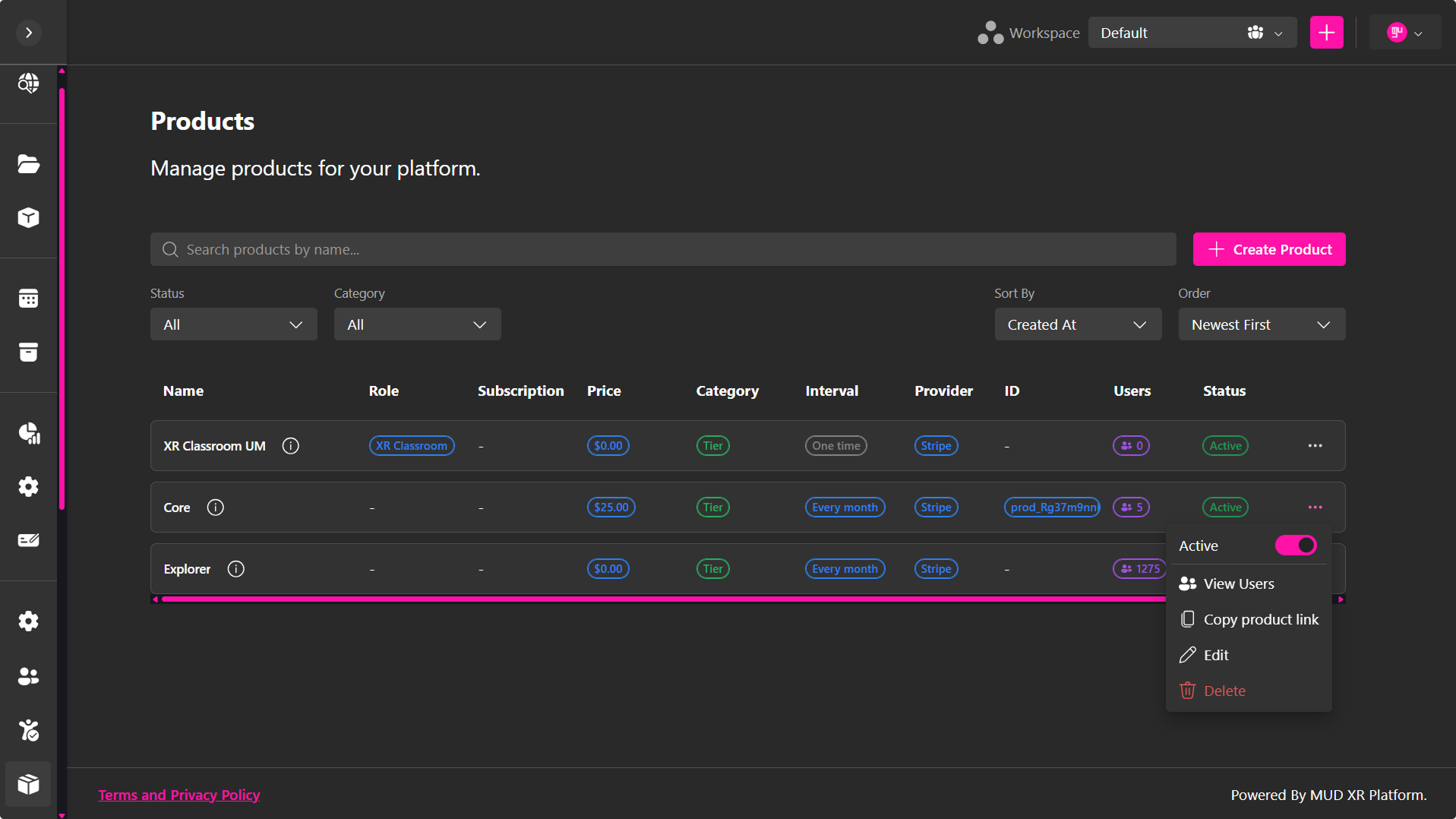
- Active Toggle – Enable or disable the Tier. Inactive Tiers cannot be purchased but remain available on the Sellables page for management and tracking.
- View customers – See the customers associated with the Tier. This allows you to monitor who has purchased or subscribed to the offering.
- Copy public link – Copy a direct link to the Tier that can be shared with users, allowing them to purchase it directly.
- Edit Tier – Modify the Tier's settings, including pricing, billing, promotions, Subscription Template, and other configuration options.
- Delete Tier – Permanently remove the Tier.
Tickets
The Ticket tab displays all tickets created for Activations. All activation tickets can be viewed and managed from this tab in one place.
From the Ticket tab, you can search, filter, sort, and manage existing tickets.
Managing Tickets
Each Ticket row includes a ⋯ menu with:
- Active Toggle – Enable or disable the Ticket.
- Copy public link – Copy a direct link to the Ticket that can be shared with users, allowing them to purchase it directly.
- Delete Ticket – Permanently remove the Ticket from the platform.
The Ticket table also displays key information for each activation ticket, including its Name, Price, Interval, Provider ID, Customers, and Status.