Users
The User Management page lets you manage users, groups, and invitations across the XRHUB platform. This area centralizes all account-level administration and gives you precise control over access, roles, and subscriptions.
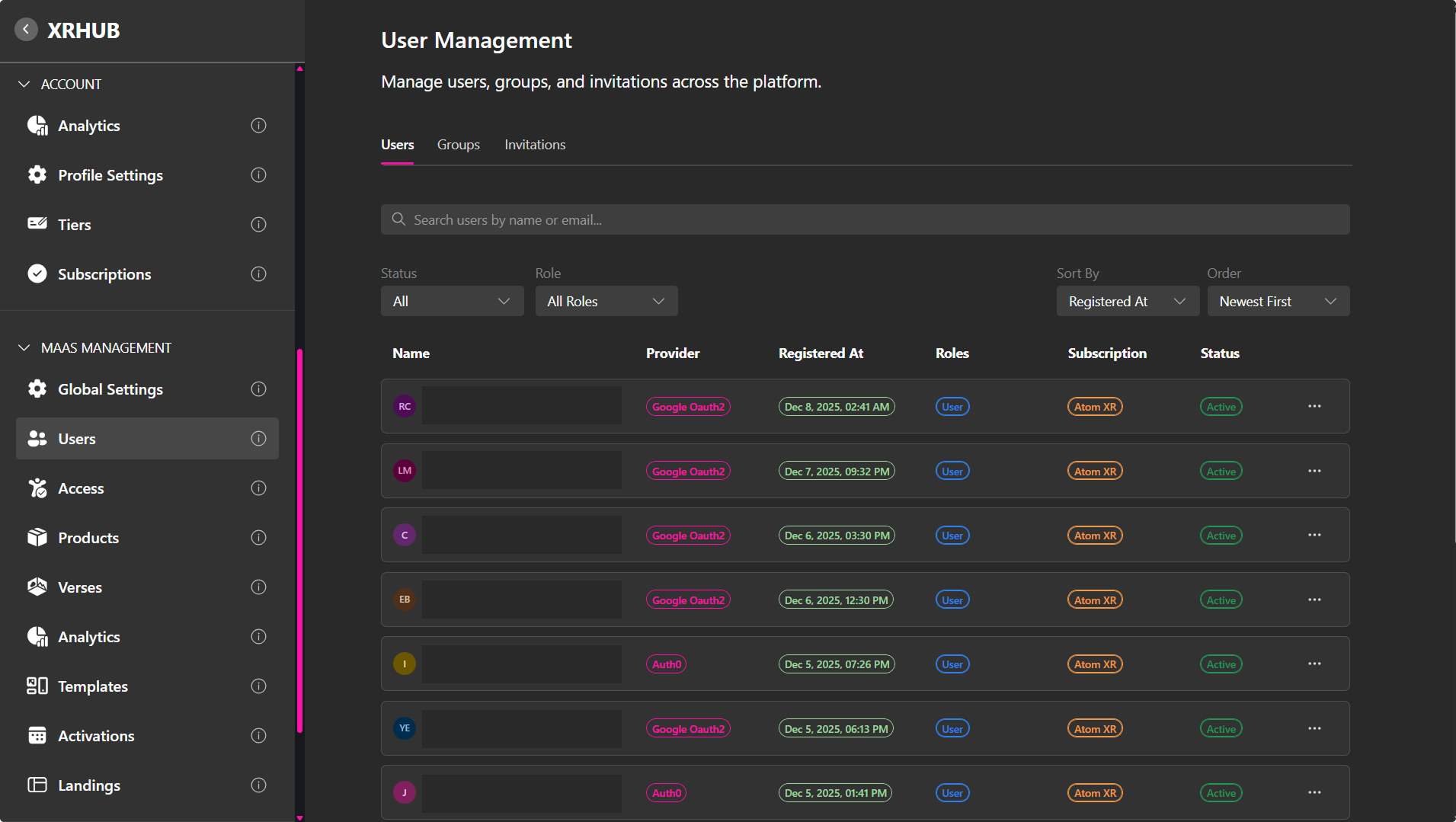
The User Management is divided into three tabs:
-
Users: View and manage individual user accounts.
-
Groups: Organize users into structured groups and assign shared roles or subscriptions.
-
Invitations: Invite new users individually or in bulk.
Users Tab
The Users tab lists users across the platform and provides an overview of their account information.
Each user entry includes:
- Name – The user's name and email address.
- Provider – The authentication method used by the user, such as Email or Auth0.
- Registered At – The date and time the user registered.
- Roles – The administrative or management Role assigned to the user.
- Subscription – The Subscription Template currently defining the user's platform resource limits.
- Groups – Groups the user belongs to.
- Status – Indicates whether the account is currently active.
User Management Options
Each user row includes a ⋯ menu with the following options:

- Active – Toggle the user's status between Active and Banned. Users are active by default; banned users cannot access the platform.
- Limits Enabled – Enable or disable platform usage limits based on the existing platform subscriptions. If disabled, users may exceed the limits defined by their base tier or subscription in your MaaS configuration.
- Update Subscription – Assign or change the user's Subscription Template.
- View Profile – Open the user's profile to review additional account information.
- Delete – Permanently remove the user from the platform.
Managing a User's Groups
Select Manage Groups to control which Groups a user belongs to.
A user can belong to multiple Groups. Because each Group can have its own Role, the user receives the Role configured for each Group they belong to.
To manage Group membership:
- Open the user's ⋯ menu.
- Select Manage Groups.
- Select or clear the Groups as needed.
- Click Save.
Note: Groups provide a convenient way to assign the same administrative permissions and resource configuration to multiple users without configuring each user individually.
Updating a User Subscription (Assign Template to User)
Use Update Subscription to manage user limits such as storage, concurrent users, and verses.
- Go to User Management → Users.
- Open the user's ⋯ menu.
- Click Update Subscription.
- Choose a Template (e.g., XR Permissions). You can create new subscription templates or edit existing ones in the Access Management page.
- In the Assign Template to User dialog, select a Template from the dropdown.
- Review the resource limits included in the selected template. Depending on the template, these may include:
- Storage – Available storage for uploaded assets.
- Concurrent Users – Maximum number of users who can simultaneously access published Verses.
- Microphones – Maximum number of simultaneous microphones.
- Cameras – Maximum number of simultaneous cameras.
- Screen Shares – Maximum number of simultaneous screen shares.
- Projects – Maximum number of Projects available.
- Workspaces – Maximum number of Workspaces available.
- Workspace Members – Maximum number of Workspace members.
- Instant Access – Maximum number of Instant Access entries.
- Additional resource limits may be displayed depending on the selected template.
- Optionally, configure the duration of the assignment:
- Starts At – Set the date when the Subscription Template becomes active. Leave blank to start immediately.
- Ends At – Set the date when the Subscription Template expires. Leave blank for no expiration.
- Click Assign to apply the Subscription Template to the user.
- The user's Subscription column updates to display the assigned template.
🔹 Pro Tip: Review the resource summary before assigning a template to make sure it provides the appropriate limits for the user. Use Starts At and Ends At when access should only be available for a specific period, such as for an event, workshop, or temporary program.
You can update or replace the Subscription Template at any time. If the Subscription Template sets higher limits than the base subscription, it will override the user's current storage, user, and Verse limits on the platform.
Groups
The Groups tab allows you to organize users and manage shared access more efficiently.
A Group can have a Role and a Subscription Template, allowing multiple users to receive the same administrative permissions and resource limits without configuring each account individually.
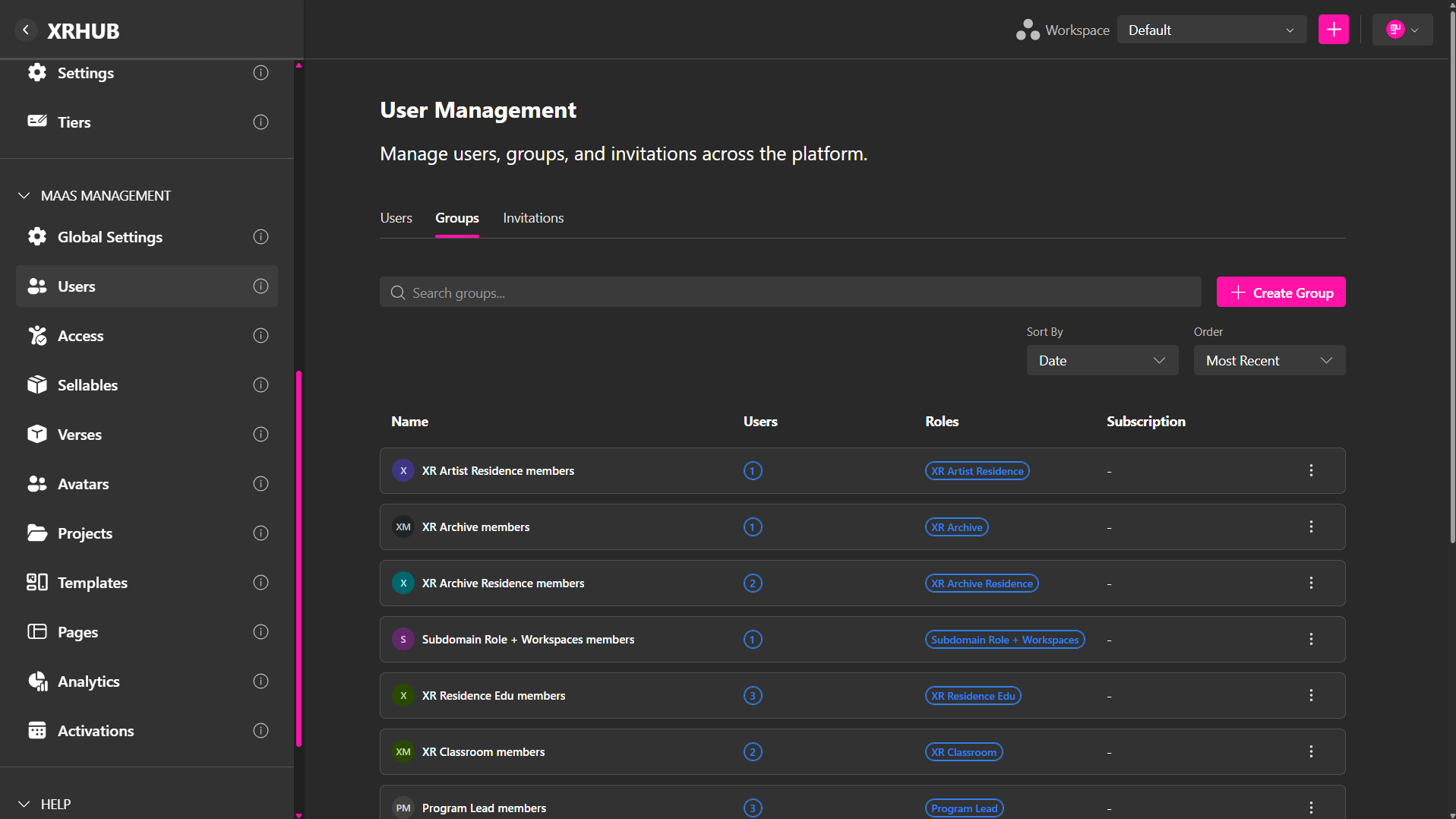
Groups allow you to:
- Assign a shared role – All members inherit the same permission level.
- Assign a shared subscription template – Members inherit the same limits.
- Manage group members – Add, remove, or promote users.
Creating and Managing Groups
To create a new Group:
- Open User Management → Groups.
- Click Create Group.
- Enter a Name.
- Select the Role that should be assigned through the Group.
- Click Create.
The selected Role determines the administrative or management permissions inherited by Group members.
Each group row includes a ⋯ menu with:
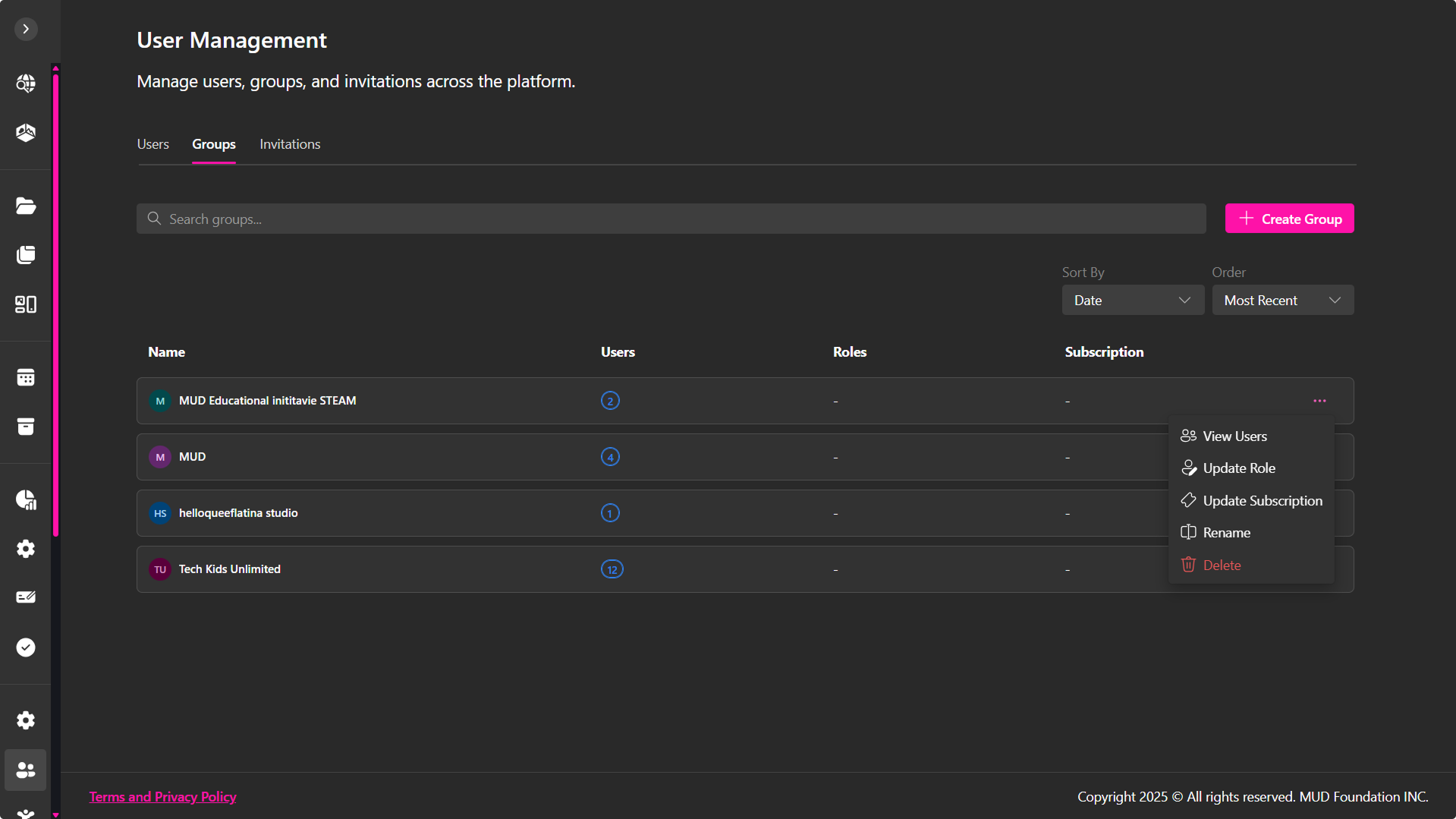
- View Users – Display group members.
- Update Role – Apply a shared role.
- Update Subscription – Apply shared limits.
- Rename – Change the group name.
- Delete – Remove the group entirely.
Managing Group Roles
- Open the group’s ⋯ menu and select Update Role.
- Choose a role from the role list (Admin, Landing Manager, Build Manager, Analytics, etc.). Roles are determined by permission sets, which you configure in the Access Management.
- Apply the role to the entire group.
Roles provide additional administrative and management permissions. Users belonging to the Group receive the permissions associated with its Role.
This makes Groups useful when several users require the same management access.
Note: A user can belong to multiple Groups and receive the Role configured on each Group.
All users in the group automatically inherit the updated role.
Assigning a Subscription to a Group
A Subscription Template can be assigned directly to a Group to provide its users with a shared resource configuration.
To assign one:
- Open the group’s ⋯ menu.
- Select Update Subscription.
- Choose a subscription template and review its limits. You can create new subscription templates or edit existing ones in the Access Management. page.
- (Optional) Set start and end dates.
- Assign the subscription.
The Group's Subscription column displays the currently assigned Subscription Template.
Note: Roles and Subscription Templates serve different purposes. The Role determines which administrative or management actions Group members can perform, while the Subscription Template determines how many platform resources are available to them.
Viewing and Managing Group Members
Select View Users to open the Group's member list.
The page displays each member's:
- Name
- Provider
From this page, you can:
- Add Users – Add additional existing users to the Group.
- Remove from Group – Remove a member from the Group without deleting their user account.
Invitations Tab
The Invitations tab allows you to invite new users into your MAAS environment and track all pending invitations.
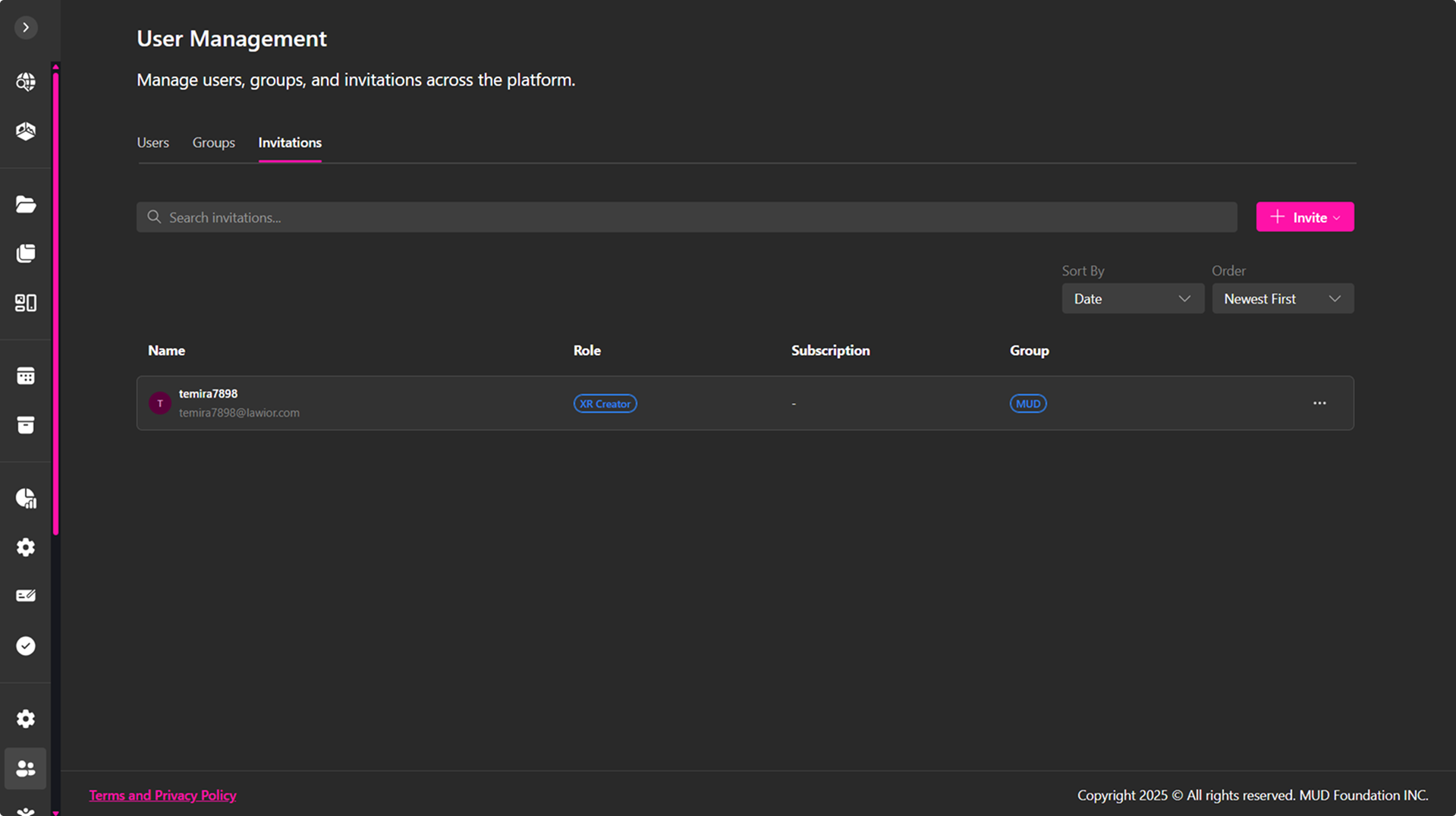
Each invitation entry displays:
- Email / Identifier
- Assigned Role
- Assigned Group (if selected)
- Subscription Template (if applied)
Invitations automatically expire after 7 days.
Invitation Actions
Each invitation row includes a ⋯ menu with:
- Resend – Send the invitation email again.
- Revoke – Cancel and remove the invitation.
Sending Invitations
Click Invite to open the invitation dialog. You can invite one or multiple users.
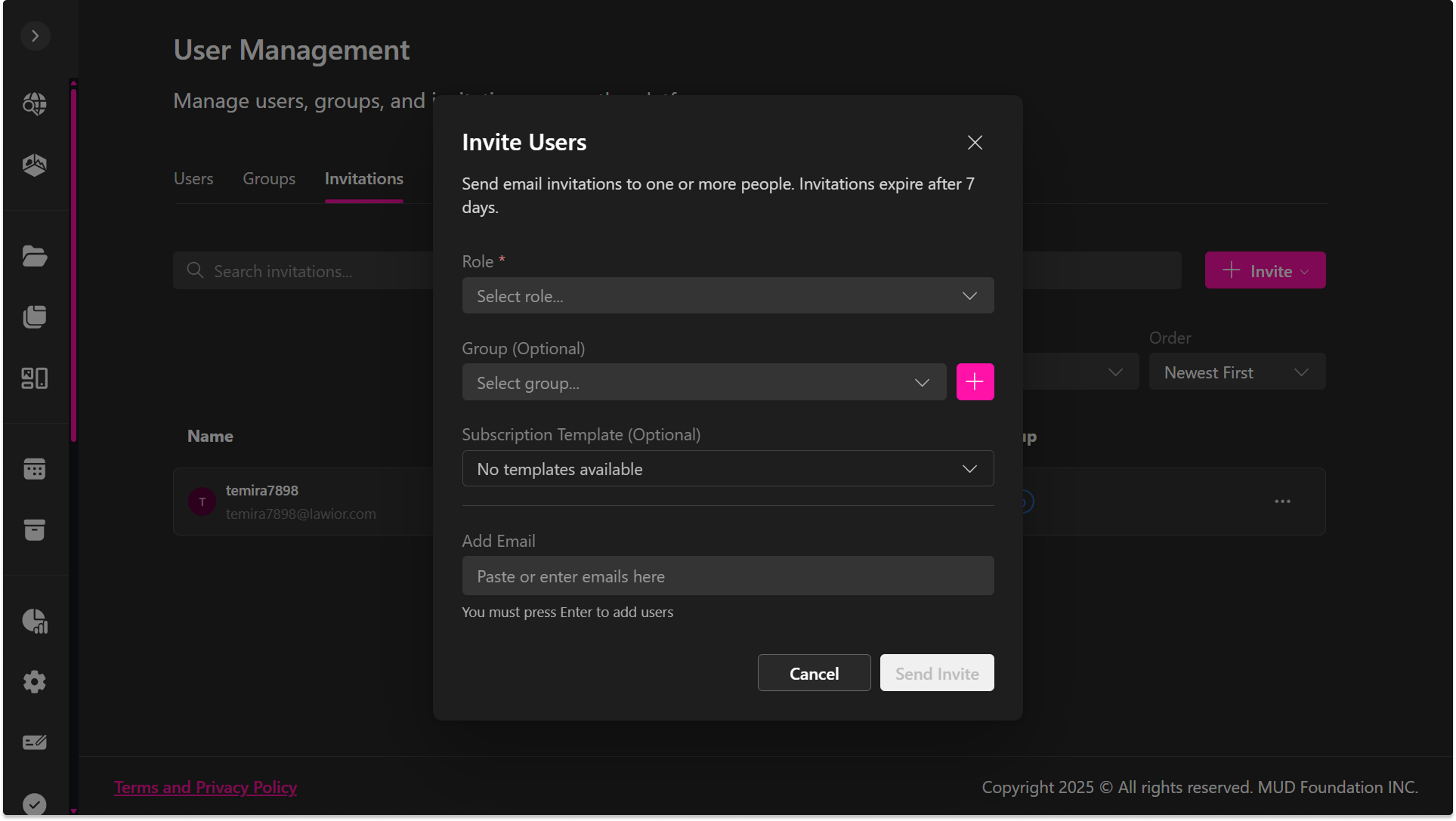
Invite Users Dialog
You can pre-configure the user's setup before they join:
- Role (Required) – The role the user will receive after accepting the invite. To review the permissions associated with each role, see Access Management. You can edit existing roles or create new ones as needed.
- Group (Optional) – Assign the user to an existing group or create a new one with the + button.
- Subscription Template (Optional) – Automatically apply resource limits upon account activation. You can create new subscription templates or edit existing ones in the Access Management. page.
- Add Email – Paste or type multiple emails; press Enter to add each one.
Click Send Invite to distribute all invitations.
Users automatically inherit the selected role, group membership, and subscription limits once they accept the invitation. If no selections are made, default settings apply.