Verses
The Verse Management page gives you full control over all published and unpublished verses across the entire platform. Here, you can search, review, publish, share, assign, and manage every verse created by users. This is also where you make verses public and available in the Community tab.
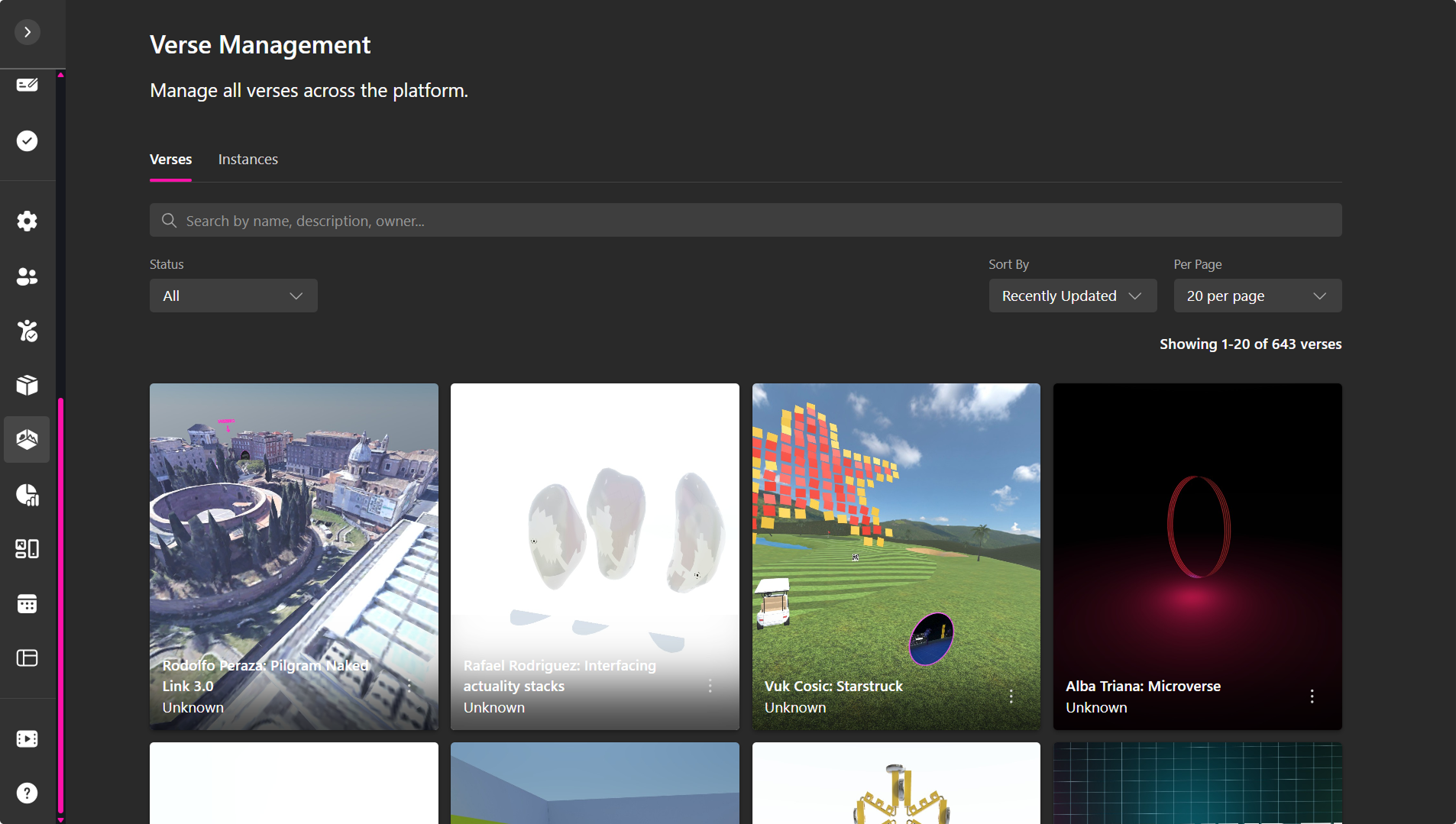
The page is divided into two main tabs:
- Verses – Manage all primary verses.
- Instances – Manage clones, copies, or generated instances of verses.
Both tabs provide filtering, sorting, searching, and quick actions for fast navigation.
Verses Tab
The Verses tab lists all verses created across the platform, whether published or unpublished.
Each verse card displays:
- Thumbnail preview
- Verse name
- Owner/creator
- Publication status (Published / Unpublished)
- A ⋯ menu with additional actions
- A group icon in the top-right corner if the verse is assigned to one or more groups
Verse Actions
Click the ⋯ menu on any verse to open its management options.
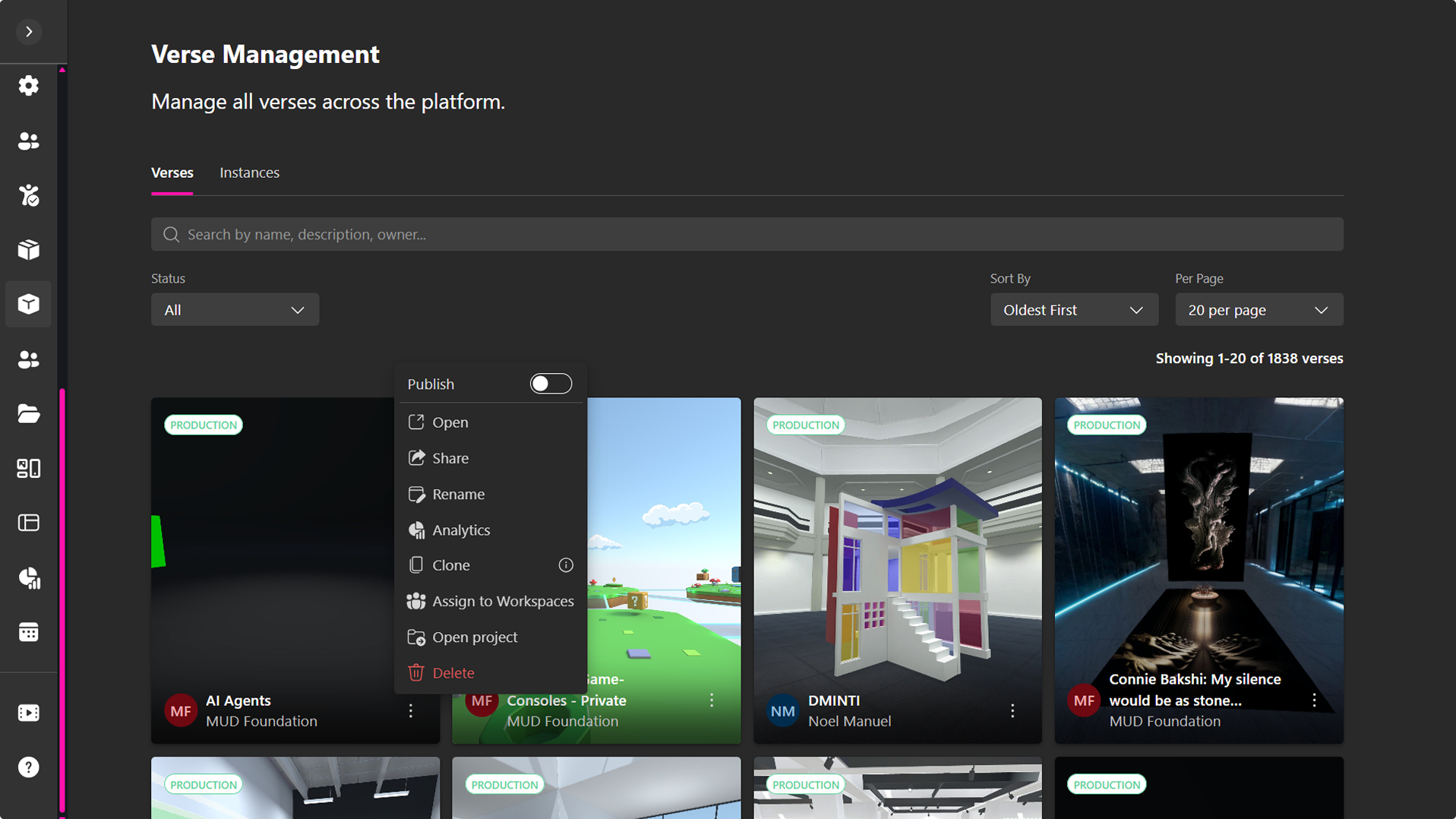
Publish
Toggle Publish to make the verse public. Published verses become available in:
- The Community tab
- Any other location where public verses appear
Unpublished verses remain private and visible only to the owner and admins.
-
Open: Opens the verse in a new tab so you can explore it directly.
-
Share: Generates a public URL and QR code to share the verse with others.
-
Rename: Change the verse name.
-
Analytics: Access detailed verse analytics, including unique visits, time spent, and user behavior.
-
Clone: Clone this verse into your workspace.
-
Assign to Workspaces: Assign the verse to one or multiple workspaces. Workspace members will then be able to:
- Access the verse
- Create instances of the verse
To assign a verse:
- Select Assign to Workspace from the ⋯ menu.
- Check the workspace you want to assign.
- Click Save Changes.
You can unassign it at any time by deselecting the workspace.
Group assignment allows controlled access and collaborative use of verses.
-
Open Project: Open the source project associated with the Verse.
-
Delete: Permanently remove the verse.
Instances Tab
The Instances tab displays all instances created from any verse in the platform.
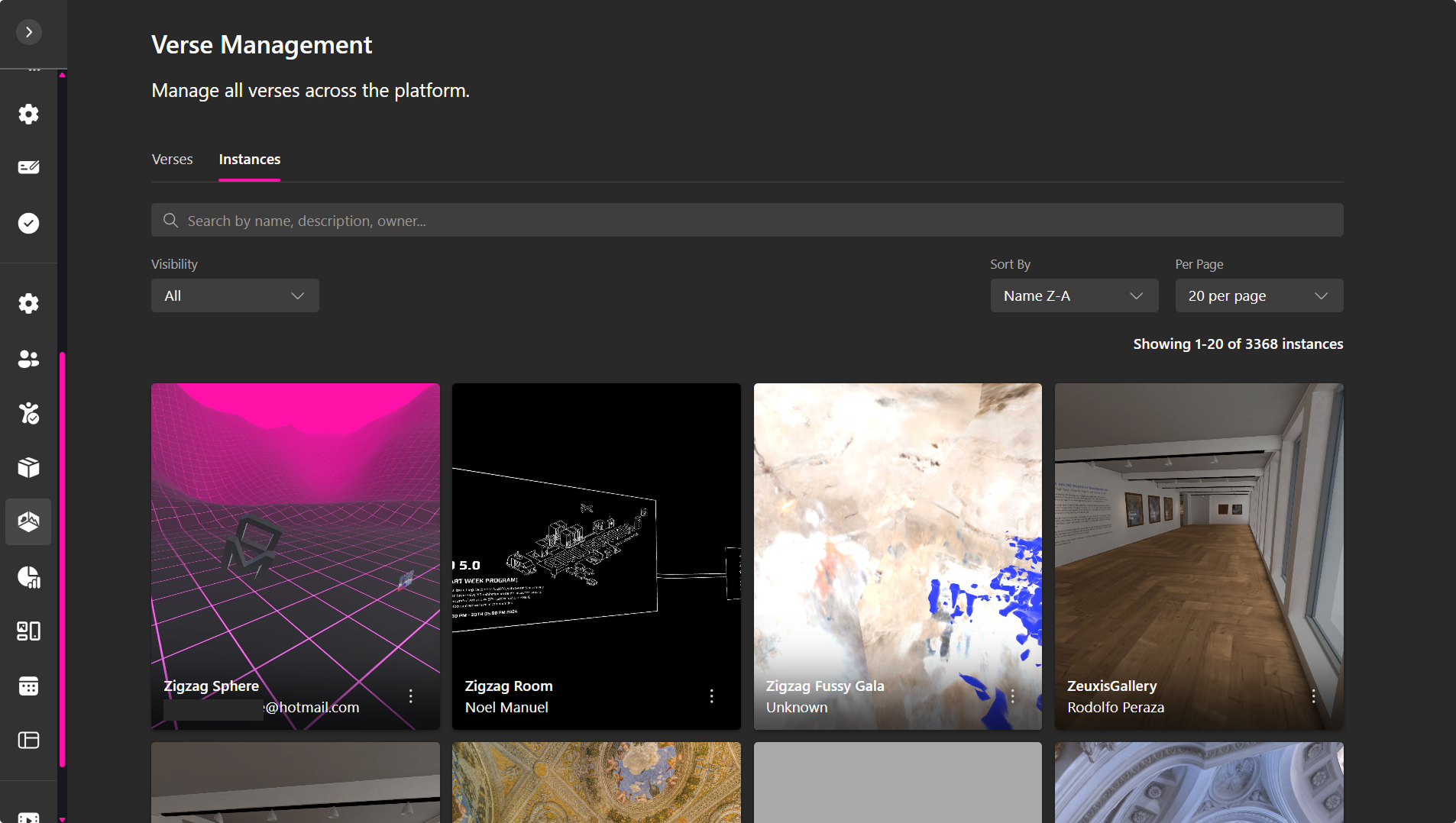
Each instance card includes:
- Thumbnail preview
- Instance name
- Owner/creator
- Publication status (Published / Unpublished)
- A ⋯ menu with additional actions
- A group icon if the original verse is assigned to groups
Instance Actions
Click the ⋯ menu on any instance to open actions:
- Publish – Make the instance public. Published instances become available in the Community tab.
- Open – Explore the instance.
- Share – Copy the shareable URL or QR code.
- Analytics – View instance-specific engagement data.
- Delete – Remove the instance.